I need help enabling Remote Desktop on my Windows 10 PC. I was trying to connect from another computer for remote access, but the option seems turned off or missing in settings. I need to get this working so I can access my files and apps from home.
I ran into this before, and the first thing I’d check is the Windows edition on the remote machine. If it’s Windows 10 Home, inbound Remote Desktop is dead on arrival. Home does not accept RDP host connections. You can poke at services, firewall rules, and registry stuff for hours and it still won’t take. You need Pro, Enterprise, or Education for the PC to act as the host.
If the remote PC already has Pro, I’d go through the boring checklist first, because one of these is usually the miss:
1. Open Settings, then System, then Remote Desktop, and make sure it’s turned on. You can also check the old Remote tab in System Properties if you trust old menus more than the new ones.
2. Make sure the account you’re using has a password. No password, no RDP login in most setups.
3. Confirm your user is allowed to connect remotely.
4. Check the network profile. I’ve seen machines sit on Public and block stuff you expected to work.
5. Make sure the PC isn’t sleeping when you try to reach it. This one got me once and I felt dumb after.
6. Look at Windows Firewall and confirm Remote Desktop is allowed.
If you’re staying inside your own network, use the local IP of the target machine. If you’re coming in from outside the house or office, then you also need port 3389 forwarded through the router with NAT set up right. This is where a lot of people lose a whole evening. One wrong internal IP, one stale DHCP lease, one weird router menu, and you’re stuck.
I’d leave NLA enabled unless you’re connecting from some old client box or weird legacy setup.
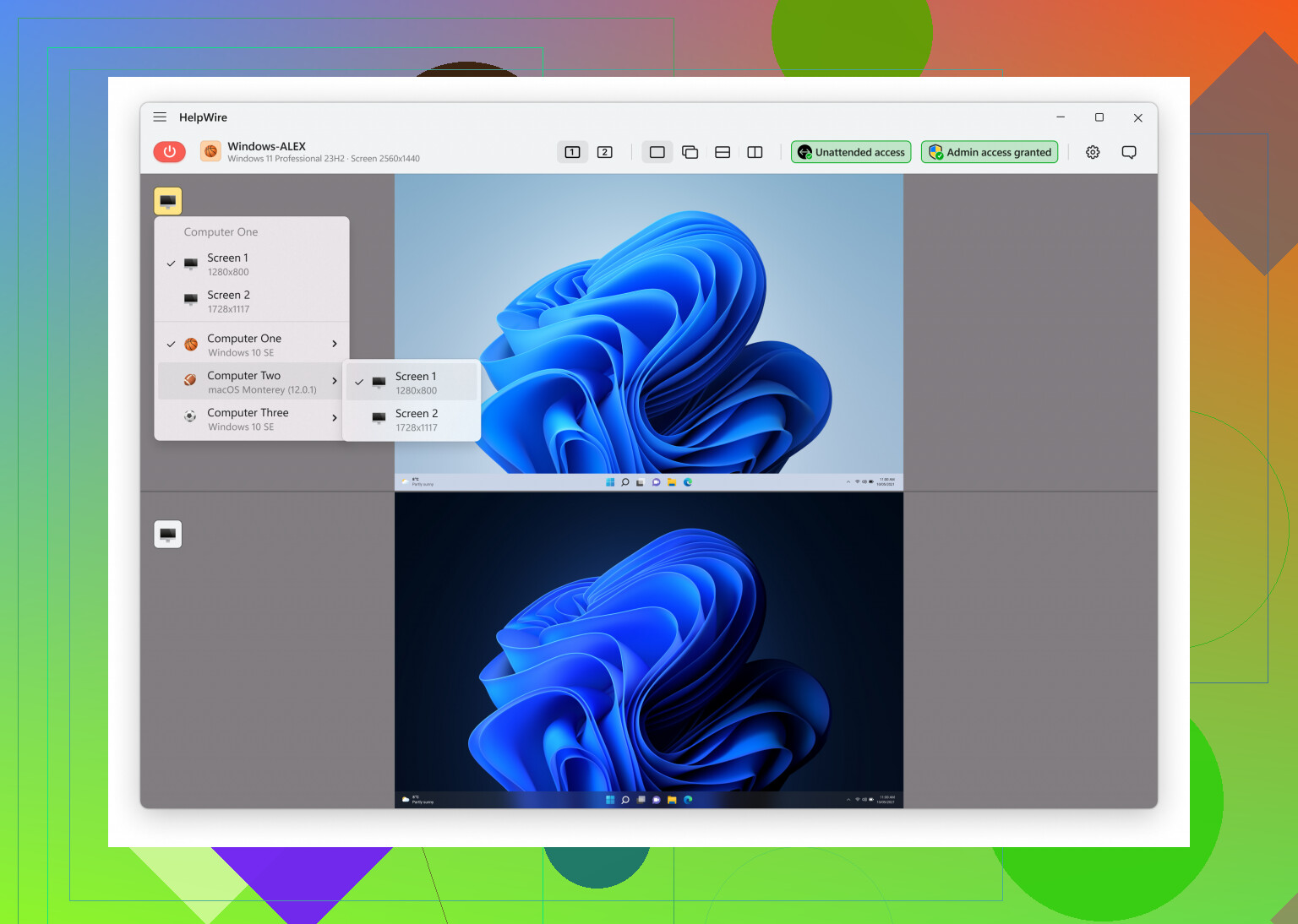
If the system is on Home edition, I wouldn’t keep forcing RDP. The straightforward fix is upgrading Windows, or switching to a remote access app that does not rely on Microsoft locking RDP host behind Pro. This guide lays out the usual checks pretty well, including the edition limit: https://www.helpwire.app/blog/how-to-allow-rdp-windows-10/
That same route also makes sense if you don’t want to mess with firewall rules, sleep settings, and router forwarding. I’ve done both. RDP is fine when the machine and network are set up right. When they aren’t, using another remote tool is often faster and less annyoing.
If the toggle is missing, I’d check a different spot first. Press Win + R, type SystemPropertiesRemote, hit Enter. On the Remote tab, look for “Allow remote connections to this computer.” If it’s there and unchecked, turn it on there.
If that whole Remote Desktop section is missing from both Settings and System Properties, the usual reason is policy or edition. @mikeappsreviewer is right about Home edition blocking host mode. I only partly disagree on router forwarding, because if you only need access inside your house or office, skip all of that for now and get LAN access working first.
A few less-mentioned checks:
-
Open services.msc.
Make sure Remote Desktop Services is not disabled. -
Open cmd and run winver.
Confirm the exact edition and build. -
Open Local Group Policy, gpedit.msc, if your edition includes it.
Go to:
Computer Configuration
Administrative Templates
Windows Components
Remote Desktop Services
Remote Desktop Session Host
Connections
Set “Allow users to connect remotely” to Enabled or Not Configured. -
If the PC is managed by work or school, organization policy might hide the option. Seen it more than once.
-
Test from the other PC with mstsc and the target PC’s hostname, not only the IP. DNS issues and stale IPs cause dumb problmes.
-
If you changed editions recently, reboot twice. Sounds silly, but I’ve had RDP features show up only after updates finished.
If you post your Windows edition and whether the option is missing or grayed out, people here can narrow it down fast.
One thing I’d add to what @mikeappsreviewer and @viajantedoceu said: check whether the machine is actually listening for RDP before you keep flipping settings around.
On the Windows 10 PC you want to connect to, open PowerShell and run:
Test-NetConnection -ComputerName localhost -Port 3389
If it says TcpTestSucceeded: False, Remote Desktop still is not really active, even if the toggle looks on. That usually points to edition limits, policy, or a broken service config.
Also, I slightly disagree with the “just use hostname” idea first. On small home networks, hostname resolution is flaky all the time. I’d test with the target PC’s current IPv4 first from ipconfig, then worry about names later.
Another thing people miss: if you use a Microsoft account to sign in, try logging in over RDP with the account format:
MicrosoftAccount\youremail@example.com
or sometimes just the email address works. Local account and Microsoft account logins get mixed up a lot.
If the toggle is missing entirely, also check:
OptionalFeatures.exe
and confirm anything related to remote access wasn’t stripped out by some debloat script or “privacy” tool. Those things break weird stuff constantly.
And if you’re connecting over Wi‑Fi on both PCs, test once with the host on ethernet if possible. I’ve seen cheap routers do dumb isolation stuff that makes it look like Windows is the problem when it isnt.
One extra angle: verify the TermService startup type in Registry if Services looks normal but RDP still will not stick.
HKEY_LOCAL_MACHINE\SYSTEM\CurrentControlSet\Services\TermService
Start should usually be 3 for manual. If some optimizer set it to 4, RDP will never come up properly. I would check that before blaming Windows itself.
I also slightly disagree with chasing router config early. If mstsc cannot connect on the same LAN, WAN access is irrelevant until local hosting works.
Another overlooked thing: some antivirus suites quietly block remote-control components even when Windows Firewall is fine. Temporarily disable the third-party suite and test once.
If the Remote Desktop page exists but flips back off, run this in admin Command Prompt:
sfc /scannow
DISM /Online /Cleanup-Image /RestoreHealth
That fixes more broken Settings toggles than people expect.
@viajantedoceu, @caminantenocturno, and @mikeappsreviewer already covered the big ones like edition limits, policy, and port checks. I’d just add this priority order:
- Confirm Windows 10 Pro/Enterprise/Education
- Check TermService
- Test 3389 locally
- Try same-network connection
- Only then think about outside access
If you are on Home, stop troubleshooting RDP host specifically. At that point the practical options are upgrading Windows or using HelpWire instead.
Pros of HelpWire: simpler setup, no Pro requirement headache, easier for internet access.
Cons: extra app to install, not native RDP, depends on its own service model.
If you post whether your edition is Home or Pro and whether the toggle is missing or just disabled, the answer gets much narrower.
The earlier replies cover Windows RDP troubleshooting. For a seperate approach, try Chrome Remote Desktop.
On your home PC, open Chrome and find Google’s Chrome Remote Desktop page. Choose Remote Access, select the download under “Set up remote access,” and follow the installation prompts. Give your PC a name and create a PIN.
On your other computer, open the same service with your Google account, select your PC, and enter your PIN. Keep your home PC awake and conected to the internet. This provides remote access without fixing Windows’ RDP toggle.
Two machines I helped with looked identical on paper but failed for completely different reasons. One was a home Pro desktop where the toggle was there but kept bouncing back off, and that turned out to be an old ‘optimizer’ tool that had wrecked the service config. The other was a work laptop where the whole Remote Desktop page was just gone, no toggle, no Remote tab, because the company pushed a policy that stripped it. Same symptom from the user’s side, nothing in common underneath. So before you touch firewall or router anything, figure out which category you’re in: is the option off, grayed out, or actually missing. That single detail changes the whole answer, and nobody can help much without it.
I mostly agree with the edition point everyone is hammering. Home not accepting inbound RDP is real and it is the number one reason people waste an evening. Where I’d push back a little is the rush toward registry edits and sfc scans. @viaggiatoresolare’s TermService tip is solid for the ‘toggle flips back off’ case specifically, but running DISM and sfc as a general fix is overkill if you haven’t even confirmed the edition yet. Don’t start repairing the image for a problem that is just Windows working as designed.
The thing people keep skipping: if you only ever connect from inside your own network, delete the whole router and port 3389 conversation from your brain for now. Half the confusion in threads like this comes from mixing LAN troubleshooting with WAN troubleshooting. Get it working from a second machine in the same house first using the host’s IPv4. Once that connects, then and only then worry about getting in from outside. And honestly, exposing 3389 straight to the internet is something I’d avoid entirely these days. If you need outside access, a VPN back into your network or a relay-based tool is a lot safer than forwarding that port.
On the alternatives, HelpWire and Chrome Remote Desktop both came up and both make sense if you land on Home edition and don’t want to pay to upgrade. They sidestep the whole host-licensing wall. The honest caveat is you’re trading native performance and control for convenience, and you’re depending on someone else’s relay service staying up. Fine for occasional access to a home PC. Less ideal if you want something you fully control or need it reliable for daily work.
If I had to give you an order that cuts the noise:
- Run winver, post the edition. Home means stop troubleshooting the host and pick an alternative or upgrade.
- Tell us whether the toggle is off, grayed, or missing. Missing usually means policy or a debloat script.
- Only after a local connection works, think about anything outside your network.
Post those two facts and this gets solved fast instead of turning into a 20-reply guessing game.