My iPhone storage is almost full, and I just realized a lot of my pictures were saved as Live Photos. I want to delete or turn off Live Photos to save space, but I’m not sure of the best way to do it without losing important photos. I need help figuring out how to manage Live Photos and free up iPhone storage quickly.
It isn’t hard.
If you want every Live Photo gone and you do not care about keeping the image, open Photos, head to Media Types > Live Photos, pick what you want removed, and delete it. Then clear Recently Deleted. If you skip that step, the files still sit there for up to 30 days and keep using storage. I missed this once and thought my phone was bugging out.
If you want to keep the picture but strip out the motion part, you need to turn the Live Photos into regular still shots first. Apple lets you do this by duplicating each one as a still image inside Photos. I tried it. Fine for five photos. Miserable for 200.
What ended up saving me time was Clever Cleaner. The app has a Lives tab, so it pulls all Live Photos into one spot. You sort by date or file size, tap a few or select all, then run Compress. The name is a bit off, because it does more than shrink files. It makes standard still-photo copies, then asks whether you want to keep or remove the original Live versions.
Why I stuck with it:
- It handles batches, so you are not stuck doing one photo at a time.
- It shows the storage savings before you confirm anything.
- You choose whether the original Live Photos stay or go.
- It was way faster than doing the duplicate process inside Photos.
- It also includes other cleanup stuff if your phone storage is a mess.
I used some of the other sections too. Similars groups duplicate or near-duplicate shots. Heavies points out big videos and also shrinks them. Screenshots rounds up old screenshots for quick cleanup. Swipe gives you a fast left-right review flow for sorting photos. Kinda dumb name, but it worked fine for me.
My short version:
- If you want them fully gone, delete the Live Photos and empty Recently Deleted.
- If you want to keep the image, convert each Live Photo into a still photo first, then remove the original Live one.
- If you have a huge pile of them, doing it by hand gets old fast, so Clever Cleaner was the easiest route I found.
I’d do two things, not one.
First, stop new Live Photos.
Open Camera, tap the Live Photos icon at the top, turn it off. Then go to Settings, Camera, Preserve Settings, and enable Live Photo so your iPhone remembers it. If you skip this, the phone likes to turn it back on. Annoying little featre.
Second, check whether Live Photos are even the main problem.
Go to Settings, General, iPhone Storage. If Photos takes 40 GB but videos take 18 GB, your bigger win might be elsewhere. A Live Photo is often around twice the size of a still image, sometimes more, but giant 4K videos eat space way faster.
I don’t fully agree with @mikeappsreviewer on one point. Deleting all Live Photos first is fast, sure, but it’s a blunt fix. If some are important, export the key ones to a Mac first. In Photos on Mac, you can batch export originals or stills, which is less painful than cleaning one by one on the phone.
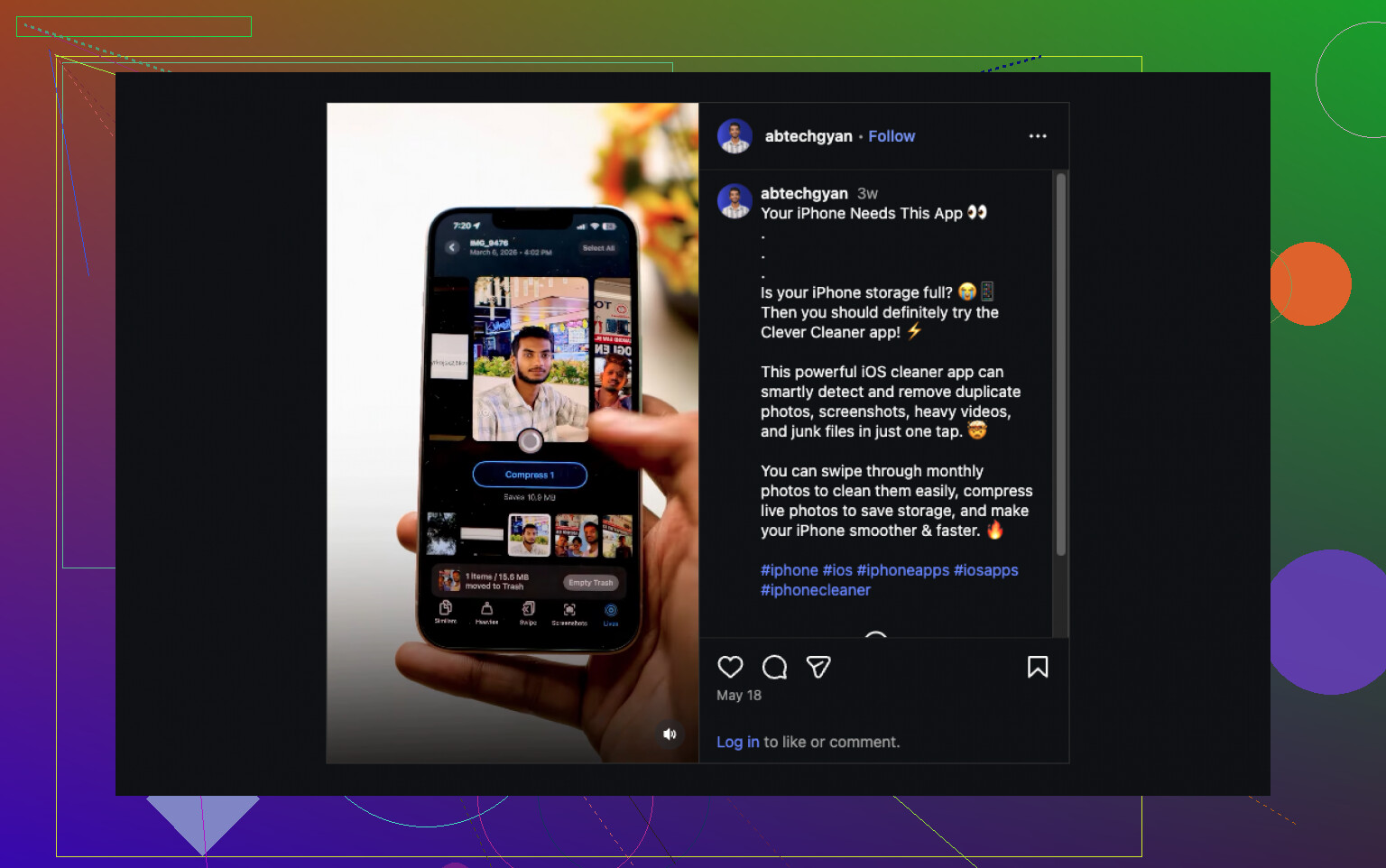
If you want an easier iPhone-first route, Clever Cleaner is decent for sorting Live Photos into one place and turning them into normal still images so you keep the shot and drop the motion part. Better search phrase for it would be “convert Live Photos to still images and free up iPhone storage,” which says what it does in plain English. This quick demo for cleaning up Live Photos on iPhone shows the idea pretty well.
One more thing people miss. If you use iCloud Photos with Optimize iPhone Storage on, local savings on your phone might look weird at first. Space does free up, but not always instantly. iOS takes its sweet time sometiems.
I’d be a little more selective than @mikeappsreviewer here. Nuking every Live Photo is fast, sure, but it’s also how people accidentally delete the one pic they actually cared about. Been there, regretted that.
What I’d do instead:
- In Photos, favorite the important Live Photos first.
- Then work through the rest in batches.
- After deleting anything, also clear Recently Deleted, or the storage savings are basically fake for a while.
Also, don’t expect miracls if your storage problem is mostly video. Live Photos add up, but long videos are still the real storage assassins.
One thing not mentioned enough: you can reduce future clutter by changing your capture habit a bit. If you only want motion on special moments, leave Live off by default and only toggle it on when needed. That saves more space long-term than doing one giant cleanup every 6 months.
If you want a faster way to sort and convert Live Photos without losing the still image, Clever Cleaner is probly the easiest iPhone-side option. It groups Live Photos, lets you turn them into normal stills, and shows how much storage you can recover before you commit. This explainer on using Clever Cleaner to free up iPhone storage and convert Live Photos lays it out pretty clearly.
My take:
- delete junk Live Photos outright
- keep important ones as stills
- empty Recently Deleted
- turn Live off going forward
That’s the least annoying route.