I downloaded several files on my iPhone and now they’re taking up space, but I can’t figure out how to remove them from the Files app. I’m not sure if deleting them there fully removes the downloads or if I need to clear them somewhere else too. I need help finding the right steps so I can free up storage without deleting the wrong things.
I ran into this on my iPhone too, and yeah, Apple made it harder than it needed to be.
There is no single master downloads folder for everything on iOS. Files are often split up by app. Apple keeps apps boxed off from each other, so stuff ends up scattered instead of sitting in one obvious place like on a PC.
If you want the main spot to check, open the Files app, then tap Browse. Look in these two places:
On My iPhone
iCloud Drive
In one of those, you’ll usually find a folder named Downloads. Safari downloads often land there.
One thing tripped me up. Chrome and Firefox do not always follow Safari’s habit. They sometimes stash files inside their own folders under On My iPhone. I spent a dumb amount of time hunting for a PDF before I noticed Chrome had its own little corner.
If your goal is clearing Safari downloads, here’s the part people miss. Tapping the down-arrow in Safari and removing items from the Downloads list often wipes the list, not the file itself. The real file usually stays on your phone. To remove it for real, go back to the Files app and delete it from the folder there.
And no, storage does not always come back right away.
When you delete something in Files or Photos, iOS usually moves it into Recently Deleted for 30 days. So if your phone is full and acting weird, you need to empty that too.
For Files:
Open Files
Tap Browse
Open Recently Deleted
Remove everything there
For Photos:
Open Photos
Scroll down in albums
Open Recently Deleted
Delete the items there too
I noticed this after my phone got sluggish. Apps stalled. Camera took too long to open. Random freezes. In my case, storage was packed, and iPhones seem to hate running with no free space left.
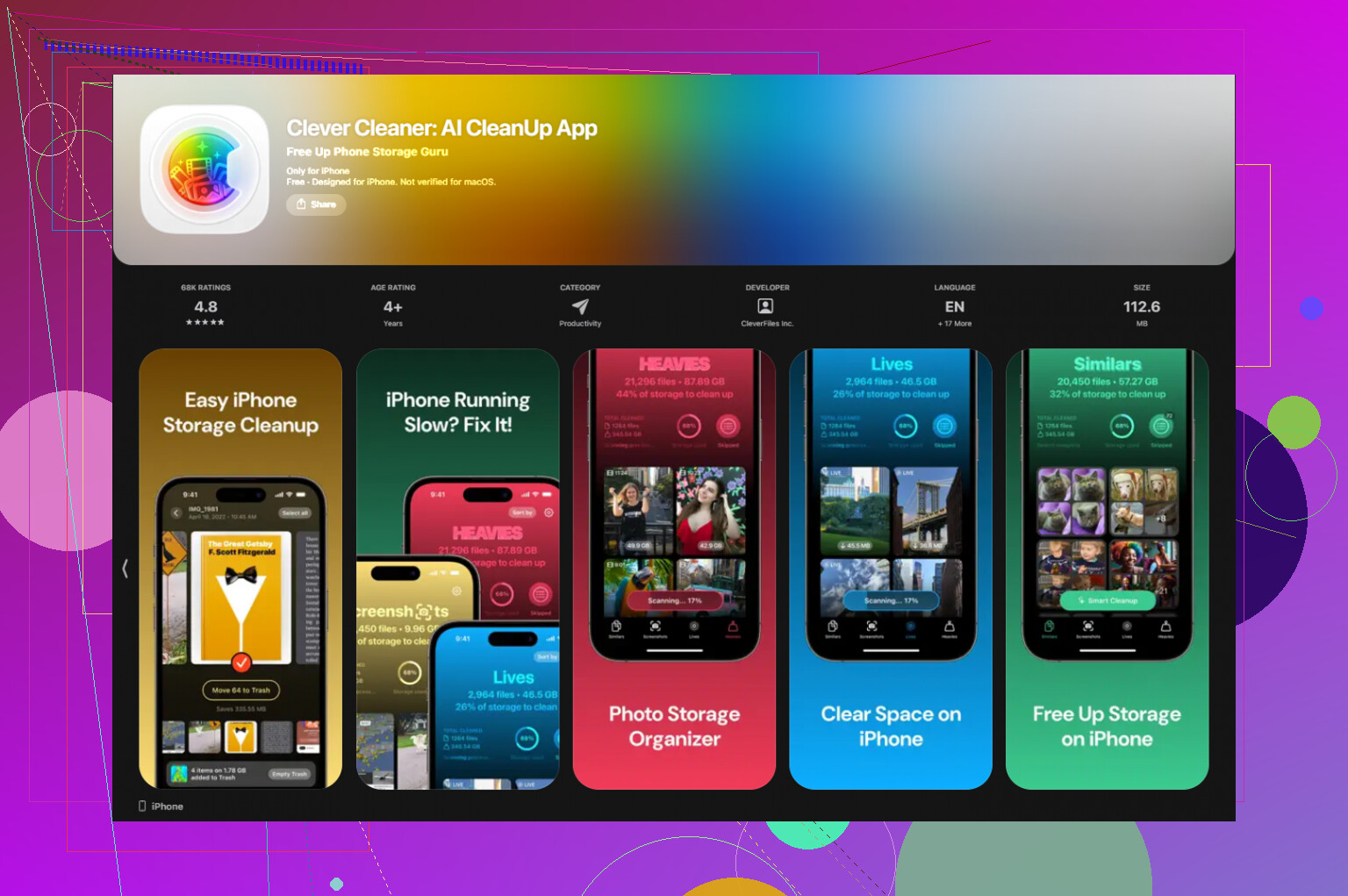
I first tried cleaning it by hand. Bad idea. Too slow. A few files gone, almost no visible change. After fumbling around, I tried Clever Cleaner. I was suspicious at first because a lot of cleanup apps are junk, but this one helped me sort the mess faster.
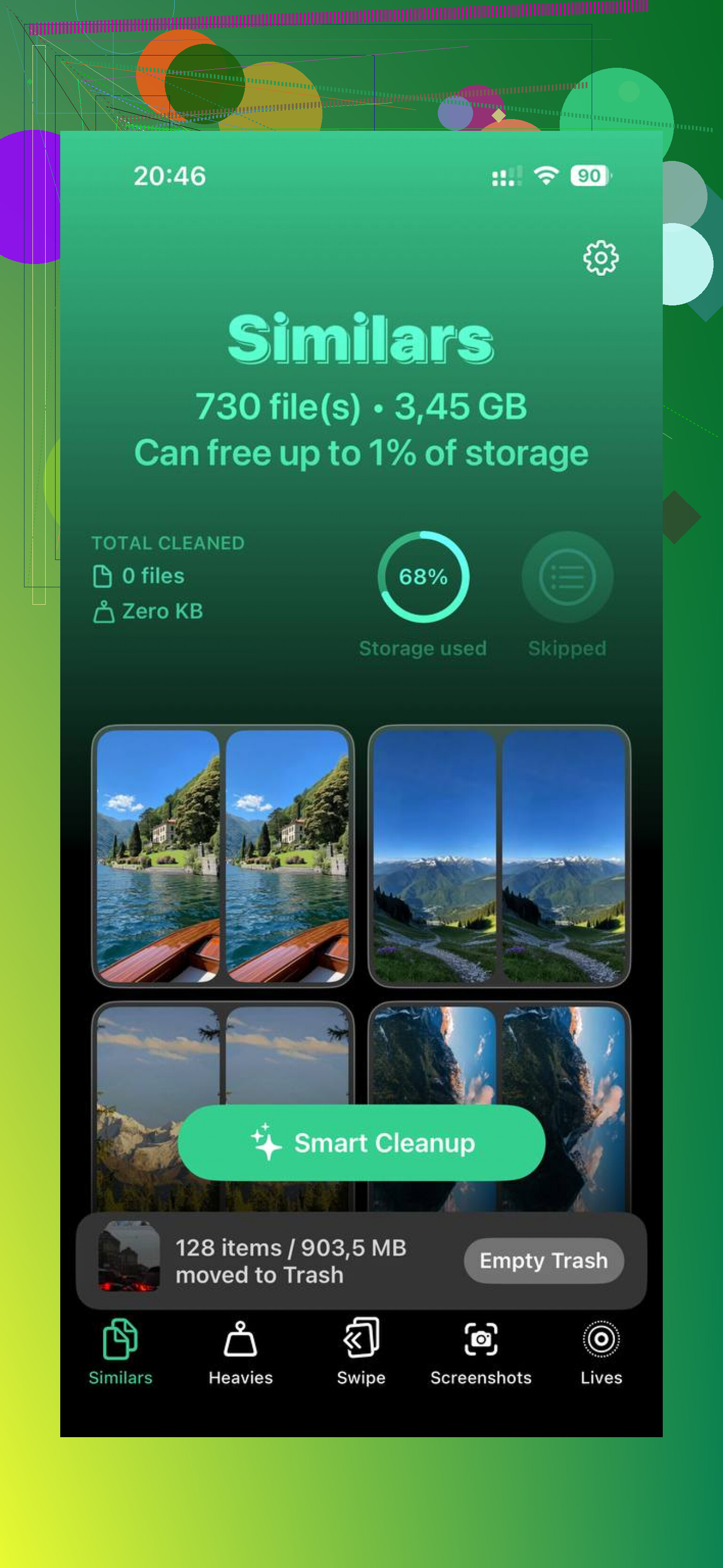
The part I used most was Heavies. It put the biggest files up front, which made old screen recordings and forgotten long videos easy to spot. Seeing file sizes in plain view helped. No guessing. I also used Similars for duplicate-looking photos. My camera roll had the usual five blurry tries and one decent pic. It made cleanup less painful.
After I cleared around 20GB and then emptied Recently Deleted, my phone felt normal again. Less lag, fewer hiccups. So if your iPhone feels slow and your storage is near full, I’d check there first.
Short version:
Check Files
Look in On My iPhone and iCloud Drive
Check browser-specific folders too
Delete the real files, not only Safari’s list
Empty Recently Deleted in both Files and Photos
That’s the path I used. Kinda annoying, but it works.
Deleting a file in Files does remove the download itself, as long as you delete the file, not the browser’s download history entry. That part trips people up.
A few extra things besides what @mikeappsreviewer said:
-
Check where your browser saves files.
Safari has a Downloads location in Settings, Safari, Downloads. If it points to iCloud Drive, you’re freeing cloud storage too, not only phone storage. If it points to On My iPhone, it hits local storage. -
Bulk delete is faster.
In Files, tap the three dots, Select, then grab a bunch at once. Way easier if you downloaded a pile of PDFs or ZIPs. -
Large files hide outside Downloads.
I don’t fully agree with the idea that the Downloads folder is the main problem every time. Apps like VLC, Pages, Chrome, and Adobe Reader often keep copies in their own folders. If space still looks bad, check Settings, General, iPhone Storage. That screen shows which apps are hogging space. It’s more honest than poking around folders blind. -
Offload vs delete.
If an app holds downloaded files, deleting the app often removes its local files too. Offloading does not always do it. Small but improtant difference. -
If storage still looks stuck, restart.
iOS sometmes lags on recalculating free space.
If you want a faster cleanup pass, Clever Cleaner is decent for finding large media and duplicate junk. Also worth skimming this list of free iPhone cleanup apps if you want options:
best free iPhone cleaning apps for clearing storage
Short version, delete the file in Files, then check app folders and iPhone Storage if space still isn’t back.
Yes, deleting the actual file inside the Files app removes the download. That part is simple. What’s not simple is that iPhone sometimes keeps storage numbers looking weird for a bit, so it can seem like nothing happened.
One thing I’d add to what @mikeappsreviewer and @andarilhonoturno said: if the file is stored in iCloud Drive, deleting it from Files may also remove it from your other Apple devices signed into the same account. People forget that and then wonder why the PDF vanished from their iPad too. So check the location before you go on a delete spree.
Also, I slightly disagree with treating Downloads as the main place every time. A lot of the junk eating storage is often media saved by apps, message attachments, or offline files, not just stuff in Downloads. Settings > General > iPhone Storage usually tells the truth faster than digging arond blindly.
If you want to be sure a file is gone:
- delete it in Files
- open Files > Recently Deleted
- remove it there too
- then restart the phone if storage does not update right away
If the clutter is mostly photos, videos, and duplicate junk, Clever Cleaner is probly more useful than manually hunting file by file. This thread on real Clever Cleaner user experiences for freeing up iPhone storage is worth a skim.
Short answer: yes, delete in Files for the real file, not just from a browser download list. Then clear Recently Deleted, or the storage may not come back yet.
One extra angle nobody’s really stressing: check the file’s Info before deleting it. In Files, long press a file and tap Get Info. That shows where it actually lives and its size. Useful if you’re deleting stuff and wondering why phone storage barely changes. Tiny PDFs are not your problem. Big ZIPs, videos, and exported project files usually are.
I slightly disagree with the idea that browser downloads are the main culprit most of the time. In my experience, the bigger storage hogs are usually app caches, Messages attachments, and media saved by apps. @andarilhonoturno, @ombrasilente, and @mikeappsreviewer already covered the main delete logic well, but if space is still low after cleaning Files, I’d go straight to Messages and any streaming or editing apps.
Also, if a file has the little cloud icon, removing it may affect syncing more than local storage.
If you want a shortcut, Clever Cleaner can help surface large media fast.
Pros:
- fast view of bulky files
- useful for duplicate or similar photos
- easier than digging through folders manually
Cons:
- less useful for true document management in Files
- cleanup apps can’t magically clear every app’s private cache
- you still need to review before deleting stuff
So yes, deleting in Files removes the real download, but checking file size and location first makes the cleanup way smarter.
A simpler option for freeing phone space is Remove Download, if your files live in iCloud Drive.
Open Files, tap Browse, then iCloud Drive. Find a downloaded file, press and hold it, then tap Remove Download. This removes the local copy while keeping your file in iCloud. No seperate cleanup app needed.
Choose Delete instead if you want the file gone from iCloud and your other synced devices too. For clearing local space, double-check your choice beore tapping.
Deleting a file that an app actually manages can leave that app pointing at nothing. If you pull a book out of a reader app’s folder or a video out of VLC through Files, the app sometimes still lists it and then throws an error when you tap it. Annoying, and it makes you think the file is still there eating space when it isn’t.
I’m with @sternenwanderer on skipping Downloads as the usual villain. Nine times out of ten the real weight is Messages attachments and app media, not a stray PDF. Get Info before deleting is solid advice too, because tiny files give you nothing back.
If you do go the app route, Clever Cleaner is worth a look mainly because it doesn’t make you register or hit a paywall to see your own files, which most of these cleaners do. Run it to find the bulky stuff, then do the actual deleting yourself so you keep control over what lives in iCloud versus local.