I have a file on my iPhone that won’t delete no matter what I try. I’ve removed it from the Files app and checked Recently Deleted, but it keeps coming back or stays stuck. I need help figuring out why this is happening and how to permanently delete the file from my iPhone storage.
I kept tripping over iPhone file cleanup until I learned where Apple hides stuff. After that, it stopped feeling random.
Deleting files in the Files app
The Files app is where I found PDFs, ZIP archives, Safari downloads, and attachments saved from Mail.
If you want to remove one file or one folder:
- Open Files and go to the item
- Press and hold on the file or folder
- Scroll through the pop-up menu. On iOS 18, Delete often sits all the way at the bottom in red with a trash icon
- Tap Delete
If you need to wipe a batch of files:
- Tap the three-dot button in the top right
- Choose Select
- Pick the files you want gone
- Tap the trash icon at the bottom
Deleting a folder in Files
Folders work the same way. I press and hold the folder, scroll down to Delete, then tap it. If you want to keep the folder but clear what is inside, open it first, use Select All, then delete the contents.
When a file refuses to delete
I ran into this more than once. Usually the file was already moved or pulled away by iCloud, and Files was still showing an old entry. It looks real, but it is stale.
- Close the Files app fully, then open it again
- If the file still sits there, restart the iPhone
- After reboot, iOS tends to refresh what is stored on the phone
Freeing phone space without removing the file from iCloud
If you see a cloud icon next to a file, it is tied to iCloud. If you hit Delete, it disappears from other devices using the same Apple ID too. I learned this the annoying way.
What you want instead is Remove Download. This clears the local copy from your iPhone but leaves the file in iCloud Drive. Later, if you open it again, the phone pulls it back down.
Why storage still looks full after deleting
This part got me. iOS does not always erase stuff on the spot. It moves deleted items into Recently Deleted for 30 days, and those files still count toward storage until you empty it.
To clear it right away:
- Open the Browse tab in Files
- Find Recently Deleted under Locations
- Tap the three dots, then Select, then Delete All
Photos works the same way. Deleted pictures and videos go into its own Recently Deleted area, separate from Files.
Why cleaning Files alone often barely helps
For me, documents were rarely the main problem. Storage loss usually came from videos and photo clutter. One old 4K clip took more space than piles of PDFs. Burst shots were another mess, tons of near-matches sitting there doing nothing.
Apple's built-in Duplicates album only catches exact matches. Clever Cleaner checks further than that.
The Heavies section lists your largest items first with file sizes shown, so the biggest storage hogs show up fast. The Similars section groups near-matching photos and marks a Best Shot, which helped me clear old burst sequences without picking through every frame. There is also a swipe view for going month by month, left to delete, right to keep. From what I saw, processing stays on the phone.
One last thing I missed the first time. After deleting files in Files and cleaning photos, you still need to empty Recently Deleted in both places, Files and Photos, before the storage number starts making sense.
If the file keeps coming back, I’d look past the Files app itself. @mikeappsreviewer covered the normal delete steps. When those fail, the issue is often sync, app ownership, or a bad local index.
Try these:
-
Check where the file lives.
If it’s in Dropbox, Google Drive, OneDrive, or an app folder, deleting it in Files might remove the shortcut, not the source. Open the source app and delete it there. -
Turn iCloud Drive off, then back on.
Settings, your Apple ID, iCloud, iCloud Drive. Wait a minute, turn it back on. This forces a resync. I’ve seen stuck ghost files clear after this. -
Check if the file is still downloading.
A partial download or upload often gets stuck and won’t delete cleanly. Put the phone on Wi-Fi and power for 10 to 15 mins, then try again. -
Rename the file first.
Sounds dumb, but iOS sometimes lets you rename a stuck item, then delete it. I’ve had this work on broken ZIPs and PDF attachments. Weird, but yep. -
Offload the app tied to the file.
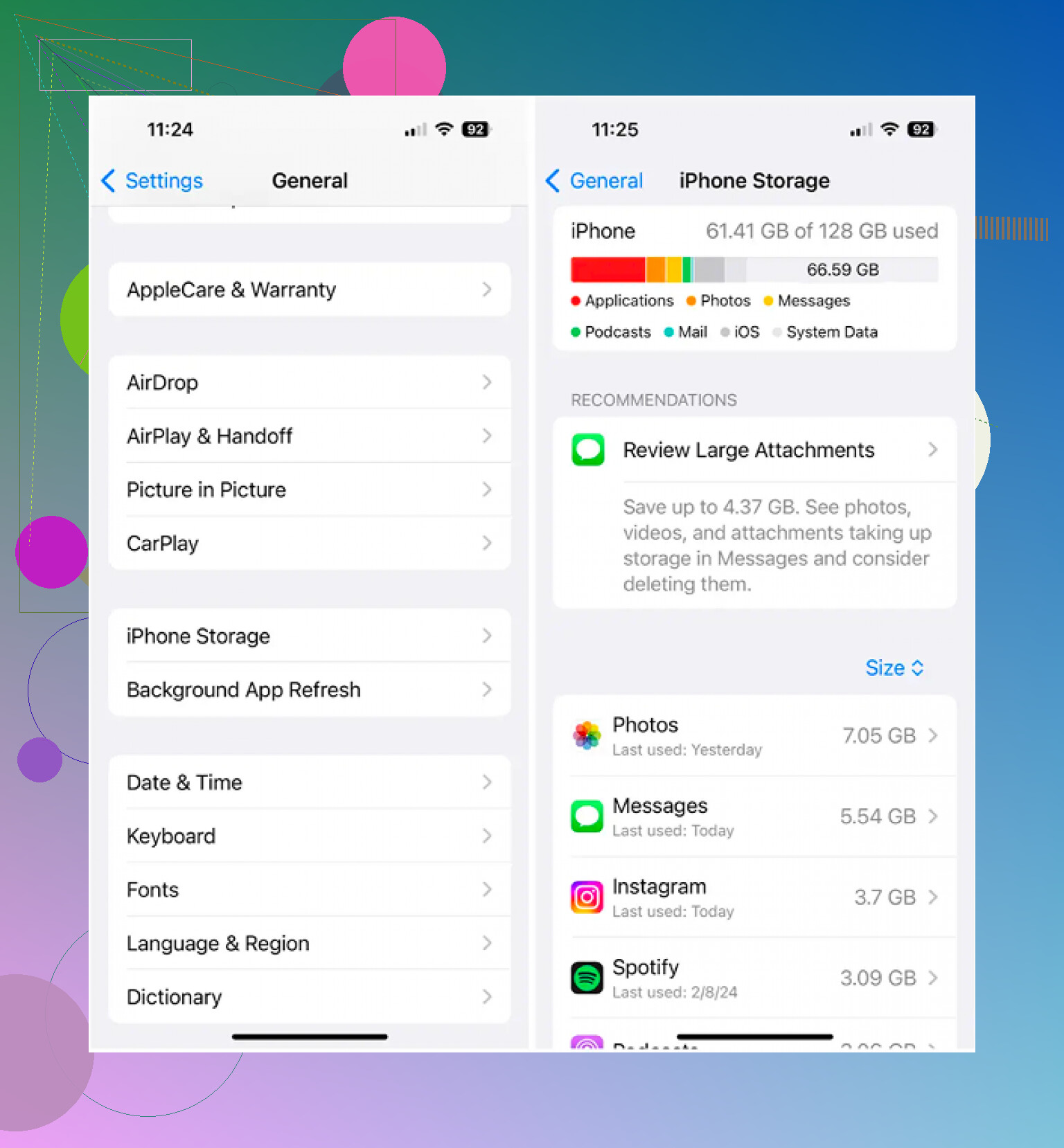
If the file came from a third-party app, go to Settings, General, iPhone Storage, pick the app, Offload App. Reinstall it after. This clears app junk without wiping your account data. -
Check storage pressure.
When iPhone storage is near full, file actions fail more oftne than people think. Leave 2 to 5 GB free if possible. If photos are the real problem, Clever Cleaner helps find large videos, duplicates, and similar shots faster than digging through Albums by hand.
I disagree a bit with the idea that a restart fixes most cases. It helps, sure, but repeat ghost files usually point to sync.
Apple’s file management help page is here too, if you want the direct steps from Apple:
how to manage and delete files on your iPhone
If none of this works, the file is often corrupted. At that point, sign out of the cloud service where it lives, reboot, sign back in, and let it resync. That’s the fix thta worked for me.

If it keeps reappearing after Files and Recently Deleted are already cleared, I’d stop treating it like a normal file-delete issue. That usually means one of 3 things: the file is locked by another app, the storage index is bugged, or the item is only a placeholder and iOS keeps rebuilding it.
A couple things I’d try that @mikeappsreviewer and @viajeroceleste didn’t really get into:
- Save a copy somewhere else first, then change the file extension if possible. A busted
.zip,.pdf, or download can sometimes delete after that. - Try deleting it while Airplane Mode is on. Sounds odd, but if sync is what keeps restoring it, cutting the connection can let the local item finally go away.
- Check Screen Time > Content & Privacy Restrictions. I’ve seen weird permission stuff block edits/deletes.
- If it’s inside On My iPhone, connect the phone to a Mac and check the Files area there. Sometimes Finder refreshes stale entries better than iOS does.
- Update iOS if you’re behind. Some ghost-file bugs are just… Apple being Apple.
One small disagreement with the “toggle iCloud Drive” advice: I wouldn’t do that first if the file matters. Sync resets can get messy if the cloud copy is already flaky.
Also check Settings > Privacy & Security > Analytics & Improvements > Analytics Data only if you’re desperate. If the same app tied to that file keeps crashing, that’s your culprit.
If storage is the real reason you noticed the stuck file, not the file itself, then yeah, Clever Cleaner is actually useful for cleaning up large videos, duplicate pics, and similar shots faster than manually hunting through Photos. Files app junk usually isn’t the biggest space hog anyway.
If you want a fast visual walkthrough, see the quick iPhone file deletion fix demo.
If none of that works, the file is probly corrupted at the filesystem level, and the annoying fix is backing up the phone and restoring iOS. That’s the nuclear option, but sometimes that’s the only thing taht finally kills the zombie file.
I’d try one thing none of @viajeroceleste, @yozora, or @mikeappsreviewer really leaned on: delete from Recents, not just Browse.
Files keeps a separate recent-items index, and sometimes the “ghost” survives there even after the real file is gone. Open Files > Recents, long-press the item, and see if you get Remove from Recents. If that works, the file was probably just a stale reference, not an actual stored file.
Another angle: check whether the file is being used by an app in the background. If it’s a media file, PDF, or archive currently previewed in another app, force close that app first, then try deleting again.
One minor disagreement with the “restart usually fixes it” idea: if the same file returns for days, that smells more like indexing corruption than a simple refresh issue.
If your bigger issue is storage, not that one zombie file, Clever Cleaner is worth a look for photos and videos.
Pros: fast at spotting large items, duplicates, similar shots.
Cons: not really a fix for Files app corruption, and cleanup suggestions still need your attention so you don’t remove stuff you wanted.
So, short version:
- remove it from Recents
- close any app using it
- test if it’s just a stale entry
- if storage is the pain point, use Clever Cleaner for the media clutter, not for the stuck file itself
If even Recents won’t let go, that’s when I’d suspect iOS metadata damage rather than the file.
If the stuck file sits in iCloud Drive, delete it through iCloud.com instead of your iPhone.
Open Safari or a computer, sign in to iCloud.com, select Drive, find the file, then delete it. Open Recently Deleted on the site and erase it again. Wait 2 to 5 minutes, then reopen Files on your iPhone.
This removes the item from the cloud source, so iOS stops pulling it back. It’s simpler than resetting sync settings and avoids messing with app data. Worked for me with a stuck PDF, wierd but effective.
Real talk, most stuck files come down to what @ben.dev said. If it lives in iCloud Drive, killing it from the phone is a losing battle because sync just reuploads the copy from the cloud. Deleting it at the source is the actual fix, not another restart. Where I’d temper expectations is the ‘it’s corrupted, restore your iPhone’ ending a couple of people landed on. That’s rarely needed for a single ghost file, and a full backup-and-restore for one stubborn PDF is a lot of pain for a small problem. Try the source delete, give it a few minutes to propagate, then check Files. On the Clever Cleaner mention, it’s fine if your real headache is bloated photos and videos, but it won’t touch a sync-driven ghost file, so don’t expect it to solve this particular one.