My iPhone’s browser has gotten really slow and some websites keep showing outdated information or won’t load correctly. I’ve heard clearing cookies and cache can fix this, but I’m worried about losing saved logins and site data. Can someone walk me through the safest way to clear cookies and cache on an iPhone, and explain what I should back up or expect to lose before I do it?
Safari on iPhone is a bit touchy with cookies and cache, so if you want to speed it up without nuking everything, do it in steps.
Step 1: Try a soft reset first
This keeps most logins.
- Open Settings.
- Tap Safari.
- Tap Clear History and Website Data.
- On the popup, tap Clear History and Data.
You lose history and some site data, but many logins stay if they are stored in iCloud Keychain. Apps logins stay as they are separate.
If you want to be more precise and protect logins for sites you use a lot, skip that button and do this.
Step 2: Clear data for problem sites only
- Settings.
- Safari.
- Tap Advanced at the bottom.
- Tap Website Data.
- Wait for it to load.
- Use the search box at the top, type the site that acts weird.
- Swipe left on that site, tap Delete.
- Repeat for other sites that misbehave.
This keeps most other cookies and logins.
Step 3: Clear cache without logging out of everything
Still in Safari settings:
- Turn off Close Tabs Automatically.
Settings > Safari > Close Tabs > choose Manually. - Turn off Block All Cookies if it is on. That setting breaks a lot of logins.
- Scroll down and turn off Extensions you do not use. They slow loading.
If Safari still feels slow after step 2, then use “Clear History and Website Data” once. Expect to log in again on some sites, but Keychain will autofill if you saved passwords before.
Quick tips to lose less stuff
-
Turn on iCloud Keychain first
Settings > [your name] > iCloud > Passwords and Keychain > On.
That way your usernames and passwords stay saved even if cookies get wiped. -
Export or note down key logins
Open Settings > Passwords.
Check if your main sites show there, like banking, email, social.
If they are not there, log into those sites and save them or write them down before clearing. -
Use “Remove All Website Data” only as last step
In Settings > Safari > Advanced > Website Data, tap Remove All Website Data.
This is the nuclear button. It logs you out of almost everything on Safari.
Extra performance tips
• Close heavy tabs in Safari. 20+ open tabs slows things.
• Restart the phone after clearing. Simple, but it helps Safari reload stuff clean.
• Update iOS. Settings > General > Software Update. New versions often fix web issues.
If your whole iPhone feels cluttered or slow, not only Safari, try a cleaner app.
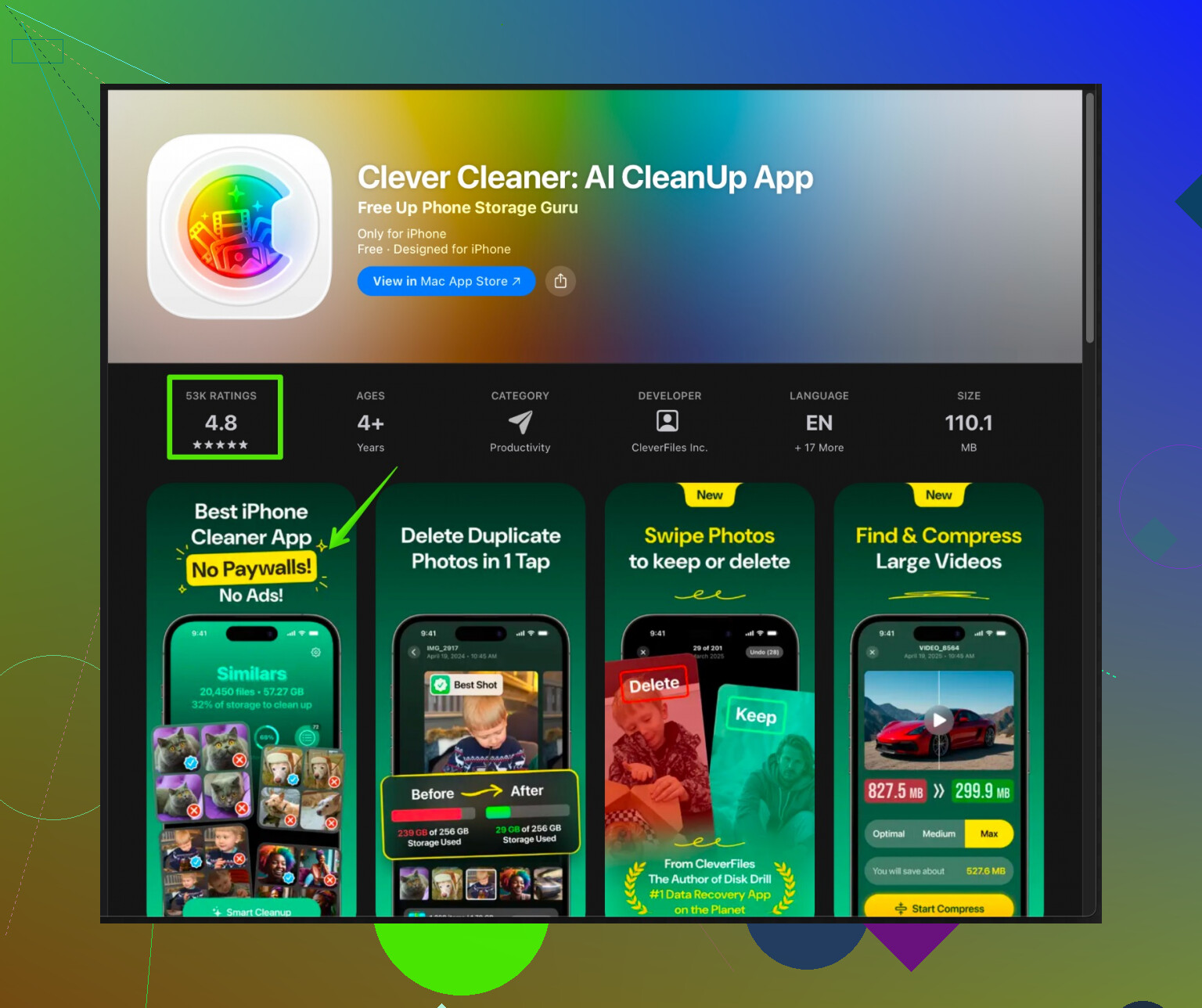
The Clever Cleaner App for iPhone helps remove junk photos, duplicate contacts, and old files, which frees storage and speeds things up a bit. You can check it here:
smart iPhone cleanup with Clever Cleaner App
That will not touch your Safari cookies, but if your storage is low, Safari and other apps load slower.
So, order of attack if you want to keep as much as possible:
- Enable iCloud Keychain.
- Delete Website Data only for broken sites.
- If still bad, Clear History and Website Data once.
- Only if nothing works, Remove All Website Data in Advanced.
You’re right to be cautious. Clearing “everything” in Safari can be overkill and annoying if you’re logged out of all your stuff. @espritlibre already laid out the step-by-step Apple way pretty nicely, so I’ll skip rehashing the same menus and buttons and focus on how to fix the problem while sacrificing as little as possible and a few things I disagree with slightly.
1. Before you touch cookies: check what’s actually slowing things down
A lot of people blame cookies when the real problem is something else.
Check storage first:
- Settings > General > iPhone Storage.
- If you’re under about 5–10 GB free, Safari and other apps can get sluggish.
If storage is super low, freeing space often helps more than obsessing over cookies. Junk photos, duplicate screenshots, and random videos eat up way more than Safari cache ever will.
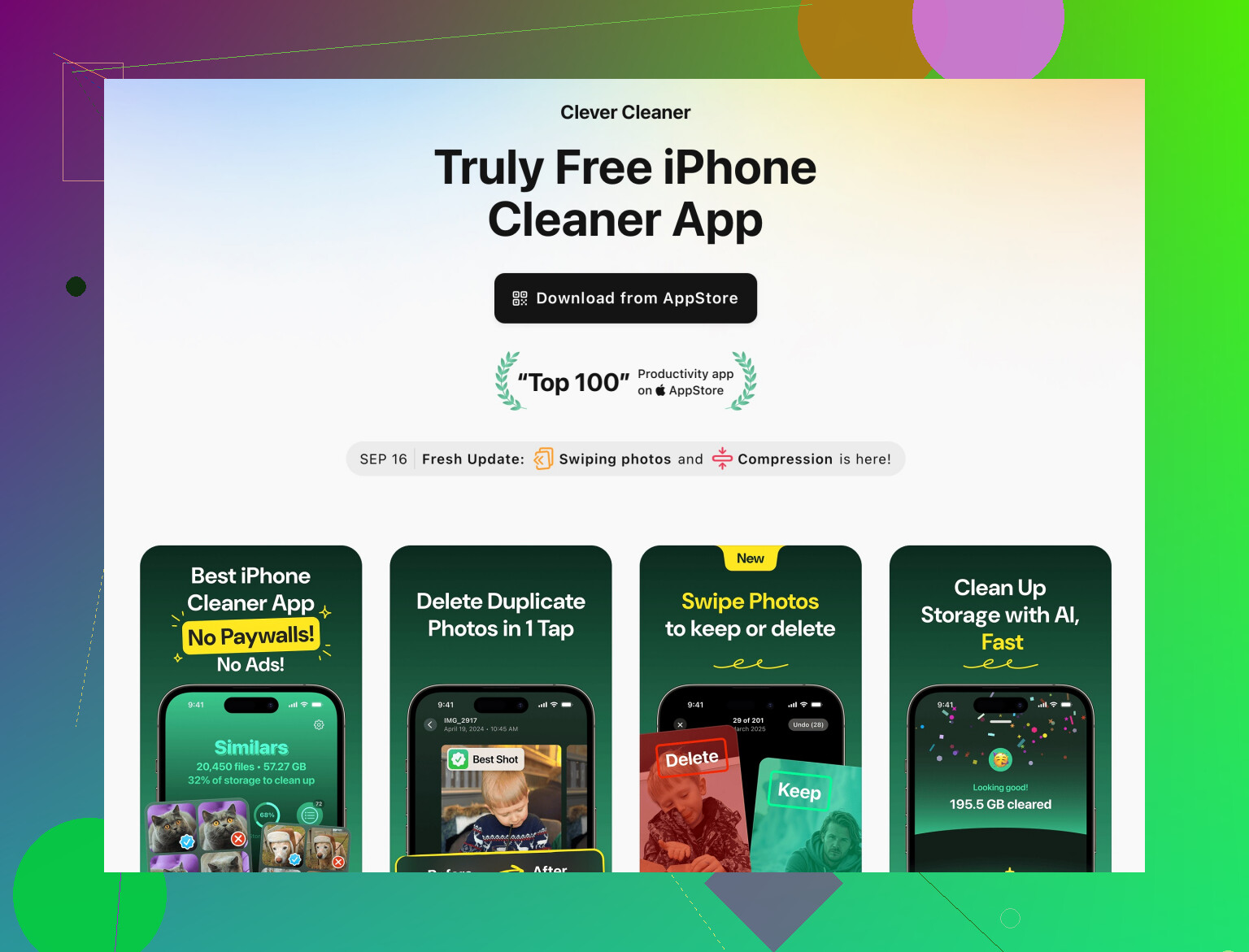
This is where something like the Clever Cleaner App can actually be useful. Instead of touching your Safari data, it can scan for duplicate photos, massive videos, and old junk and free up a lot of space safely. If you want a more detailed tool, check out
cleaning up your iPhone storage with Clever Cleaner App
That doesn’t mess with cookies or logins, it just gives Safari more breathing room.
2. Don’t clear more than you need to
Where I disagree a tiny bit with @espritlibre is using “Clear History and Website Data” too early. It works, sure, but it’s like burning the field to get rid of weeds.
Instead, try this order:
A. Start with the problem site only (minimum damage)
You already got the path from their post, but here’s the logic:
- If one or two sites show old info or won’t load, just wipe their data in Advanced > Website Data.
- That often fixes “stuck” versions of pages, bad cookies, or half-broken scripts.
- You stay logged into your other sites.
If a site keeps loading the wrong version after you clear its data, try:
- Turn off any content blocker or extension for just that site. Sometimes the blocker breaks scripts and makes pages act “cached” when they’re actually just failing to load new data.
B. Use Private Browsing as a quick test
Before nuking cookies, open Safari, tap the tabs button, switch to Private.
- Visit the glitchy site in Private mode.
- If it loads perfectly there, your problem is cache/cookies.
- If it’s still broken in Private, the issue is likely the site itself, your Wi‑Fi, or some extension or content blocker.
This trick saves you from deleting stuff for no reason.
3. How to protect your logins as much as possible
1. Rely on saved passwords, not cookies, wherever possible
Cookies keep you logged in.
Saved passwords let you log back in easily.
So:
- Go to Settings > Passwords.
- Make sure your main services (bank, email, social media, work tools) are listed.
- If something you rely on is not there, log into it once in Safari and let iOS offer to save the password.
That way, even if a cookie gets wiped, you’re one tap from logging in again.
2. Double-check Keychain sync
I agree with @espritlibre about iCloud Keychain, but I’d add this:
- After enabling it, give it a minute on Wi‑Fi and don’t start wiping stuff immediately.
- Open a few important sites and confirm autofill works.
- Only then start clearing any data.
4. If Safari is globally slow, not just one site
If every website feels sluggish, and not just one:
-
Try a different browser briefly
Install Firefox, Chrome, or Edge.
Load a couple of sites you know are slow in Safari.- If they’re fast there, then Safari itself is the problem.
- If they’re slow there too, your network or phone storage is likely the real cause.
-
Check your network before you blame cache
- Try both Wi‑Fi and cellular.
- Try a different Wi‑Fi network if possible.
A lot of “Safari is broken” reports end up being a router or DNS hiccup.
-
Change DNS (more advanced, but effective sometimes)
If you’re comfortable tweaking a bit:- Settings > Wi‑Fi > tap your network’s “i”
- Configure DNS > Manual
- Add DNS like 1.1.1.1 or 8.8.8.8
This can fix weird loading and “stuck” websites without touching cookies at all.
5. When you do clear history & website data
If you reach the point where you have to use “Clear History and Website Data”:
- Expect to be logged out of some sites.
- Make sure Keychain has your passwords first, like I mentioned.
- After clearing, restart the phone. People skip this and then complain nothing changed.
Also, I’d avoid using “Remove All Website Data” from Advanced unless:
- Safari is totally misbehaving across the board, and
- You’ve already tried: deleting only problem sites, testing in Private, checking storage, and updating iOS.
That button is more “factory-reset-my-browser” than a casual tune‑up.
6. Quick habits that keep this from happening again
- Don’t run 40+ tabs forever. iOS tries to keep them suspended, but it still gets messy.
- Keep iOS relatively up to date. Web tech changes fast, and older Safari builds can glitch on modern sites.
- Once in a while, clear data for just the sites that act weird, instead of doing a full reset every time.
TL;DR version:
- Check storage and cleanup photos/files first (Clever Cleaner App is good for that and won’t touch cookies).
- Test broken sites in Private mode to confirm it’s actually a cache/cookie issue.
- Make sure your passwords are saved in Settings > Passwords and Keychain is on.
- Delete data for just the misbehaving sites in Advanced > Website Data.
- Only if Safari is still a mess, use “Clear History and Website Data” once, then restart.
- Use “Remove All Website Data” only as the true last resort.
Try Airplane Mode before deleting anything.
Close Safari from the app switcher. Turn on Airplane Mode for 20 seconds, then turn it off. Reopen Safari and reload the problem page. This refreshes your phone’s network connection and often fixes stale pages, DNS errors, and loading failures. Your cookies, history, tabs, and saved logins stay intact.
If Wi-Fi still acts up, unplug your router for 30 seconds. Reconnect after it restarts. This takes two minutes and avoids deleting anythng from your iPhone.
Don’t sit there deleting cookies site by site if you never actually rebooted the phone first. @s0l4r_cursor’s airplane mode trick is the right instinct, but honestly a full restart clears more of the stale network junk and costs you nothing. Try that before touching any Safari data.