I lost my Samsung TV remote and now the volume is stuck too low to hear clearly. I need a quick way to turn up the volume using the TV buttons, a phone app, or any other method that works without the remote.
You’ve got two practical ways to raise the volume on a Samsung TV without the remote.
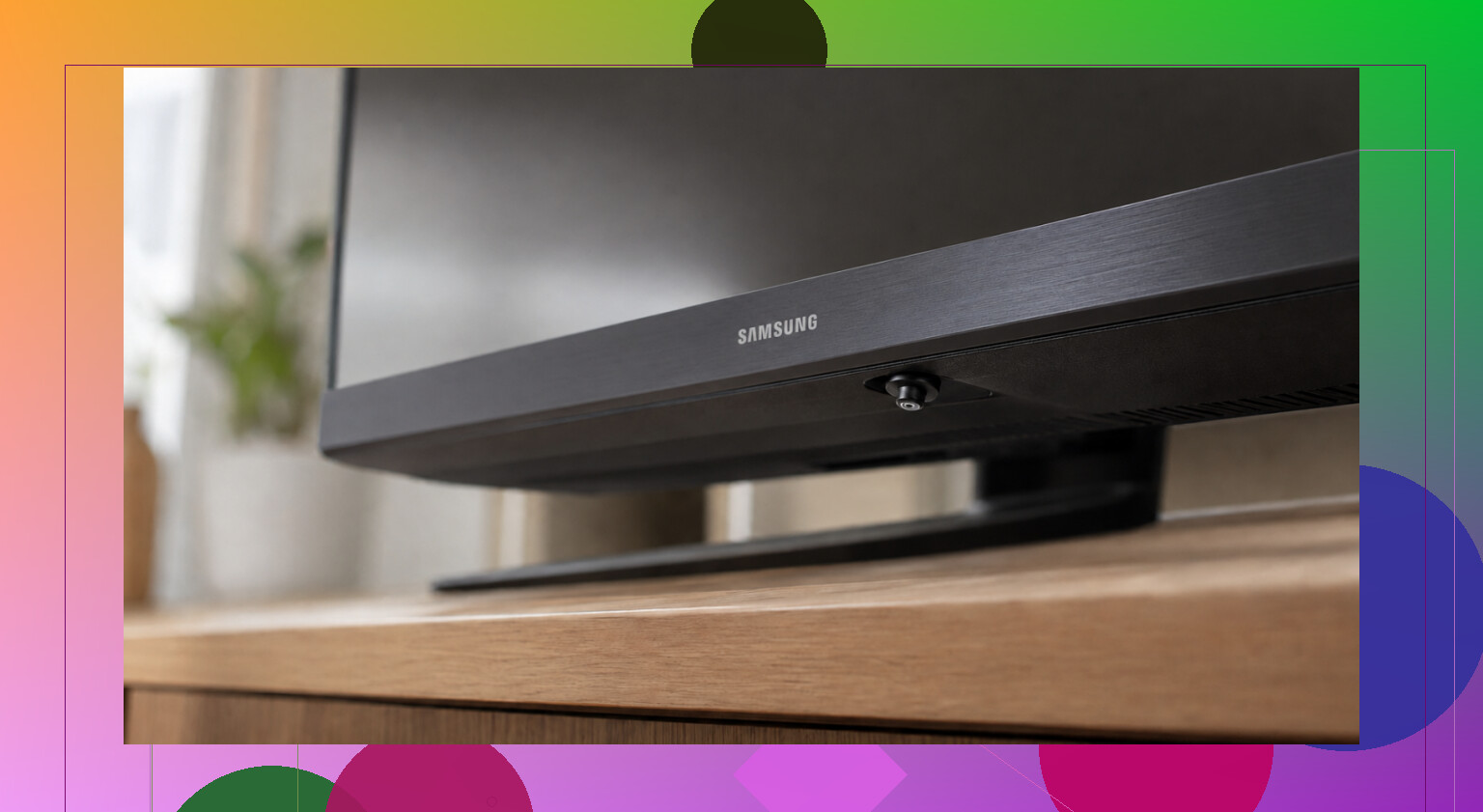
The first thing I’d try is the physical control on the TV itself. On a lot of Samsung sets, there’s a small control nub under the screen. I’ve seen it in the bottom center, off to the right, and sometimes tucked behind the Samsung logo. On newer models, it’s often a single joystick-style button. Pushing it up usually raises volume. Pressing it inward often opens a small menu, then you move to volume from there.
Older Samsung TVs are different. Those often have a row of regular buttons in roughly the same areas. If you don’t spot anything right away, check the model number on the sticker on the back and search for the exact layout. Samsung moved these around a lot.
If your TV is a smart Samsung and it’s connected to Wi-Fi, using your phone is easier.
SmartThings is Samsung’s own app on iPhone and Android. Once I added the TV, it showed a remote on screen with volume controls. The usual snag is simple. Your phone and TV need to be on the same Wi-Fi network or it won’t connect right.
Another option is TVRem remote app.
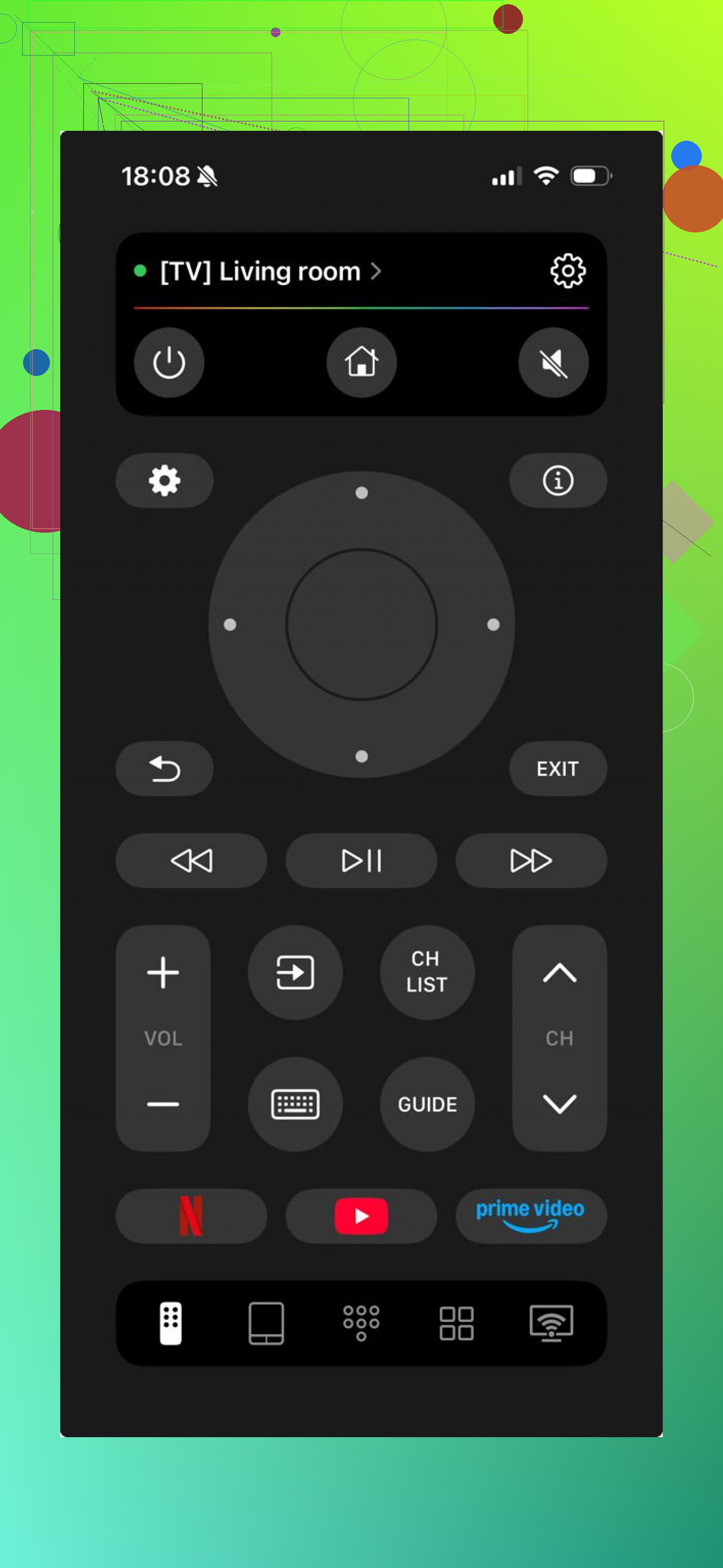
It works in the same basic way. Connect your phone to the same Wi-Fi, open the app, and use the on-screen controls for volume and channels. One thing I liked is it isn’t limited to Samsung. It also works with LG, Roku, Fire TV, Android TV, Google TV, and Apple TV, so if you’ve got a mixed setup at home, you don’t need a different app for each screen. It’s a free remote app with no subscription, no ad mess, and you get keyboard input and voice search too. The App Store rating sits at 4.8 with a few thousand reviews, which is decent.
One thing to keep in mind. Phone remote apps only work if your Samsung is a smart TV and already on Wi-Fi. If it’s an older model with no network connection, the button on the TV is the main workaround. After thta, a cheap universal remote is the fallback.
If you know your Samsung model number, I’d start there. It makes finding the hidden button a lot faster.
One more route people skip, HDMI-CEC.
If your Samsung is hooked to a soundbar, Roku, Fire Stick, Apple TV, game console, or cable box, try that device’s remote. On many setups, volume commands pass through HDMI-CEC. Samsung calls it Anynet+. If CEC was already on, the other remote might raise TV or soundbar volume right away. I’ve had a Roku remote work on a Samsung with zero setup.
Also, if you own a USB keyboard or mouse, plug it in. Not every Samsung model responds for volume, so I disagree a bit with @mikeappsreviewer on phone apps being the main easy backup. Sometimes a wired input is faster if the TV is off Wi-Fi or the app pairing fails.
If none of thsoe work, power cycle the TV, then check if it boots into the last audio output device. If it switched to TV speakers by mistake, volume feels low even when the number is high. Open audio settings any way you can and swap output back to the soundbar or receiver.
Last option, borrow any Samsung remote from a nearby set. Many Samsung remotes control other Samsung TVs well enough for volume. Old trick, still works.
One more trick neither @mikeappsreviewer nor @boswandelaar really leaned on: use the Samsung TV from a voice assistant if it was already linked before the remote vanished.
If the TV was connected to Alexa or Google Home, say “turn up the TV volume” or “set TV volume to 20.” This works way faster than hunting for hidden buttons. Same idea if you’ve got a smart speaker tied into SmartThings.
Also, if you use a cable box remote, try enabling its TV control mode. A lot of Xfinity, Spectrum, DirecTV, and Dish remotes can still send basic volume commands even if you never touch the Samsung remote again. People forget that becuase they assume volume only works through the original remote.
One thing I kinda disagree on: plugging in a keyboard/mouse is hit or miss and usually more annoying than helpful unless you already know your model supports it.
If the volume is low because of a weird audio setting, try unplugging the TV for 60 seconds. Samsung sets sometimes come back with the last sane sound mode instead of the bugged one. Not elegant, but I’ve seen dumber fixes work.
Check for Samsung’s hidden accessibility shortcut before anything else. On some models, a long press of the TV’s center button opens a side menu faster than the normal control pad, and from there you can jump into Sound without needing the full remote flow. It’s not on every set, but when it exists it’s quicker than digging around with the joystick.
I’d also try volume from the Samsung Watch app side if you have a Galaxy Watch already paired into SmartThings. Weirdly specific, but it works for some people and gets overlooked.
One small disagreement with @mikeappsreviewer: phone apps are convenient, but not always the fastest if the TV dropped off Wi-Fi. And @boswandelaar/@chasseurdetoiles are right to focus on hardware paths first.
If you end up needing a backup app, TVRem remote app is a reasonable option.
Pros for TVRem remote app
- simple volume controls
- works with multiple TV brands
- handy if you lose remotes often
Cons
- useless if the TV is not on the network
- pairing can fail after router changes
If none of this works, your fastest real-world fix is honestly buying a cheap Samsung-compatible remote locally.