My USB drive suddenly stopped opening on my Mac, and it has important photos and work files I haven’t backed up yet. Disk Utility sees the drive, but I can’t access the files, so I need help figuring out the safest way to recover data from a USB drive on Mac without making things worse.
I was already rehearsing the message to my professor. Something like, “hey, I didn’t miss the deadline on purpose, my USB drive ate the project.” I had all my files on that stick. I ejected it properly, because I’m careful with this stuff, plugged it into a friend’s MacBook for a quick demo, and then a big chunk of the data was missing. Around 3 GB, gone. The drive mounted fine. The folders looked normal. The files were not there.
First thing I did was the usual Finder check. I used cmd + shift + . to show hidden files. Nothing. Tried the same USB on my own Mac. Same result. At that point I was annoyed enough to think macOS had decided to erase things behind my back.
The post that got me out of it was this one: https://discussion.7datarecovery.com/forum/topic/deleted-files-from-usb-drive-on-mac-any-way-to-recover-them/. It lays out the recovery steps in plain English, and it points to a tool which found files even though Disk Utility reported the drive as healthy. Mine clearly wasn’t. I recovered most of the missing stuff. A few files came back damaged, but the project pieces I needed were there, so I stopped panicking.
One thing I learned the hard way, don’t grab random Windows recovery apps and expect them to help on a Mac. Some of them won’t read the file system right, and then you waste time scanning a drive with the wrong tool. I burned almost two hours on junk before I figured this out.
Stop using the USB right now. Every write lowers your odds.
Since Disk Utility still sees it, I’d skip random fixes first. I don’t fully agree with @mikeappsreviewer on one point, a drive showing up as “healthy” in Disk Utility does not mean much for file access. I’ve seen plenty of sticks pass First Aid and still have a broken file table.
What I’d do on a Mac:
- Try a different USB port, then a differnt cable or adapter if you use one.
- Check System Information, USB section. If the Mac sees the device size and vendor, the hardware is at least responding.
- Do not erase, repartition, or run repair tools more than once.
- If you have space, make a byte-for-byte image of the USB first. That gives you one safe copy to scan instead of beating up the original drive.
- Scan the image, or the USB if imaging fails, with Disk Drill on Mac. It’s one of the safer picks for USB recovery on macOS, and it handles photo and document signatures well.
- Recover files to your Mac’s internal drive or another external drive, not back to the same USB.
If Finder won’t mount it, Terminal sometimes shows more:
diskutil list
If the partition is there but not mounted:
diskutil mountDisk /dev/diskX
Replace X with the right disk number. If mount fails with I/O errors, stop there and move to recovery.
If you want a solid roundup of top free data recovery software for Mac and USB drives, that list is useful for comparing options before you scan.
If the drive clicks, disconnects, or gets hot, skip software and go straight to a pro. That stuff gets worse fast.
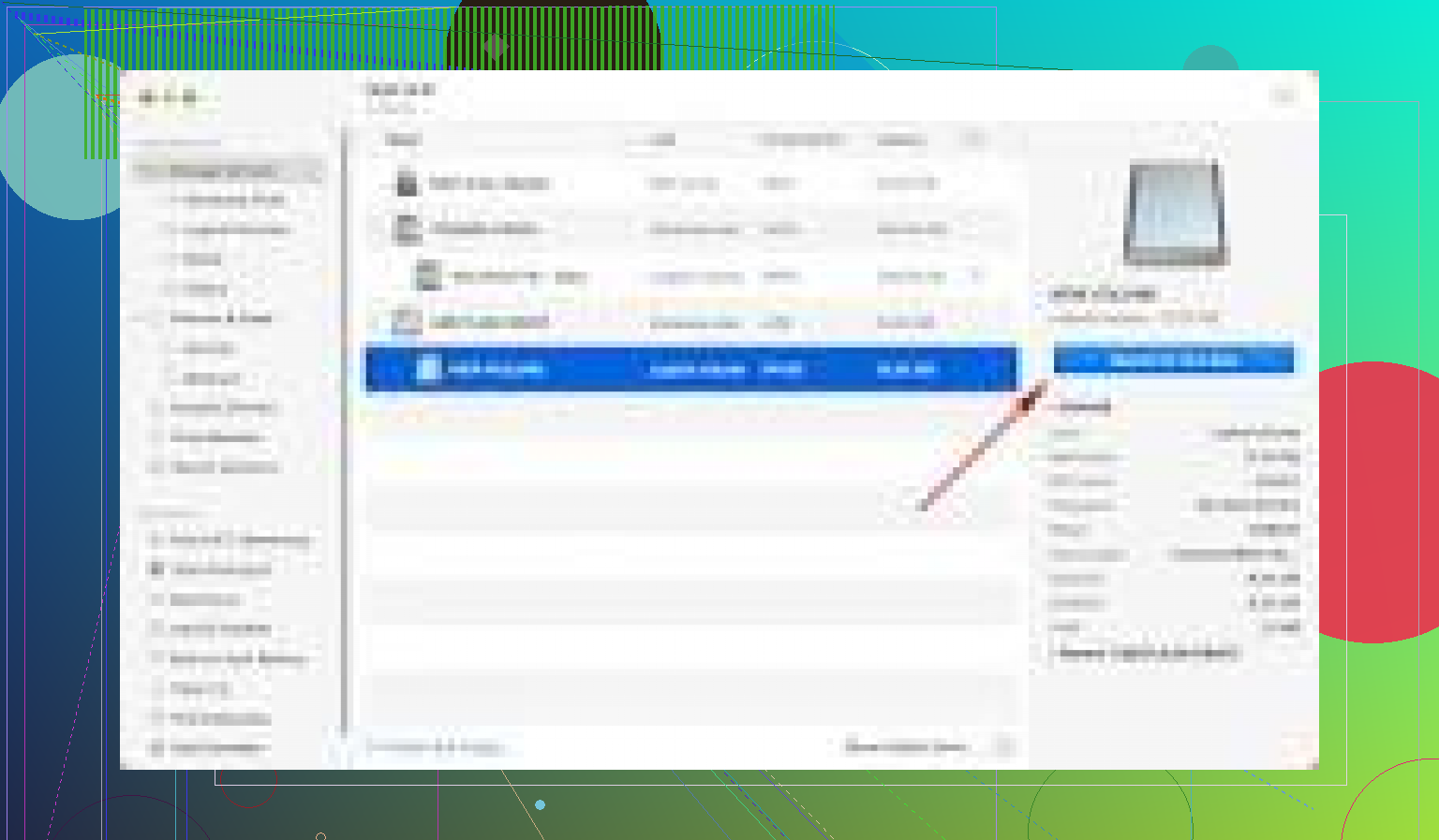
Disk Utility seeing the USB is actually a decent sign, but I’d push back a little on the “try mounting it over and over” idea. If the file system is flaky, repeated attempts can just waste time and sometimes make things uglier. @mikeappsreviewer and @espritlibre already covered the obvious recovery angle, so I’d focus on checking whether this is a permissions / mount-state issue before doing anything invasive.
A few Mac-specific things worth trying:
- In Terminal, run:
diskutil info /dev/diskX
This tells you if macOS thinks the volume is mountable, readable, and what file system it is. - Then check system logs:
log show --last 10m | grep -i disk
If you see I/O errors, invalid node structure, or mount failures, stop poking at it. - If the USB is exFAT, FAT32, or NTFS, test it on another computer just to rule out a weird macOS mounting issue. I know people hate that advice, but sometimes it really is the Mac being picky.
- If the files matter, clone first if possible, then scan the clone with Disk Drill. That part I do agree with. Disk Drill for Mac is usually one of the more practical choices for USB file recovery without going full nerd mode.
Also check whether the volume is simply not auto-mounting in Finder but is accessible under /Volumes in Terminal. Sounds dumb, but I’ve seen that happen.
And if you want a visual walkthrough, watch this Mac USB drive recovery video guide.
Big thing: recover to another drive, not the same USB. People still do that and then wonder why stuff vanishes for real.