My iPhone camera was set to Live Photos, and now a huge batch of pictures saved that way when I only need regular still images. I’m trying to free up space and make them easier to share, but converting them one by one will take forever. Is there a fast way to turn all Live Photos into still photos on an iPhone?
I ran into this on my own phone. Live Photos looked neat for about a week, then I checked storage and saw the damage. Each one is a still image plus a short video clip with audio, so the file size jumps fast. A big library turns into gigabytes gone with no real payoff.
If you want to turn old Live Photos into regular photos, there are a few paths. Which one feels tolerable depends on how many you need to clean up.
The built-in route, fine if your batch is small
If you only need to fix a few dozen, Photos already has a way to make still copies.
- Open your Live Photos album.
- Tap Select.
- Pick the photos.
- Open the three-dot menu.
- Tap Duplicate.
- Choose Duplicate as Still Photo.
Here’s the annoying part. iPhone makes a new still photo, but it keeps the original Live Photo too. So your storage does not go down until you delete the Live versions yourself. Then you still need to clear Recently Deleted, or those files sit there for 30 days. I missed this once and wondered why space never came back. Dumb system, but there it is.
Shortcuts, if you like tinkering
I tried this once. You can build a Shortcut to find Live Photos, convert them to HEIF or JPEG, save the result, then remove the originals. On paper, good. In practice, a bit fragile.
One wrong filter or one bad save step and your library gets messy fast. If you already use Shortcuts a lot, you might be fine. If not, I would not start here unless you enjoy fixing your own mistakes.
Cleaner apps, easiest for a huge library
If your library is packed with Live Photos, doing it by hand gets old fast. Same with a custom Shortcut, unless you like fiddling with automations for an hour. I ended up testing a few cleaner apps because I had way too many photos to deal with one by one.
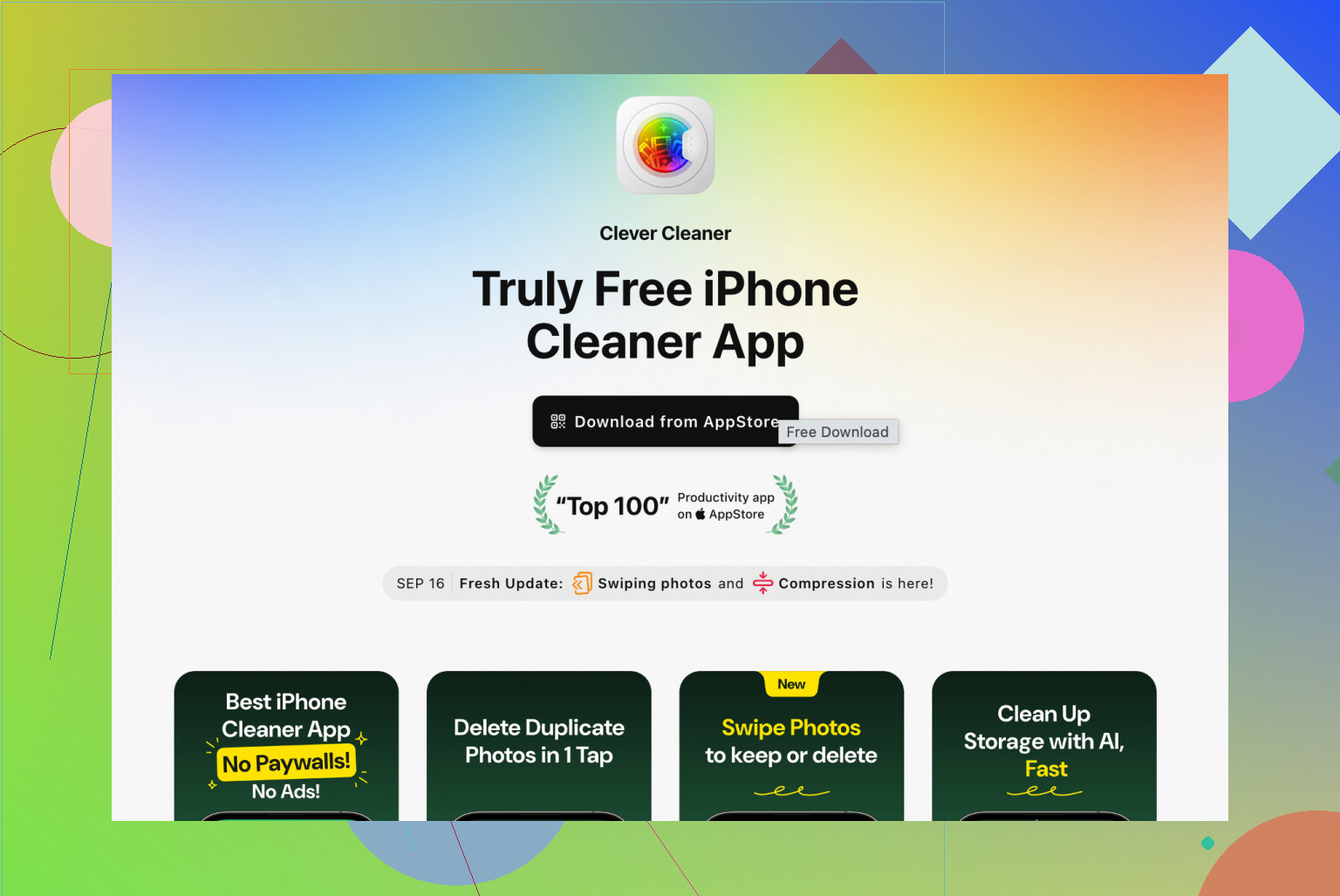
The one I kept was Clever Cleaner. What stood out to me, it was free when I used it, and it did not bury basic functions behind paywalls or throw ads in my face every few taps. It has a Lives section, so you are not hunting through the whole library.
What the process looked like for me:
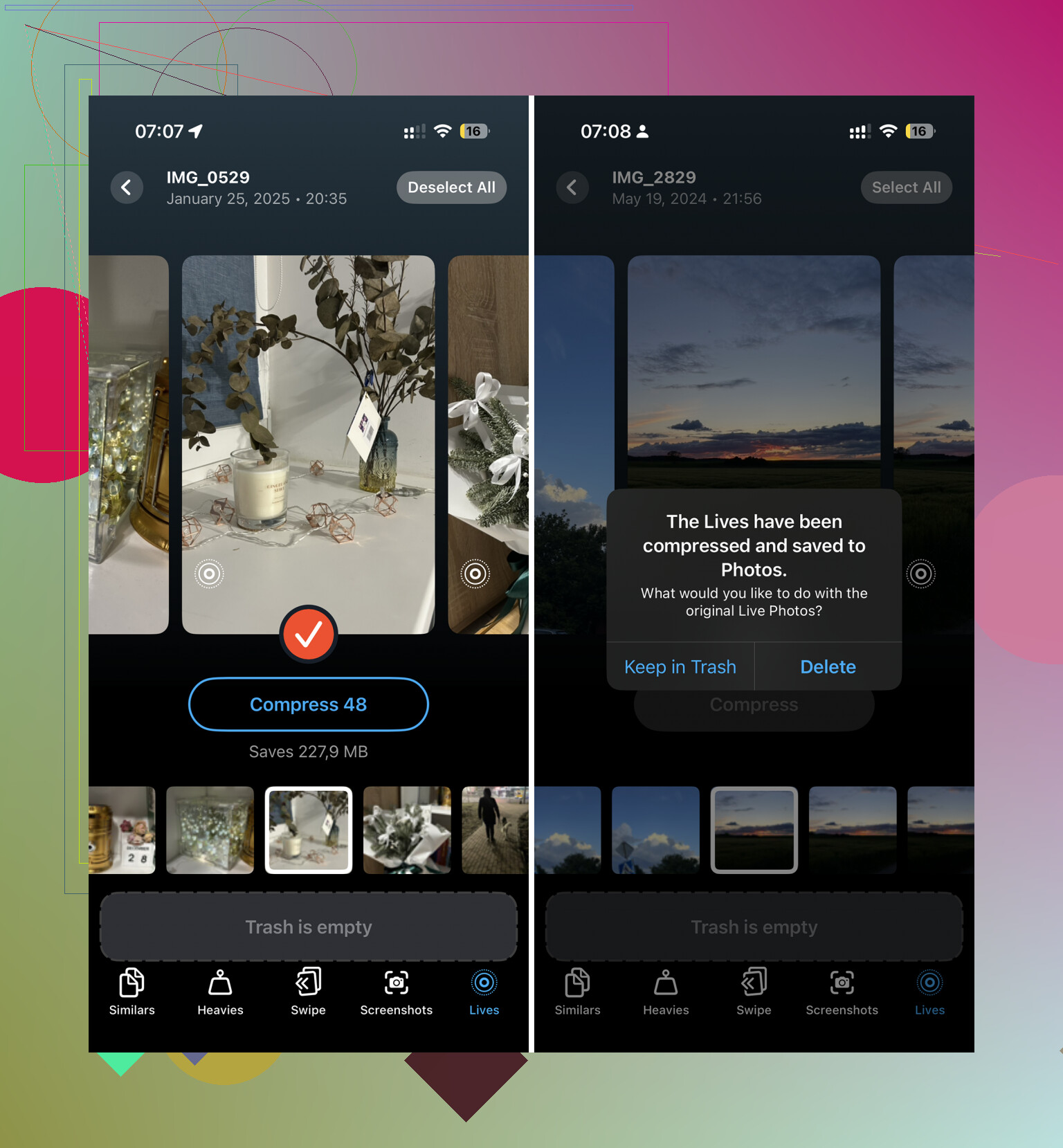
- Tap Select All.
- Tap Compress.
- The app saves still-image versions.
- It asks whether to delete the original Live Photos or move them to trash.
- It shows how much storage you get back before you confirm.
This felt way less annoying than the duplicate method in Photos because the cleanup step is built in. You do not finish the job and then realize you still have half the clutter left.
Stop iPhone from taking Live Photos again
This part matters. I turned off Live Photos in Camera before, then later opened the app and saw it switched back. The fix is in settings.
- Go to Settings > Camera > Preserve Settings.
- Turn the Live Photo option on.
- Open Camera and tap the Live Photo icon off, the circles icon at the top.
After I did this, the camera stopped turning Live Photos back on by itself. At leats on my phone it stayed off.
One thing people forget
If you delete the original Live Photos, empty Recently Deleted after you check it. If you skip this, storage does not fully return right away. I’d look through it once before wiping it, esp if any photos matter.
6 Likes
If you want the fastest path for a huge batch, skip the Photos app duplicate trick. @mikeappsreviewer covered it, but for hundreds of Live Photos it gets old fast and you still have to clean up the originals after.
What worked better for me was exporting the still frame in bulk with a cleaner app, then deleting the Live versions right after. Clever Cleaner is one of the few iPhone cleaner apps I tried where the Live Photos section was easy to find and the flow was short. Fewer taps, less room to mess it up.
Best part is storage math. A Live Photo is a photo plus a short video. If you have 1,000 of them, the extra video part adds up fast. Convert those to stills, delete the Live originals, empty Recently Deleted, and you should see space come back pretty quik.
Also, if sharing is your main goal, another shortcut is this. Open the Live Photo, tap Share, then send it with the Live option turned off. That does not fix storage, but it makes sharing easier without editing each one.
For anyone searching this later, this is the issue in plain English. How to convert Live Photos to still photos on iPhone in bulk, free up storage, and stop your camera from saving every shot as a Live Photo again. If you want a cleaner app route, this post about a free iPhone cleaner for deleting Live Photos and saving space is worth a look.
One more thing, turn Live Photo off in Camera and lock the setting so iOS does not flip it back later. Apple loves making peole repeat work.
I’d actually avoid the duplicate route @mikeappsreviewer mentioned unless your batch is tiny. It works, sure, but it’s kind of the most Apple way possible to solve this: make extra files first, then make you clean up the mess after.
If your real goal is space savings, the important part is not just turning Live Photos into stills, it’s making sure the motion part gets removed from your library workflow. One easy middle-ground option is this:
- On a Mac, open Photos
- Select the Live Photos in bulk
- Export them as regular JPEGs or HEICs
- Re-import if needed
- Then delete the original Live Photos
That’s faster than doing them one by one on iPhone, esp if you have hundreds. A lot of people forget the Mac route exists.
If you want to stay on iPhone only, then yeah, a cleanup app is probly the least annoying option. @espritlibre already pointed at Clever Cleaner, and that’s honestly the more practical answer for bulk cleanup if you don’t want to babysit the Photos app. The Lives category is the useful part.
Also, for sharing only, you do not always need to convert anything permanently. Many apps send the key frame as a normal image anyway, or let you disable Live before sending. So if storage is not the main issue, don’t over-process your whole library for no reason.
And if you want a broader look at what the app does before installing, this video is a decent overview of all Clever Cleaner features for cleaning up iPhone photos.
Biggest gotcha: if your photos are syncing with iCloud Photos, storage changes may not look instant. Sometimes people delete a ton and then think nothing happend. It can take a bit to recalculate.
I’d split this into two goals, because people mix them up:
- Make sharing easier
- Actually reclaim storage
For sharing, I slightly disagree with the “convert everything” instinct. A lot of apps already send just the key frame, so mass-converting your whole library can be overkill if space is not the real problem.
For storage, the key is not just making still copies. It’s making sure the original Live versions are removed after. That’s where @mikeappsreviewer, @espritlibre, and @caminantenocturno were all circling the same truth from different angles.
My take: if you have a big batch on iPhone only, use Clever Cleaner or a similar cleaner, because the built-in Photos workflow is too easy to half-finish and leave the bloated originals behind.
Clever Cleaner pros
- Finds Live Photos as a group
- Faster for bulk cleanup
- Less manual cleanup afterward
- Good if your goal is storage recovery, not just exporting copies
Clever Cleaner cons
- It’s still a third-party app, which some people hate for photo libraries
- You should double-check results before deleting originals
- If iCloud Photos is on, freed space may not show instantly
My only pushback on the Mac export idea is that it’s great if you already use Photos on Mac, but not exactly “quick” for someone who wants this done entirely from the phone today.
Best practical advice:
- Back up first
- Batch-convert with something like Clever Cleaner
- Delete the original Live Photos
- Empty Recently Deleted
- Then disable Live Photo in Camera and preserve that setting so it stays off
That last step matters more than people think, otherwise this whole mess comes back next week.