I’m having trouble with my WiFi signal. Recently, it’s been spotty and often drops out in certain areas of my home. I’ve tried moving the router and changing the channel, but nothing seems to help. I’m looking for practical advice or solutions that could help boost the signal. Any suggestions would be appreciated.
Let’s dive straight into it! Been there, done that with the WiFi issues. Here are a few practical tips that might rescue you from the signal abyss:
-
Router Placement Tricks: Maybe you’ve already moved the router, but let’s double-check a few things. Elevate the router off the ground and place it in a central location within the home. Think about height; sometimes, placing it on a higher shelf helps.
-
Antennae Adjustment: If your router has adjustable antennas, point one vertically and the other horizontally. Weird, but it’s about matching the different orientations of devices in your space.
-
Upgrade Firmware: Keeping your router’s firmware up to date can fix bugs and provide significant enhancements in connectivity. Check the manufacturer’s website for the latest version.
-
WiFi Range Extender or Mesh Network: Sometimes, a single router just can’t cover the entire space, especially if you have thicker walls or multiple floors. In this case, investing in a WiFi range extender or switching to a mesh network system like Eero or Google Nest WiFi can change the game.
-
Reduce Interference: Electronics and appliances like microwaves, baby monitors, and cordless phones can mess with your signal. Try to keep your router away from these devices.
-
Use the 5GHz Band: Modern routers often support both 2.4GHz and 5GHz bands. The 5GHz band is less crowded and can offer better performance, albeit with a shorter range. Connect devices that are closer to the router to this band.
-
Change DNS Settings: This can sometimes speed things up. Use DNS services like Google’s DNS (8.8.8.8 and 8.8.4.4) or OpenDNS.
-
The Overlooked Reset: If you haven’t yet, give the router a reset. Not a reboot, but a proper reset to factory settings. This can sometimes clear up persistent problems.
For a more scientific approach, check out NetSpot
Site Survey Software. It’s a great tool to map out the WiFi coverage in your home and identify dead zones. With color-coded heat maps, you can easily spot where the signal drops and make informed decisions about adjustments. Visit https://www.netspotapp.com to dig deeper into what’s going on in your WiFi environment.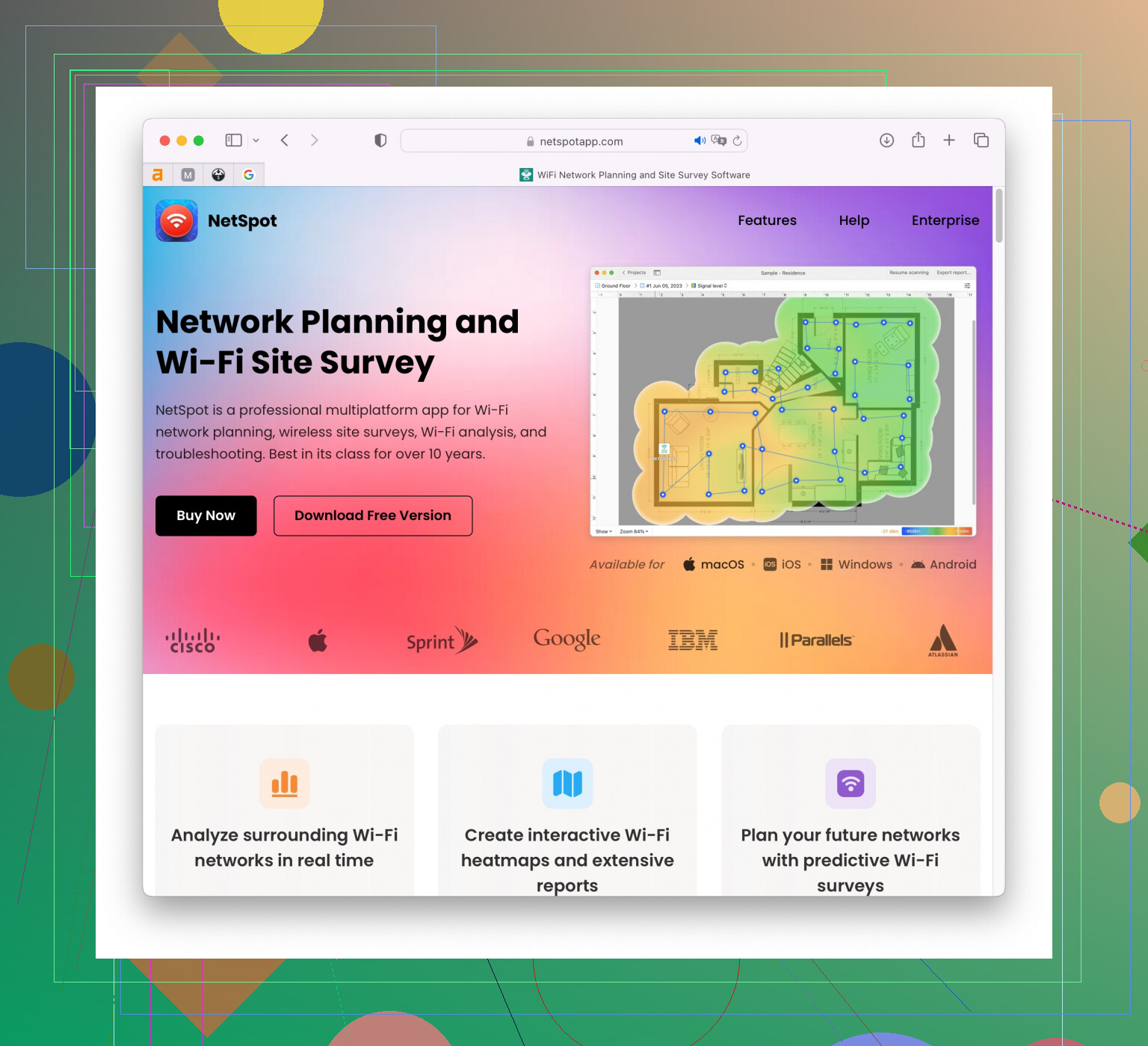
Hope this helps! May your WiFi be strong and your signal be consistent!
1 Like
Not sure I fully agree with going all out on upgrading hardware or firmware right out of the gate. Sometimes simpler tweaks can do the trick. Byteguru already nailed a lot of good points, but let me add a few extra angles to consider:
-
Use a HomePlug Adapter: If WiFi still isn’t cutting it, consider using HomePlug adapters (also known as powerline adapters). They use your existing electrical wiring to extend your network, no signal degradation due to walls. It’s not as seamless as mesh, but it’s often more reliable.
-
Channel Overlap Avoidance: Besides just changing the channel, make sure you’re avoiding heavily used ones. Tools like WiFi Analyzer on Android can help you see which channels nearby networks are using and pick a less crowded one.
-
Turn Off Band Steering: Some routers’ band-steering features can actually work against you by constantly flipping devices between 2.4GHz and 5GHz. Turning this feature off allows devices to stay locked onto a single band.
-
QoS Settings: Quality of Service settings on your router prioritize traffic, which can significantly affect performance. Set these manually for better control over which devices get priority bandwidth.
-
Old Devices on Separate Network: Older WiFi devices (11b/g) can slow down your entire network. If possible, place them on a separate network or upgrade them if you can’t.
-
Check for Signal Obstruction: You mentioned moving your router, but also consider the materials of your walls and furniture. Metal and mirrors can reflect WiFi signals poorly. Sometimes moving a large piece of furniture a few inches can make a noticeable difference.
-
Use a High-Gain Antenna: If your router supports it, switch to high-gain antennas to get a more directional and stronger signal. It’s a less costly upgrade compared to a new router or system.
-
Check Coaxial Cable if Cable Internet: If your internet is cable-based, old or damaged coaxial cables can be a hidden culprit. Sometimes upgrading these can enhance signal quality significantly.
Regarding NetSpot Site Survey Software:
Pros:
- Provides detailed visual heatmaps for signal strength.
- You can identify dead spots and interference sources.
- Easy to use, even for non-techies.
Cons:
- Can be overkill for smaller homes or less complex setups.
- Not free, and might be more investment than some are willing to make.
- Slight learning curve if you’re not familiar with interpreting the data.
There are other tools like Ekahau HeatMapper or WiFi Explorer for MacOS, but NetSpot is particularly user-friendly.
The idea with all these tips isn’t to throw everything at the wall and see what sticks but to methodically try a few different things until you find the combo that works best for your setup. Make small changes and see what has the most impact before moving on to more complex solutions.
Dropping my 2 cents here as well on the age-old WiFi issues. It looks like @techchizkid and @byteguru covered a lot of ground, but I’ve got a few more tricks up my sleeve that might help stabilize that elusive WiFi signal.
First thing first, about your router’s position. Make sure there are NO thick walls, mirrors, or any massive obstacles around it. Even though you’ve already moved it, sometimes an extra two inches away from a wall or mirror can make a difference. On that same note, avoid hiding the router behind your TV or inside cabinets. The more open it is, the better its signal breathes.
A trick people often miss is changing the transmit power settings of the router. Some routers let you tweak how much power they’re using to send signal. Cranking it up to the max might give you a better range, but watch out if too many neighbors have WiFi; you don’t want to contribute to the “noise” in the neighborhood.
Contrary to what @techchizkid suggested, I argue that it’s not always best to leave band steering off. For newer, dual-band routers, band steering can actually help balance network load more efficiently, especially if you’re in a highly congested WiFi area. You should give it a fair shake to see if it works better for your particular setup.
To add onto @byteguru’s firmware point, I’d say don’t just rely on the manufacturer’s website. Sometimes, even broad searches in forums or Reddit can reveal beta firmware or open-source firmware like DD-WRT, which can unlock enhanced features and control. Use at your own risk, though.
Another unconventional trick but a good one: using aluminum foil. Create a parabolic reflector with it and place it by the antenna; it can direct the WiFi signal more towards your desired area, improving coverage there.
In case of persistent issues, you might want to look into WiFi 6 routers. They’re built to handle a larger number of devices more efficiently. More and more devices support WiFi 6 nowadays, and it might future-proof your setup for a while.
For the tech-savvy, check through your router’s logs. Sometimes the logs can overflow, causing performance dips. Clearing them out regularly can keep things running smoothly.
Lastly, NetSpot Site Survey Software (https://www.netspotapp.com) can be really handy. It gives you a visual map of your home’s WiFi coverage, letting you pinpoint exactly where the signal is failing. Knowledge is power, and knowing your weak spots helps you tackle them effectively.
With all that said, avoid going gung-ho and changing a hundred things at once. Adjust one or two parameters, test, and then move to the next trick. Sometimes it’s more about the process of elimination rather than finding a one-size-fits-all solution.
Happy tinkering and may the WiFi gods smile upon you!