I’m trying to use my 3Dconnexion-style 3D mouse while working in CAD software on a remote Windows machine over Remote Desktop, but only basic mouse movement and clicks are registering. The 3D navigation controls don’t seem to pass through the RDP session at all. I’ve checked drivers on both local and remote PCs, but nothing changed. Is there a reliable way, workaround, or specific remote desktop setting or tool that lets a 3D mouse work properly in a remote desktop session for 3D modeling or CAD work?
Short answer, RDP does not pass through the special HID data your 3Dconnexion style mouse uses, so you only see basic mouse stuff on the remote CAD box. To fix it you need USB redirection, not normal mouse redirection.
Here are the main options that usually work:
-
Native RDP USB redirection
- Only works on some Windows editions and only for “RemoteFX USB redirection” or similar.
- On modern Windows this feature is limited or gone.
- Even when it exists, it often fails with 3D mice because of custom drivers.
- You need to connect with “Redirect all USB devices” enabled, then install the 3Dconnexion driver on the remote machine.
- Test it, but do not expect much.
-
Third party USB over RDP tools
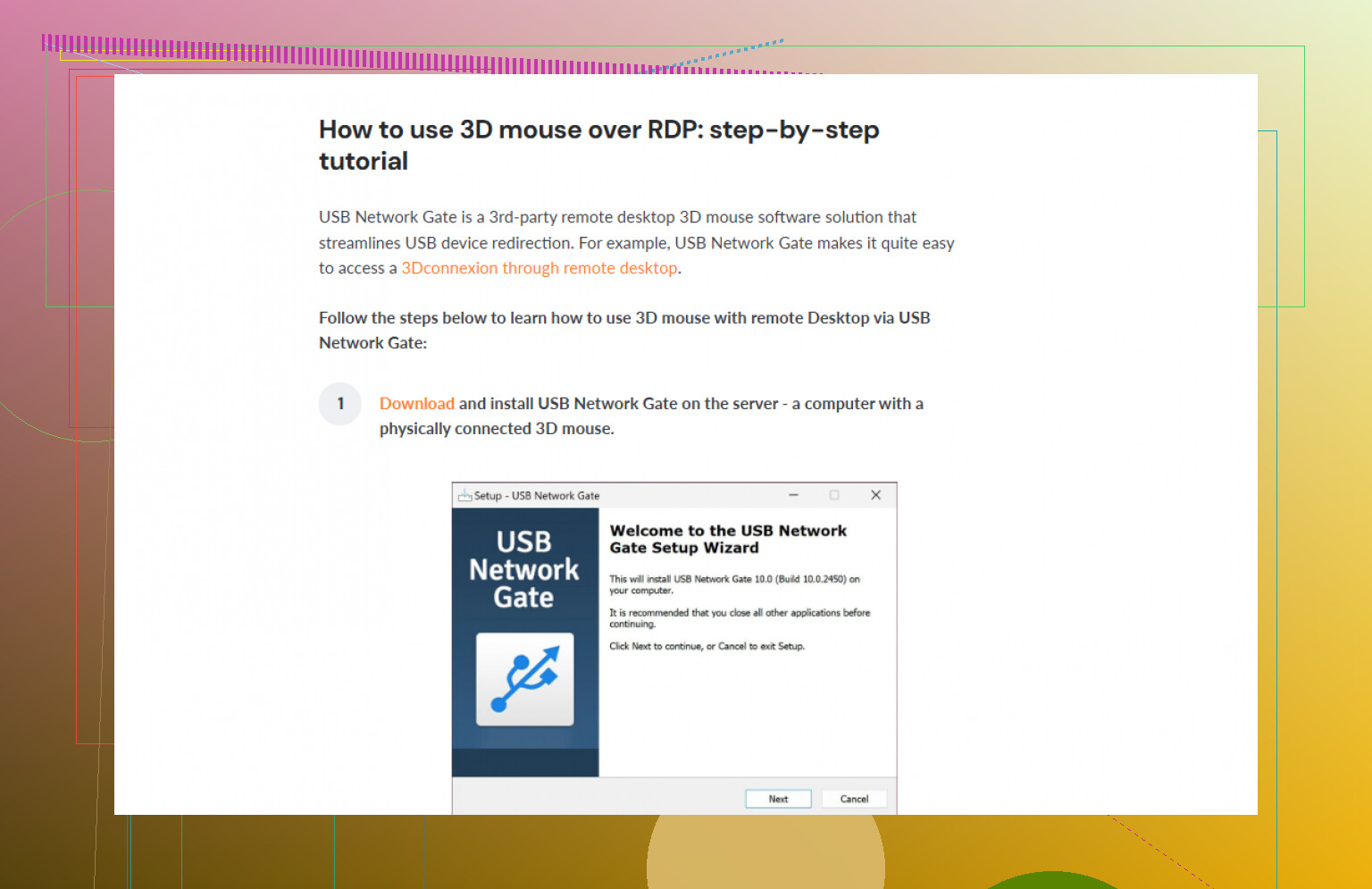
This is what most people end up using with 3D mice.Typical steps:
- Install the tool on your local PC as “server”. Plug the 3D mouse into this machine.
- Install the same tool on the remote RDP machine as “client”.
- Share the 3D mouse from the local machine.
- On the remote machine, the 3D mouse appears as if it is plugged in there.
- Install the official 3Dconnexion driver only on the remote side.
- Restart CAD and check if 3D navigation works.
USB Network Gate is one of the common options for this.
- Works over plain RDP, VPN, or LAN.
- Lets you forward only the 3D mouse, not all USB devices.
- The remote machine sees the original USB HID device, which is what 3Dconnexion software needs.
-
CAD or VM alternatives
- If your CAD supports it, run it locally and use file sync to the remote machine instead of full RDP.
- Or run the remote machine as a VM on your own box and pass the 3D mouse into the VM.
- These setups avoid the RDP input problem, but they need stronger local hardware.
One more thing people miss. Latency matters. Even if the 3D mouse starts working over RDP with USB Network Gate, movement can feel laggy on slow links. For CAD, aim for low ping and wired network if possible.
If you want a clear walkthrough, this guide explains how to make a 3D mouse work with Remote Desktop and USB redirection in more detail:
3D mouse over Remote Desktop step-by-step guide
So, practical checklist for you:
- Plug 3D mouse into local PC.
- Install USB Network Gate on both local and remote Windows machines.
- Share the 3D mouse from local side.
- Connect to that shared device from the remote side.
- Install 3Dconnexion drivers only on the remote CAD workstation.
- Restart RDP session and CAD, then test pan/zoom/rotate.
If that does not work, post your exact Windows version, CAD program, and 3D mouse model, since those details matter a lot here.
By default, RDP only sends “normal” mouse events, so your 3Dconnexion device gets dumbed down to Left Click Stick. @hoshikuzu covered the classic USB redirection angle pretty well, so I’ll add some alternatives and a few things I’ve seen go sideways.
-
Try avoiding plain RDP input entirely
If you have any choice in the stack, tools that do raw HID or full desktop capture tend to behave better with 3D mice than RDP’s input model:- Parsec, AnyDesk, TeamViewer, NoMachine
These sometimes pass enough HID info that the 3D mouse works “by accident,” as long as:- 3Dconnexion driver is installed on the remote machine
- The app on the remote side exposes the right HID hooks
- Parsec, AnyDesk, TeamViewer, NoMachine
-
Check if your CAD has a “local helper” mode
Some pro CAD tools separate the 3D device handling into a local process and send only camera commands to the remote session:- Look for settings like “external controller,” “local input device,” or “3D device bridge.”
- In those setups the 3D mouse talks to a local helper and that helper sends pan/zoom/orbit commands over the network, instead of raw USB.
-
USB over network tools & how to avoid common mistakes
If you go the “USB over RDP” route, which is what most people end up doing, there are a few traps:- Turn off any “USB power saving” in Windows and BIOS on the local machine, or the 3D mouse randomly vanishes mid‑session.
- Avoid combining generic RemoteFX USB redirection with virtual USB software at the same time. Use one strategy or the other.
- Always plug the 3D mouse into a USB 2.0 port if you have flaky behavior. Some USB 3 controllers are weird with isochronous/HID timing.
If you want something that is actually maintained and works decently over RDP, USB Network Gate is a solid option. It lets the remote workstation see your 3D mouse as if it is directly attached, which is exactly what the 3Dconnexion driver expects.
Their download page is here:
download USB Network Gate for stable 3D mouse redirectionMake sure:
- 3D mouse plugged into your local box
- USB Network Gate installed on both machines
- Share only the 3D mouse, not “all USB”
- Full 3Dconnexion driver only on the remote CAD machine
If you post your exact Windows versions (local and remote), CAD app, and specific 3D mouse model, people can usually say “yep, that combo works with X” rather than more guesswork.