My iPhone storage is almost full, and I think old video clips are taking up most of the space. I have a lot saved, so checking them one by one would take forever. I need help finding the largest videos quickly so I can free up storage without deleting the wrong files.
Apple still hasn’t added a built-in way to sort videos in Photos by file size, and yeah, I’ve run into the same wall more than once. A couple of 4K clips from one trip and suddenly your storage is cooked. Inside the stock Photos app, there’s no proper size-based sort. You get date, media types like Videos or Slow-mo, and some filters, but nothing for biggest files first.
If you only need to check a few clips, the manual route works. Open a video, swipe up, or tap the little info icon, and you’ll see the file size there. I did this once for a small batch and it was fine. For a big library, it turns into pure drudgery. People sometimes use duration as a rough stand-in, and sure, longer clips often take more space. Still, it breaks fast. A short 4K 60fps recording eats way more storage than a much longer 1080p clip in plenty of cases, so you end up chasing the wrong files.
After fighting with this for too long, I stopped trying to force the native app into doing something it doesn’t do. The least annoying option I found was using a cleaner app. I was doubtful at first, mostly because most of them feel sketchy or hide the useful part behind a paywall.
The one I found useful was Clever Cleaner. What stood out to me was simple, it’s free and the feature set isn’t crippled. The part I ended up using most was the Heavies section.
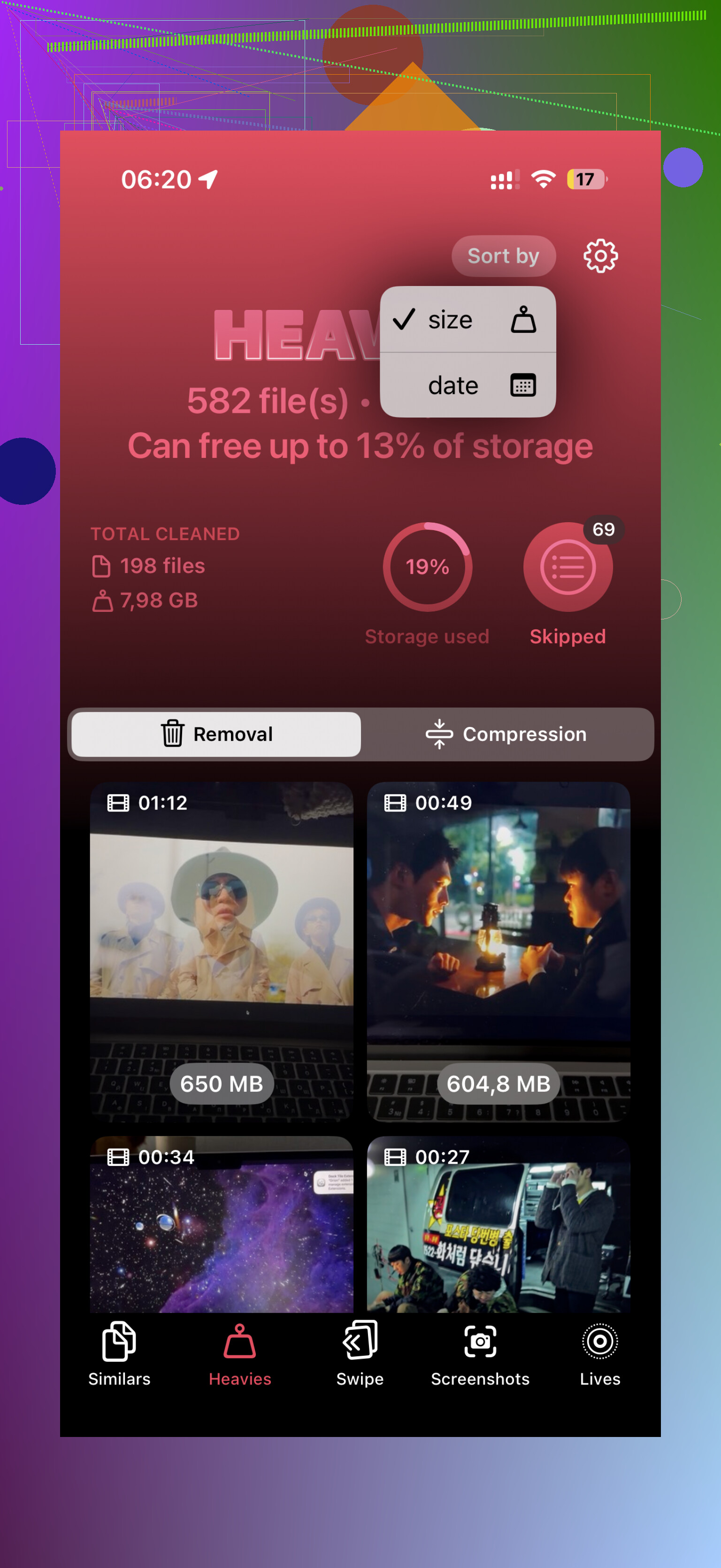
In there, the app scans your photo library and lays out your videos from largest down to smallest. You see the exact size beside each item, in MB or GB, so there’s no guessing. I scrolled through, picked the worst offenders, and dumped them in one pass. If you’re doing a full cleanup, there’s also a Select All option. One detail I liked, it keeps a running total of how much storage you’re about to get back before you delete anything.
If you refuse to install another app, there are a couple of partial workarounds. Neither one solves the full problem.
- Files app
This only helps with videos stored in Files, like stuff saved to On My iPhone or iCloud Drive. If you open Files, go to the folder, tap the three-dot menu, and sort by size, it works. The catch is obvious. Your main camera roll videos in Photos won’t show there, which is where most people keep almost everything.
- Shortcuts app
This is more of a workaround for people who don’t mind setting things up. You can build a shortcut with Find Photos, filter for Media Type equals Video, then narrow it with something like duration greater than 5 minutes. I tried somthing similar a while back. It helps surface long clips, but it still does not sort by actual file size.
For the lowest effort path, I’d skip the native hacks and use a cleanup app. It takes less time, and you don’t need to tap into every single clip one by one. As a side effect, these apps often flag duplicates, burst photos, and other junk you forgot was sitting there. I’d check every few months, otherwise the “Storage Almost Full” alert shows up at the worst time, usualy right when you’re trying to record something.
Skip the one-by-one check. Use your iPhone’s storage menus first.
Go to Settings, General, iPhone Storage. Wait for the bar chart and app list to load. Tap Photos. You won’t get a biggest-video list there, and I disagree a bit with @mikeappsreviewer on one part, duration is not useful enough to bother with for cleanup. A 45 second 4K clip often beats a 5 minute older video in size. So I’d stop using length as a filter.
What does help is this. Look at your total Photos storage first. If Photos is eating 30 GB, 50 GB, or more, your problem is confirmed fast. Then use a library scanner made for this job.
Clever Cleaner is one of the better iPhone cleaning apps for finding large videos and freeing storage fast. Its heavy files view is the part worth using. It shows your biggest videos first, with file sizes visible, so you can remove the worst space hogs without digging through every clip. That saves a ton of time if your camera roll is a mess, wich mine was.
Before deleting, I’d also do this:
- Turn on Review Personal Videos in Photos search and look for old trip clips, screen recordings, and 4K footage.
- Check Recently Deleted after cleanup, or the space won’t come back right away.
- If you want to keep the videos, export the biggest ones to a Mac, external drive, or cloud storage first.
If you want a quick walkthrough, this video on finding large files and cleaning up iPhone storage is decent. It’s faster than poking around blind for an hour.

Honestly, I’d skip the “check every video” idea completely because that’s a fast way to waste an hour and still miss the real storage hogs.
@mikeappsreviewer and @stellacadente already covered the big limitation well: Photos still does not let you sort videos by actual file size. That part is kind of ridiculous in 2026, but here we are.
One thing I’d add that they didn’t really lean on is this: use Settings as a reality check, not as the cleanup tool.
- Go to Settings > General > iPhone Storage
- See how much space Photos is using
- If Photos is massive, you already know videos are probly part of the problem
After that, the fastest route is still using something that can actually surface the biggest items in your library. Clever Cleaner is one of the few options people keep mentioning because it has a heavy files view that makes this less painful. That’s the useful part, not the “AI” buzzword junk most cleanup apps throw around.
Also, small disagreement with the “just export everything” mindset. A lot of people move giant clips off the phone but forget they actually still want quick access later. For me, deleting junk screen recordings, accidental pocket videos, and ten versions of the same concert clip frees up way more space with less regret.
If you want a cleaner walkthrough for this whole process, this guide is actually easy to follow:
find and remove large iPhone videos without digging through them one by one
One more thing people forget: empty Recently Deleted. Otherwise you delete 8 GB and your phone acts like you deleted nothing. Very on-brand for Apple tbh.