I accidentally emptied the Trash on my MacBook and lost important files I still need for work. I’m trying to figure out if there’s any way to recover deleted files on macOS, whether through backups, recovery software, or another method. Any help with MacBook Trash recovery would really help right now.
First thing I’d do, and I mean right now, is stop using the MacBook. No downloads. No app installs. Don’t save files. Quit whatever apps are still writing in the background.
Here’s the ugly part. Emptying Trash on macOS usually does not remove the file data right away. It removes the filesystem references and marks the space as free. Your files often still sit on the drive for a bit. The problem starts when macOS writes new data into those same blocks. Then the old data gets replaced, and recovery drops off fast.
With newer MacBooks, this gets worse because of SSD behavior and TRIM. TRIM tells the drive which deleted blocks it can clean up. On SSDs, especially internal Apple SSDs, deleted data can disappear fast. I’ve seen people wait an hour, install two apps, restart once, then wonder why scan results are garbage. Time matters here.
Before you mess with recovery tools, check the easy stuff.
- Time Machine snapshots
If you use Time Machine, open it and go back to the folder where the files were before you trashed them. Even without the backup drive plugged in, macOS often keeps local snapshots for roughly the last 24 hours. I’d check there first because restore is clean and you avoid poking the SSD more than needed.
- Cloud trash
If those files lived in iCloud Drive, Dropbox, or Google Drive, leave the Mac alone. Use your phone or another computer and sign in on the web. A lot of cloud services keep their own deleted-items area for days or weeks, separate from your Mac’s Trash.
- App-level deleted folders
Photos and Notes are the classic ones. Apple keeps a Recently Deleted area inside those apps, often for 30 to 40 days. System Trash being empty does not always touch those app-specific bins.
If those checks turn up nothing, then you’re down to recovery software.
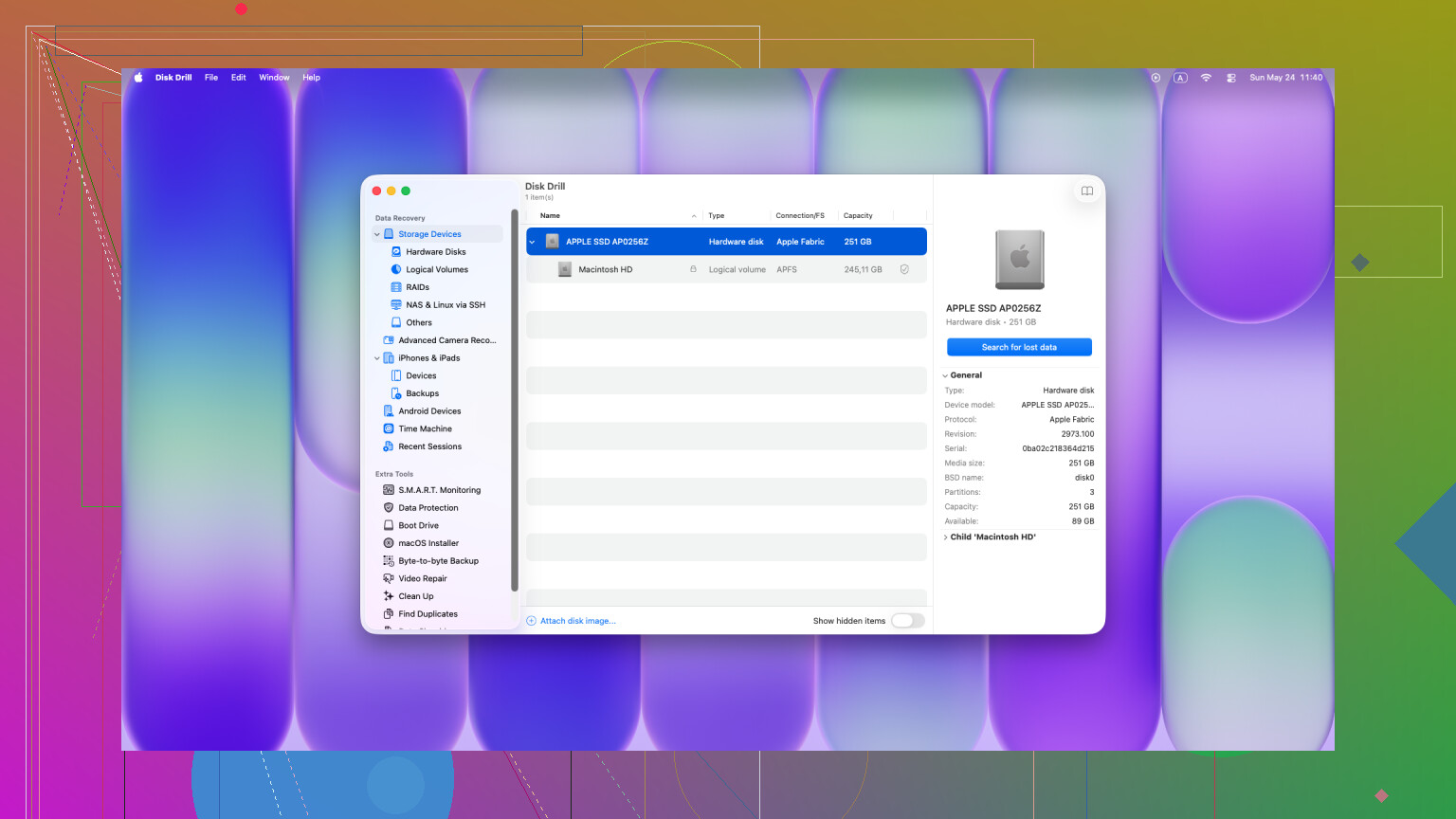
What worked best for me on Macs was Disk Drill. I tried a few older tools on newer Macs and got weak results, or no access to the internal drive at all. Newer MacBooks, especially Apple silicon models and systems with the T2 chip, are harder to deal with because of encryption and access limits. Some tools look fine on paper and then fail the moment they hit the internal SSD.
Big mistake people make, I did this once years ago on another machine, is installing the recovery app onto the same drive they’re trying to save. Don’t. Installation writes data. Updates write data. Caches write data. All of it risks landing on the exact blocks where your deleted files still are.
Safer route:
Use another computer.
Download Disk Drill onto a USB drive.
Plug the USB into the MacBook.
Run it from there if possible.
Then do a full scan. Their Universal Scan is the one I’d start with. The scan itself is free, and the preview matters a lot. If you see proper thumbnails or your document contents show up intact, you know the files are still there in usable shape before spending money on recovery.
If you recover anything, save it to an external drive. Not back to the Mac’s internal storage. Writing recovered data onto the same SSD is the kind of own-goal people regret five minutes later.
If the scan finds nothing useful, then the next step is a lab. At that point you’re paying for specialized hardware, not software tricks. A decent recovery shop might pull data directly from the storage path without relying on macOS. Cost is usually somewhere around $300 to $3,000 from what I’ve seen, sometimes more. I’d only go there for stuff you can’t replace, business records, family photos, legal docs, that sort of thing.
One last thing, because forum threads go sideways on this. Random Terminal commands won’t bring back files from an emptied Trash. Those commands help in other cases, like moving items out of a stuck Trash folder. Different problem. Once Trash has been emptied, you’re in recovery-software territory, or lab territory.
So the short version:
Stop using the Mac.
Check Time Machine.
Check cloud deleted folders.
Check Photos or Notes Recently Deleted.
Run Disk Drill from external media if you can.
Recover files to an external drive.
If you move fast, you still have a shot. If you keep using the laptop, your odds drop.
4 Likes
Yes, there’s still a shot, but I’d be a little less optimistic than @mikeappsreviewer if your MacBook has an internal SSD. On newer Macs, once Trash is emptied, recovery odds drop fast, espeically after a reboot.
A few extra things to check that people forget:
-
Shared work apps
Word, Excel, Pages, and Adobe apps often keep autorecovery or temp copies. Open the app itself and look for recent files, recovery panels, or AutoSave versions. -
Email attachments
If the lost file came from email, check Sent, Inbox, and Downloads history. Re-saving the attachment is faster than raw recovery. -
Version history
If the file lived in OneDrive, Google Drive, Dropbox, or even inside Microsoft 365, check file version history, not only trash. I’ve recovered overwritten work stuff this way more than once. -
Another Mac user account
Sometimes files were saved in a different user folder than people thought. Check /Users, Desktop, Documents, and app sandboxes.
If none of that works, then yes, Disk Drill is one of the better Mac options. I’d use it for a scan and preview first. If previews look clean, your odds are decent. If filenames are missing and results show as raw fragments, the file system metadata is gone and recovery gets messy fast.
Also, if you want a step-by-step Mac guide, this recover emptied Trash files on Mac tutorial is a decent starting point.
Short version. Check app recovery, email, version history, and other user folders first. Then scan with Disk Drill from external storage. If the files are worth money, stop tinkering and send it to a lab.

If the Trash was emptied on a modern MacBook, the honest answer is: maybe, but don’t count on miracles. I agree with @mikeappsreviewer and @espritlibre on the urgency, but I’d add one thing people skip: check whether the file was ever actually stored locally in full. With iCloud Desktop/Documents optimization turned on, sometimes what you “deleted” was a local placeholder while the real copy still exists in iCloud web history or another synced device.
Also, don’t overlook app caches buried in weird spots. For example, Pages, Word, Photoshop, and Preview can leave behind temp or autosave files in containers or Library folders. Not fun to dig through, but sometimes way faster than doing a full recovery scan.
If you do need software, Disk Drill is a legit Mac data recovery option, but use it as a last active step, not the first panicky download. Preview results first. If all you get are raw fragments, that usually means the clean restore path is gone.
One thing I sorta disagree on: if the files are truly critical for work, I wouldn’t keep “trying a bunch of tools.” One scan attempt is fine. Five diff recovery apps is how people torpedo the drive.
Also worth reading this Apple community thread on recovering files after emptying Trash on a MacBook.
Short version:
- check iCloud web data and synced devices
- dig through app autosave/temp folders
- if needed, scan with Disk Drill
- if the files are worth real money, stop messing with it and go pro
Kinda sucks, but yeah, there is still a shot. Just gets worse fast if you keep using the Mac.