I turned on Optimize iPhone Storage to free up space, and now I’m worried some of my photos might be removed from my iPhone. I still want them saved in iCloud, but I need to understand what stays on the device, what gets replaced, and how to keep my pictures safe.
I’ve hit this wall more than once. The “Storage Almost Full” alert always shows up at the dumbest time, right when you want to record a video, install iOS, or save a batch of photos.
What “Optimize iPhone Storage” does is pretty simple. Your iPhone stops holding onto the full-size original of every photo and video locally. The original file stays in iCloud, and your phone keeps a smaller device-sized copy instead. So when you scroll through your gallery, stuff still looks normal, but it takes less room on the phone.
If you open a photo, zoom in, edit it, or play a clip in full quality, the phone pulls down the original from iCloud. On solid Wi-Fi, I barely noticed it. On weak data, yeah, it felt slower. Your photos aren’t gone. The full files still exist, they’re stored in iCloud instead of sitting on the device.
If you want to switch it on, do this:
Settings
Your name
iCloud
Photos
Turn on “Sync this iPhone”
Pick “Optimize iPhone Storage”
If your library is big, give it time. I left mine charging overnight on Wi-Fi and it sorted itself out by morning, or close to it.
If you already enabled it and storage still looks stuffed, I’d check three things.
First, iCloud space. The free 5GB tier fills up fast. Once iCloud is full, optimization kind of stalls because there’s nowhere to place the originals.
Second, Apple doesn’t shrink everything right away. It waits until the phone needs space, so the change isn’t always instant.
Third, and this was the bigger issue for me, photos weren’t the whole problem. System Data, app cache, old message attachments, random leftovers, all of it piles up.
My iPhone 13 got bad enough where I felt it in normal use. Camera opened late. Apps dumped me out. Typing had this weird lag. I didn’t realize how much low storage messes with iOS until I was dealing with it daily.
I tried cleaning manually first. Bad idea. Going through thousands of blurry pics, duplicate screenshots, and old videos is miserable. I ended up using Clever Cleaner after seeing it mentioned a few times. I expected the usual junk, ads every two taps, subscription nag, all of tht. It wasn’t like that.
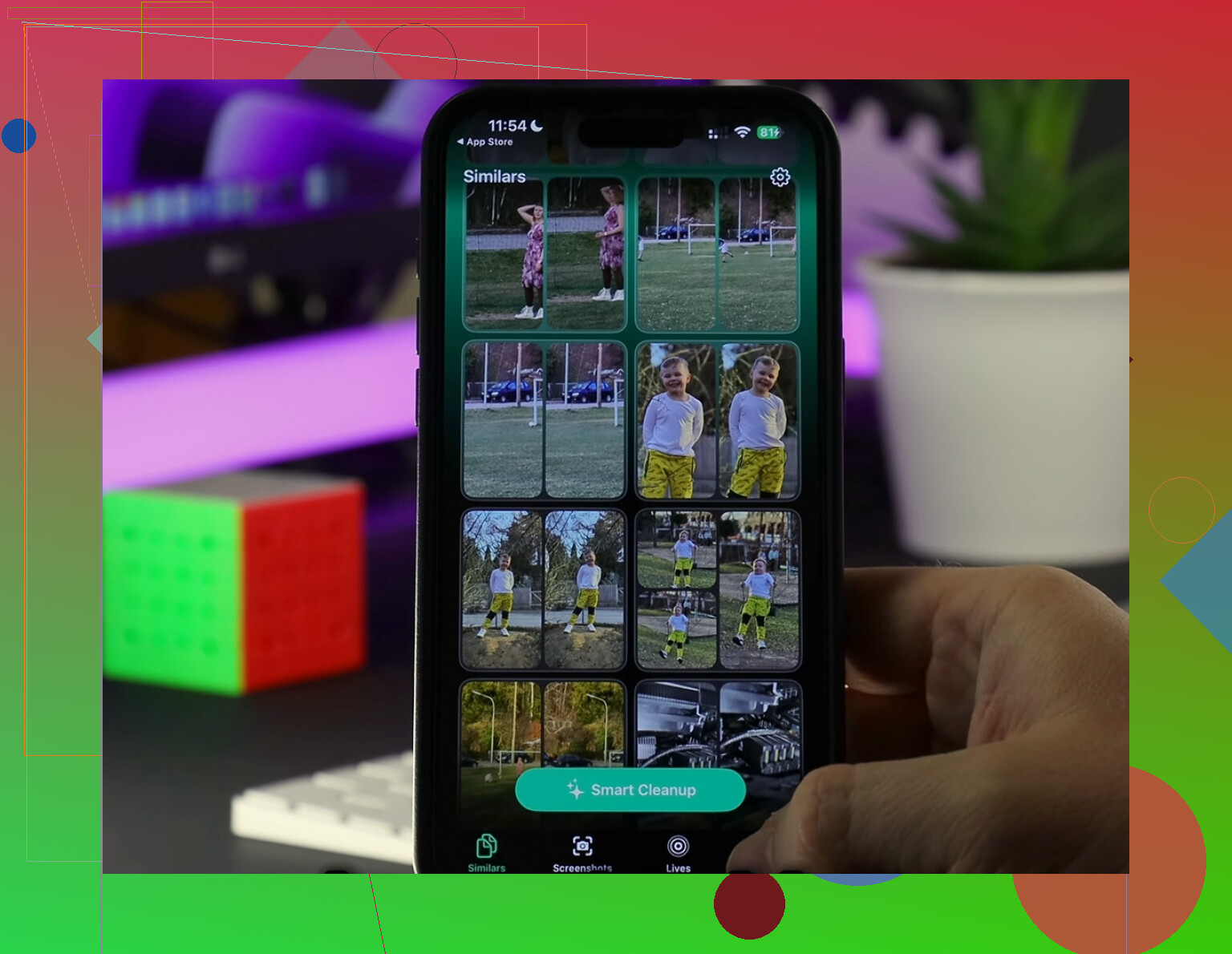
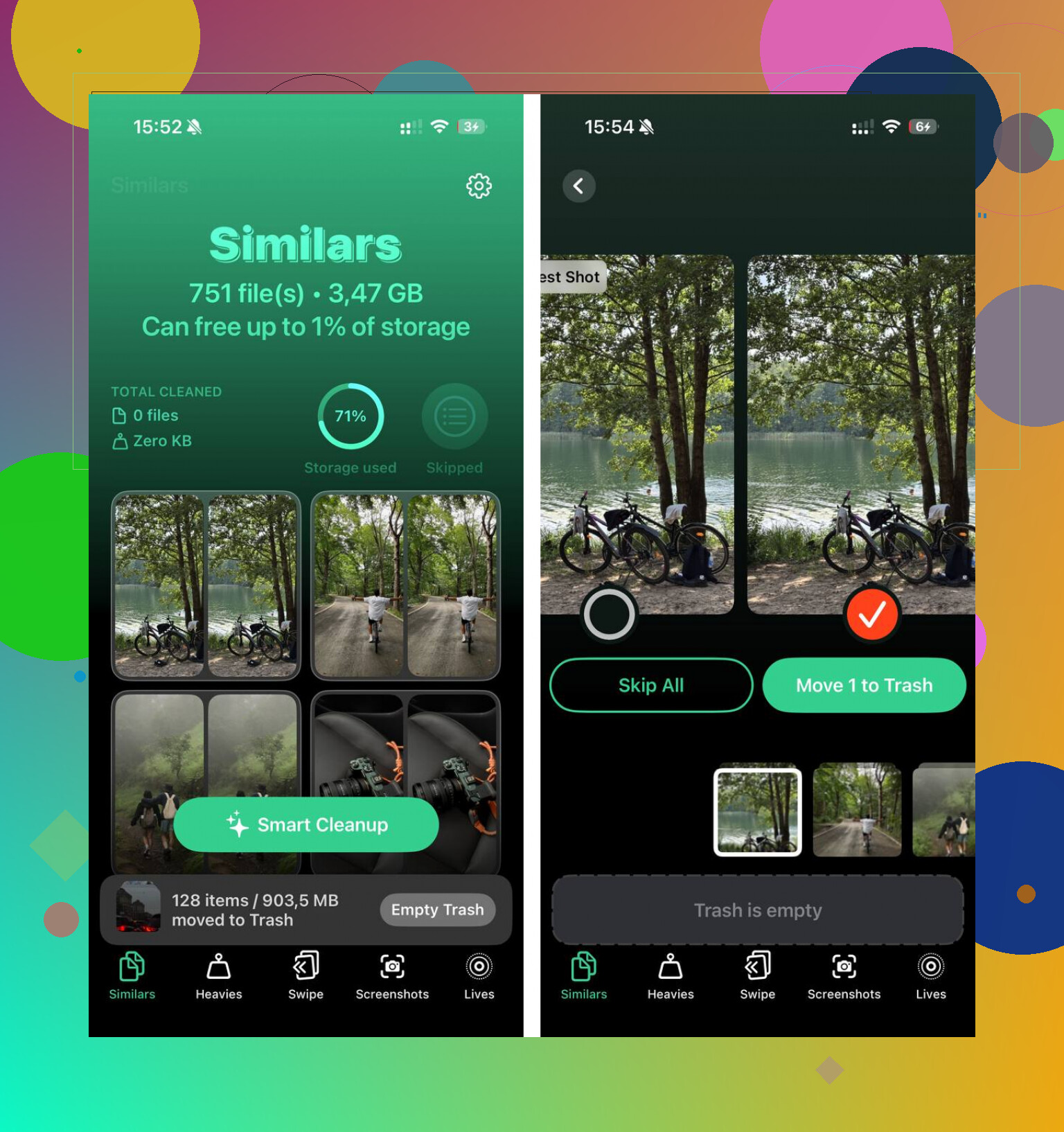
The part I used most was the Similars section. It grouped near-duplicate shots, like five versions of the same receipt or twenty sunset photos where only one was worth keeping. I swiped through and dumped the extras fast. The Heavies section helped more than I expected too. It sorted media by file size, which made it easy to spot old videos eating 1GB, 2GB, sometimes more.
I also liked how it handled privacy. The scan happens on-device, so your library isn’t getting shipped off somewhere else for analysis. After I cleared around 15GB, mostly screenshots, duplicate photos, and forgotten videos, the lag on my phone faded out. It felt normal again.
So yeah, I’d turn on Optimize iPhone Storage for the long term. It helps. But if your phone is still packed, you’ll need to clean the library too, and maybe clear out app junk. One more thing people miss, empty the “Recently Deleted” album after you remove photos, or they keep taking space for 30 days.
That’s what worked for me.
4 Likes
Yes. It removes some full-resolution copies from your iPhone. It does not delete the photos from your iCloud Photos library.
What stays on your phone:
Smaller preview versions.
Recent items you view often.
Some originals, if your phone has space.
What moves off the phone:
Full-size originals Apple thinks you do not need stored localy.
So if you open an older photo while offline, you might see a lower-res version first, or need internet to load the full file. That part annoys me more than @mikeappsreviewer seems to mind. If you travel or lose signal a lot, optimized storage is not always great.
Important part. If iCloud Photos sync is on, deleting a photo in Photos deletes it from iPhone and iCloud. Optimize Storage is not a backup tool. It is a space-saving sync feature.
Best way to check:
Settings > Photos.
Make sure Sync this iPhone is on.
Make sure Optimize iPhone Storage is selected.
Then check your iCloud storage has room.
If your phone is still full, the issue is often large videos, duplicates, screenshots, and app junk. Clever Cleaner helps sort those faster. Also, if you want a solid guide on the best cleaner app for iPhone, this is useful:
best cleaner apps for iPhone storage cleanup
Short version. Your photos are still yours. Your iPhone keeps lighter copies. iCloud keeps the originals. Don’t delete anything manually unless you want it gone everywhere too.
Yes, but not in the scary “your photos are gone” way.
“Optimize iPhone Storage” can remove some full-resolution originals from the iPhone itself. The originals stay in iCloud Photos, and your phone keeps smaller versions plus some full-res files it thinks you’ll need. So the pic still shows in your library, it just may need internet to pull the original back down.
One thing I’d push back on a little from @mikeappsreviewer and @andarilhonoturno: people make it sound super seamless, but offline use can be kinda annoying. If you’re on a flight or in bad service, older videos especially may not open in full quality right away. That part is real.
Also important:
If you delete a photo in Photos, it deletes from iCloud too if sync is on. Optimize is storage management, not a backup. Big difference.
If you want more room beyond iCloud optimization, Clever Cleaner is actually useful for finding duplicates, huge videos, and screenshot clutter. That stuff is often the real storage hog, not just photo originals.
If you want a visual explainer, how to optimize iPhone storage and keep photos in iCloud covers it pretty well.
Short version: thumbnails and smaller copies stay on the phone, many originals move to iCloud, and nothing is truly “removed” unless you delete it yourself. Pretty simple once Apple stops wording everthing weird.
Yes, but only from the phone’s local storage.
What Apple is really doing is swapping some full-resolution originals for lightweight versions while keeping the real files in iCloud. I slightly disagree with how “invisible” this feels in daily use. It works fine until you’re offline, then the cracks show, especially with older videos.
A detail worth adding beyond what @andarilhonoturno, @byteguru, and @mikeappsreviewer covered: optimized items can still appear fully present in Photos, so people assume they are stored on-device when they are not. The library looks complete, but storage behavior is different from true local copies.
Two practical gotchas:
- Editing or exporting older media may trigger a re-download
- If iCloud sync breaks or you run out of iCloud space, things can get messy fast
So no, your photos are not being erased from your account. But yes, some originals are removed from the iPhone itself.
If you need more space beyond that, cleaning the library helps more than people expect. Clever Cleaner is decent for that.
Pros:
- good at spotting duplicates and big videos
- quick photo library cleanup
- easy to use
Cons:
- still requires you to review before deleting
- not all “similar” photos are actual duplicates
- won’t fix iCloud limits or system storage issues
Short version: Optimize iPhone Storage reduces local photo storage, not your actual iCloud library.