I’m trying to free up space on my phone and Messenger is using a lot of storage. I see the option to clear cache, but I’m not sure if it only removes temporary files or if it could delete messages, photos, videos, or login data. Can someone explain what actually happens when clearing Messenger cache?
Yeah, iPhone doesn’t handle this the way Android does. If you’re looking for a normal “Clear Cache” button for Messenger, you’re going to be annoyed, because iOS doesn’t really give you one.
The good news is you still have a couple of ways to clean Messenger up, especially if it’s crashing, eating storage, or acting weird. You just have to do it through iPhone storage settings instead of inside the app.
For a lighter cleanup, offload Messenger
Go to Settings > General > iPhone Storage > Messenger, then tap Offload App.
This removes the app itself, but keeps its documents and data on your phone. So your login info, settings, and local app data should stay there. After that, tap Reinstall App.
This can clear out some temporary junk and force Messenger to refresh without making you fully set everything up again. If the app is only mildly buggy, this is usually the first thing I’d try.
For a deeper cleanup, delete and reinstall it
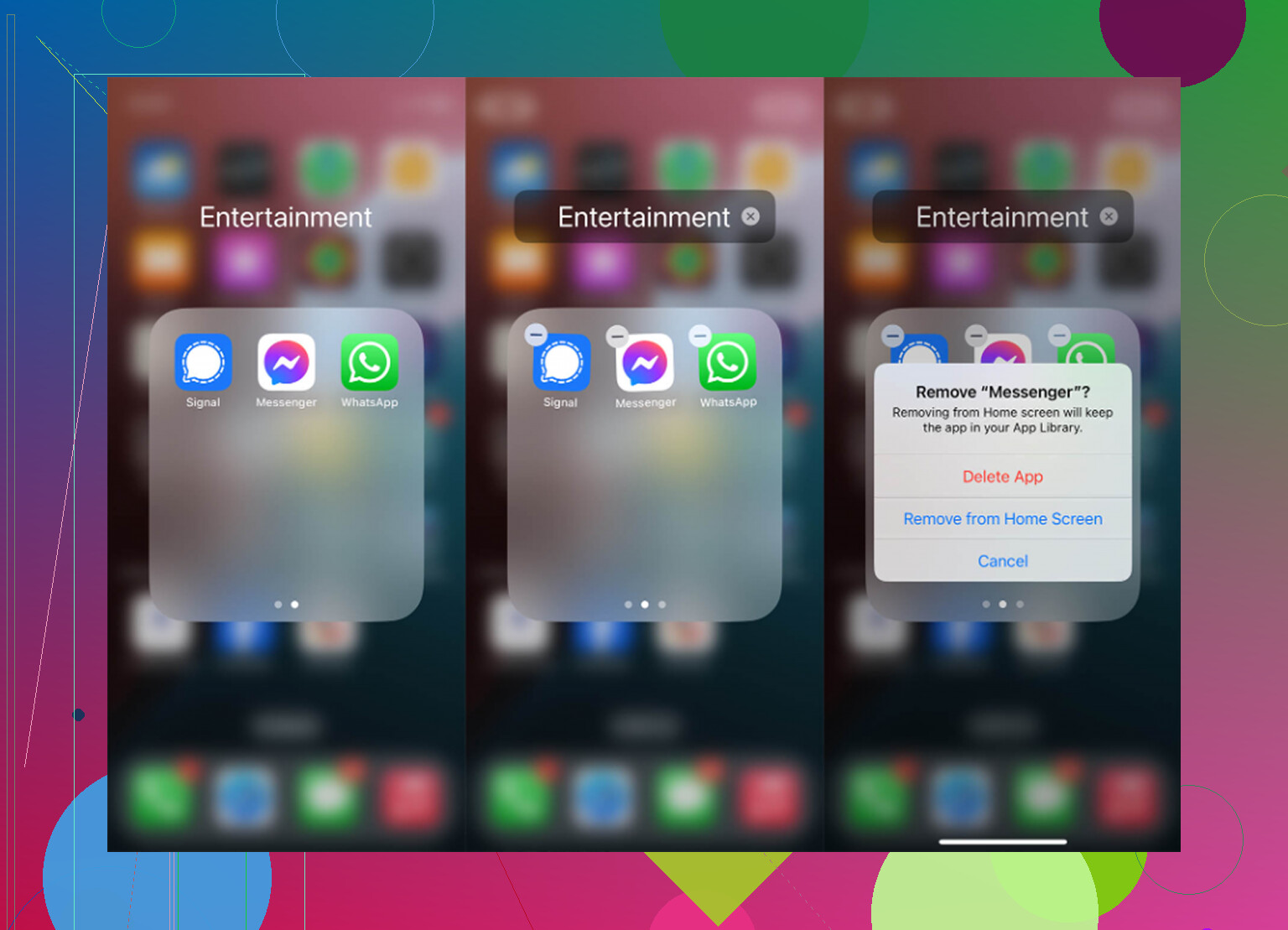
If Messenger is taking up a ridiculous amount of space or keeps crashing after offloading, delete it completely. You can do that from Settings > General > iPhone Storage > Messenger by choosing Delete App, or just long-press the Messenger icon and remove it from the Home Screen.
This clears the app, its temporary files, and its local data. After that, download Messenger again from the App Store.
Yes, this will log you out. You’ll need to sign back in.
No, it should not delete your conversations. Your Messenger chats are stored with Meta, not only on your iPhone. Once you log back in, your messages should sync back like before.
What you’re really clearing here is the stuff Messenger quietly builds up over time: image thumbnails, sticker and GIF files, bits of watched videos, and other temporary files it saves so things load faster. That junk can pile up, and sometimes it gets corrupted enough to make the app crash.
The annoying part is that this is usually temporary. Messenger will start rebuilding its cache as soon as you use it again. You might clear a couple gigs today, then find the app bloated again later because that’s just how it works.
If your main issue is storage, Messenger might not even be the biggest problem. A lot of the time, the real space hog is the photo library: old screenshots, duplicate shots, huge videos, random screen recordings, and 4K clips you forgot existed.
What I’d check after Messenger
I used to waste a ton of time scrolling through Photos manually, trying to figure out what was taking up space. Most cleaner apps I tried were annoying about it. They’d look free, then ask for money when you actually tried to delete anything, or they’d be packed with ads.
The one I ended up liking is Clever Cleaner.
To be clear, it does not clear Messenger’s cache. The Messenger cleanup still has to be done with the offload or delete/reinstall method above. What it does help with is the stuff that usually matters more for storage: photos and videos.
The main reason I recommend it is simple: it’s actually free. No trial trap, no paywall when you try to delete files, and no ads popping up every few seconds.
The parts I’d use first:
- Heavies: This sorts your media by file size. It’s the quickest way to find giant videos you forgot about. Deleting a few of those can free up more space than messing with app cache over and over.
- Similars: It groups photos that look almost the same, so you can keep the best one and remove the extras.
- Screenshots: Good for clearing out old receipts, memes, chats, and random screenshots you probably don’t need anymore.
- On-device processing: The cleanup happens on your iPhone, so your photos aren’t being uploaded somewhere just to be analyzed.
So if Messenger itself is broken, delete and reinstall it. That’s the cleanest fix. But if you’re doing this because your iPhone is almost full, don’t stop there. Check your photos and videos too, because that’s usually where the real space is hiding.
Don’t hit “clear data” thinking it’s the same thing. Cache is usually safe: previews, thumbnails, temporary media, bits Messenger saves so chats load faster. It should not erase the actual conversations from your account. But app data is different, especially on Android, because that can reset the app, log you out, remove local settings, and wipe anything Messenger only had stored locally. On iPhone, I agree with @mikeappsreviewer that deleting/reinstalling is the closest real cleanup, but offloading may not free as much as people expect because iOS keeps the documents/data part. If you care about a photo or video someone sent, save it to Photos or Files before cleaning anything, since clearing cache can remove the local copy even if the message bubble still exists.

Clearing the cache can make Messenger feel worse for a little while, because it has to rebuild all those little files again. Thumbnails, profile pictures, sticker packs, previews, and recently viewed media may need to download again, so chats can load slower at first and you might use more mobile data if you’re not on Wi-Fi.
I agree with @boswandelaar on the big distinction: clear cache is not the same as clear data. Cache is mostly convenience files. Your actual message history should still be tied to your Messenger/Facebook account. What may disappear is the local copy of things Messenger had already downloaded, like a video preview or photo thumbnail. The message may still be there, but tapping it later might force Messenger to fetch it again.
The small caveat people forget is anything you haven’t intentionally saved outside Messenger. If there’s a photo, voice note, file, or video you actually care about, save it to your phone or cloud storage before doing a cleanup. Don’t treat a chat bubble as a backup. After that, clearing cache is usually a safe first move. Just don’t hit “clear data” unless you’re okay with signing back in and rebuilding the app from scratch.
Check the storage split first before you tap anything: if most of the space is listed as user data/documents rather than cache, clearing cache may barely move the number.
Clearing cache is basically telling Messenger, “throw away the stuff you can recreate.” That usually means small local files like thumbnails, profile images, GIF/sticker bits, previews, and copies of media it kept around so you don’t have to load them again. It should not remove your actual chat threads from your Messenger account, and it should not delete photos or videos you already saved to your phone’s Photos/Gallery app.
The catch is that cache can sometimes include a local copy of something you were relying on without realizing it. If an old video or file only exists inside a conversation and you never saved it elsewhere, don’t assume clearing cache is the same as safely archiving it. If the message is still available on Messenger’s side, it can reload. If it was unsent, removed, expired, or otherwise unavailable later, clearing local files might mean you lose the easy copy you had.
I’d push back slightly on the idea that clearing cache is always a meaningful storage fix. It’s safe-ish, but often temporary. Messenger will start filling that space again as soon as you scroll chats, open media, watch videos, or use stickers. If you clear 800 MB and then spend ten minutes browsing old conversations, some of it comes right back.
So the order I’d use is: save anything important first, clear cache if you’re on Android, then restart the app and check storage again. If the size barely changes, the storage is probably app data rather than cache. At that point you’re looking at the heavier option: delete/reinstall or clear app data, knowing that means signing back in and reloading everything. Cache cleanup is the low-risk broom, not the moving truck.
Offloading Messenger barely does anything, and that’s the trap nobody flags clearly. The app binary is small. The gigs you’re chasing sit in the documents and data, which offloading leaves untouched, so you’ll stare at the same storage number wondering why. If your goal is actually reclaiming space from Messenger, delete and reinstall is the only version that bites, like @mikeappsreviewer said. I’d only push back on treating that as a real fix though. It logs you out, and the space creeps back the moment you start opening chats again. So if you’re doing all this to survive a full phone, the Messenger dance is mostly wasted effort. Clearing out big videos and screenshots gets you way more room, and something like Clever Cleaner is fine for finding the heavy stuff fast. Just don’t expect it to touch Messenger itself, it won’t.
The cache versus data distinction above matters. Android’s Clear cache removes temporary files, while Clear storage deletes app data.
For a simpler storage fix, check your dowloaded music first. If you use Apple Music on iPhone, open Music, press and hold a downloaded album, then choose Remove Download. Your library keeps the album, but playback needs internet afterward. Choose this instead of Delete from Library to avoid accidentaly removing your library entry.
This gives you another cleanup option without touching Messenger.