My hard drive suddenly started showing errors and some files won’t open. Windows is warning me it may be corrupted, and I’m worried about losing important photos and documents. What’s the safest way to check the drive, recover data, and know if it can be repaired or needs replacing?
If the files matter, don't start by trying to repair the drive. That's where a lot of people make things worse. Windows may offer to format it or run CHKDSK, but if the file system is already damaged, those fixes can reduce your recovery options.
First step is boring but important: stop using the drive. Unplug an external HDD until you're ready to recover from it. If it's an internal drive, don't copy anything to it, don't install tools on it, and don't let Windows write new data there. Fewer writes means a better shot at getting your files back.
Also, 'corrupted' can mean a few different things. It helps to narrow it down:
- Windows asks you to format the drive.
- The drive shows as RAW.
- You still see a drive letter, but it won't open.
- The drive is making clicking, grinding, or other bad noises.
If it still shows up in Disk Management with the right size, that's usually encouraging. It often means the drive itself is still readable and the issue is with the partition or file system rather than the hardware being completely dead.
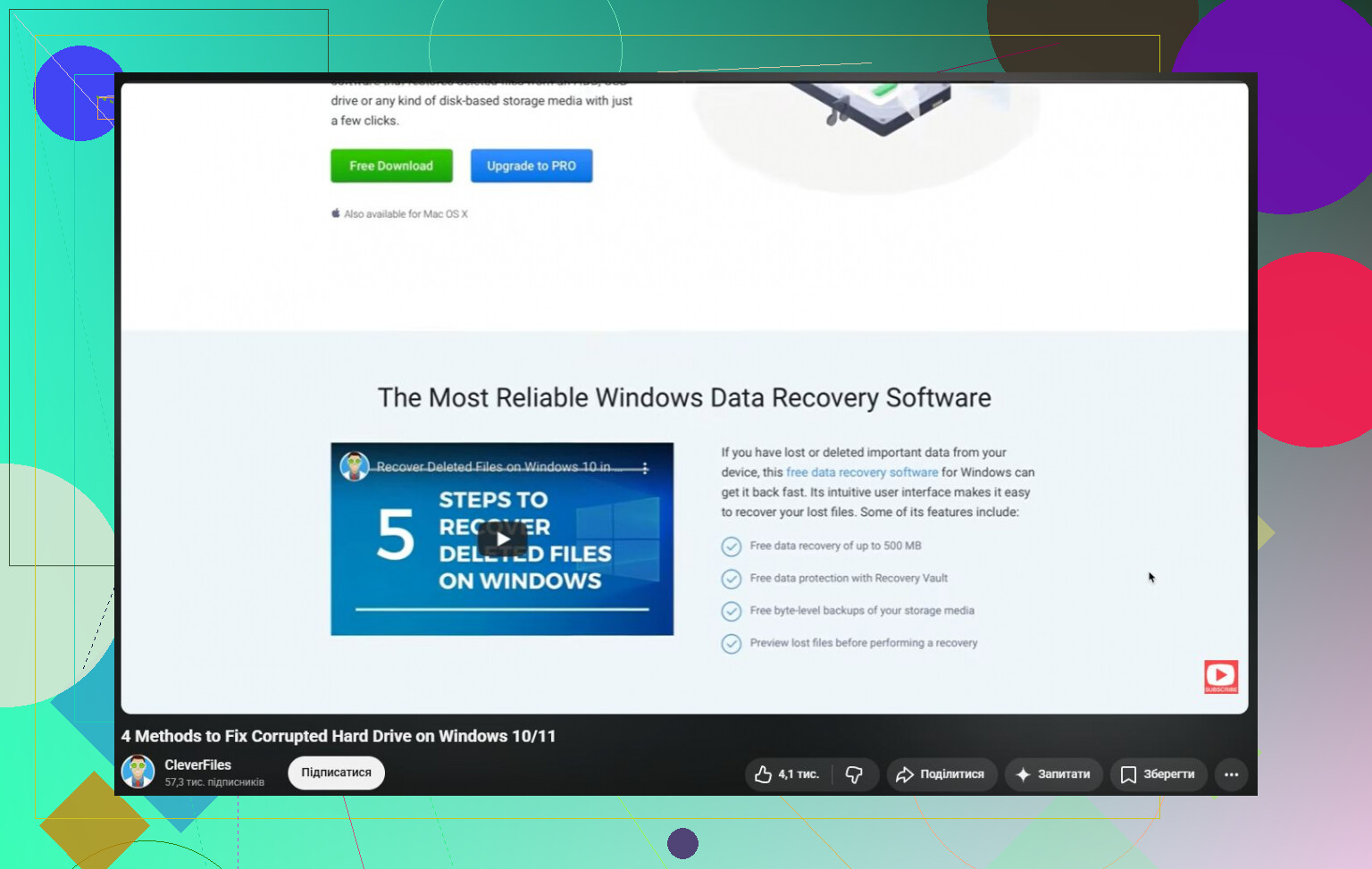
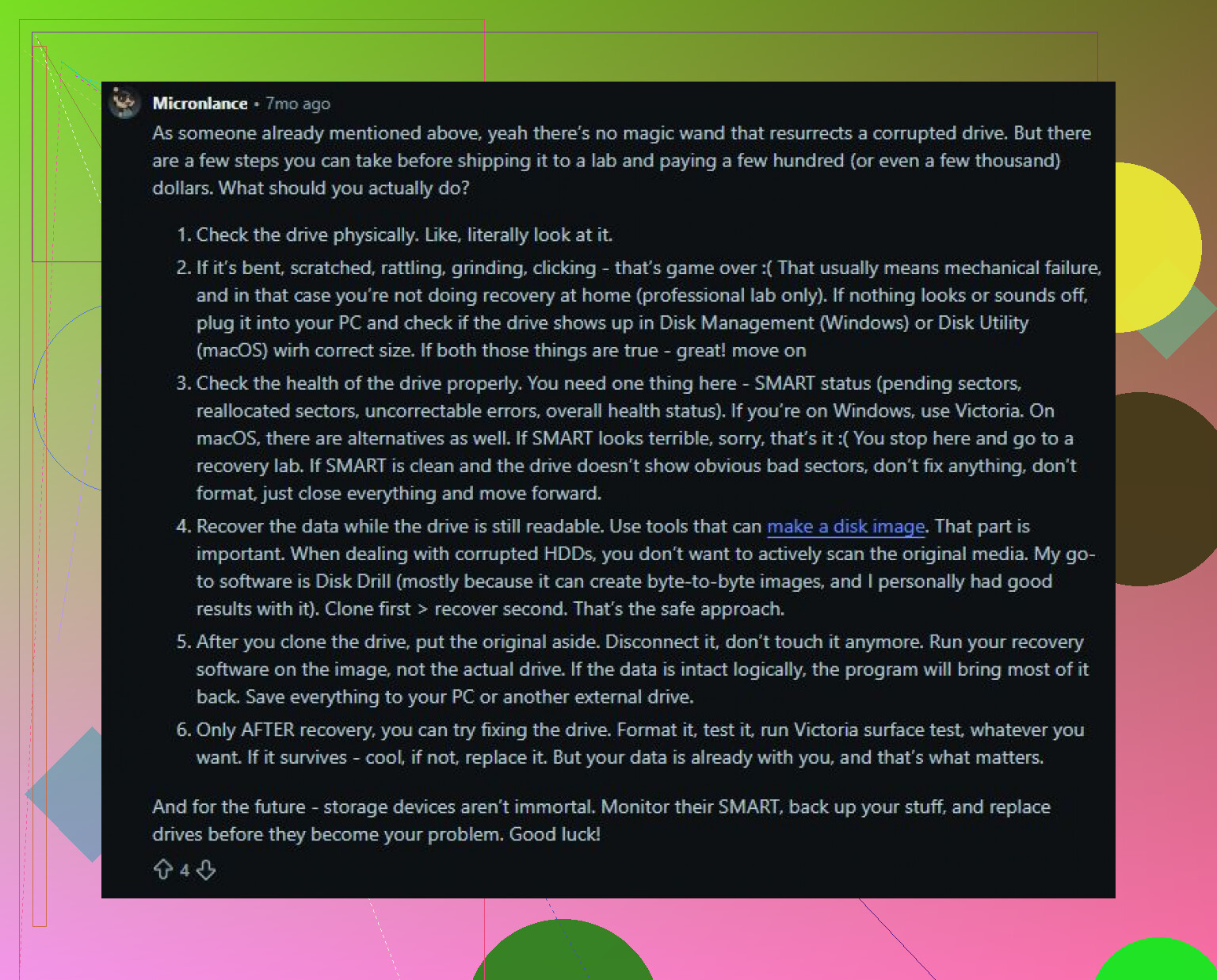
I'd get the important data off before doing any repair work. Disk Drill is a good option for this because it can make a byte-to-byte image of the drive, then scan the image instead of hammering the original disk. That's a safer approach if the drive is acting flaky.
The basic order would be:
- Install Disk Drill on a different drive, not the corrupted one.
- Make a disk image if the drive is readable enough.
- Run Universal Scan on that image.
- Preview the files you care about.
- Recover them to a separate healthy drive.
The Windows version lets you recover up to 100 MB for free, which is useful for checking whether your files are actually recoverable before spending money.
Once your files are safe, then you can mess with repairs. Start with the simple stuff first: try a different USB cable, another USB port, and another computer. A surprising number of 'dead' or 'corrupted' external drives are really just bad cables, docks, or enclosures.
If the drive is not showing as RAW, you can try CHKDSK afterward:
chkdsk X: /r
Replace X with the correct drive letter. Just be aware that CHKDSK modifies the file system. It can repair problems, but it can also remove damaged entries or rearrange data while doing it. That's why it should come after recovery, not before.
If the drive has turned RAW, CHKDSK usually isn't the answer. Recover the files first, then look at something like TestDisk for partition repair, or just format the drive once the data is already copied somewhere safe.
One place where I'd stop trying DIY methods is if the drive shows signs of hardware failure:
- constant clicking,
- random disconnects,
- very slow reads,
- or disappearing from Disk Management.
At that point, every extra scan or repair attempt can make recovery harder. If the data is important enough, send it to a professional recovery service instead.
A corrupted hard drive is not automatically gone. A lot of the time the damage is logical and the files are still sitting there. The order matters: recover first, repair or format later. That's the safest way to save the data and maybe keep using the drive afterward.
Don’t run every “fix” button Windows offers just because the drive still appears in Explorer. I agree with the recover-first advice, but I’d be even more boring about it: make sure you have a second drive with enough free space before you start anything, because recovery tools need somewhere safe to put the files. Never recover files back onto the same bad drive. SMART status can be useful to check, but a “healthy” result doesn’t prove the drive is fine, especially with external USB drives that drop in and out. If the photos and documents matter, treat the current drive as read-only, copy or image what you can, then decide whether it’s worth trying CHKDSK or just replacing the drive. Hard drives are cheap compared with lost files.
A drive that has a bad directory entry is a very different problem from a drive that is dropping offline halfway through copying a folder. The annoying part is that Windows often calls both of those “corruption,” so I wouldn’t assume it’s fixable or doomed based on that warning alone.
I agree with the recover-before-repair advice, but I’d copy in order of importance, not by dragging the whole drive at once. Grab the irreplaceable stuff first: photos, documents, tax files, project folders. Big movie folders, installers, game data, and downloads can wait. If the drive is getting worse, a full-drive copy that stalls on one bad section can waste the short window you had. If a tool like Disk Drill can image the disk, fine, but if you are doing a quick manual rescue, don’t start with the least important 800 GB just because it is first alphabetically.
After copying, spot-check the recovered files. Open a few photos, a few PDFs, a few Office files, and make sure they are not zero-byte files or corrupted copies. People sometimes think they saved everything because the folder names copied over, then find out later the contents are broken. Once you know the important files are safe, then you can play with CHKDSK, TestDisk, formatting, or whatever. But if the drive has started making noises, vanishing, or slowing to a crawl, I’d skip the “fix it” phase entirely and replace it. Even if you get it working again, I wouldn’t trust it for the only copy of anything important.
Do not let Windows “scan and fix” the drive until the files you care about exist somewhere else. That little prompt sounds harmless, but it can rename, delete, or orphan damaged file records while trying to make the file system tidy again. A tidy broken drive is not the same as a recovered one.
A useful split is this: if the drive is mechanically fine and the file system is messed up, it may be fixable. If the drive is physically failing, you might get it readable for a while, but I would still call it retired. “Fixed” should mean “safe to store important data on,” not merely “Explorer opens it today.” Those are very different standards.
Something people forget is heat and power. If it is an external hard drive, do not keep it plugged into a cheap hub while running long scans. Use a direct USB port, preferably on the back of a desktop, and make sure the drive is sitting where it can stay cool. A weak cable, flaky enclosure, or underpowered USB port can look like corruption because the drive drops out during reads. That does not mean the data is fine, but it does mean you should remove the easy failure points before deciding the disk itself is toast.
I’d make one serious attempt to copy or image it, not ten different “repair” attempts. If Disk Drill can make an image, that is safer than repeatedly scanning the original drive. If you are comfortable with more technical tools, ddrescue from a Linux live USB is another common route because it can skip bad spots and come back to them later, but it is less friendly and you can absolutely pick the wrong disk if you are careless. Either way, recover to a different drive. Never back onto the same one.
Once the photos and documents are confirmed open on another disk, then sure, try CHKDSK, TestDisk, a format, or whatever experiment you want. But after a corruption scare, I would not put that drive back into normal use except maybe as temporary scratch storage for files I can lose. Drives are cheap. Rebuilding years of family photos or work files is not.