I found a bunch of duplicate photos on my iPad and I’m not sure if the Photos app can remove them automatically or if I need to review and delete each one myself. I’m trying to free up storage without accidentally losing pictures, so I’d appreciate help with the safest way to handle duplicate photos on iPad.
No, your iPad isn’t going to quietly clean out duplicate photos on its own. Apple doesn’t usually take that kind of control over your photo library. You have to start the cleanup yourself, but you don’t have to sit there deleting every copy one at a time.
If your iPad is on iPadOS 16 or newer, check the built-in Duplicates album first. Open Photos, go to the Collections tab or the sidebar, then scroll down to Utilities. There should be a Duplicates album in there.
That tool groups photos the iPad thinks are the same. When you tap Merge, it keeps the best version it can find, usually the one with better quality or more complete metadata, and sends the extra copies to Recently Deleted. So it’s more of a cleanup and merge process than the iPad randomly trashing your pictures.
If you don’t see the Duplicates album, a few things could be going on. The iPad may still be scanning your library, especially if you recently imported a bunch of photos or updated iPadOS. Leave it locked and plugged in for a while. Sometimes it takes longer than you’d expect.
Also, if you’re still on iPadOS 15 or older, that feature just isn’t there. And even on newer versions, Apple’s duplicate finder can be pretty strict. Two photos that look identical to you might not count as duplicates if they were taken a second apart or have slightly different framing, lighting, or file data.
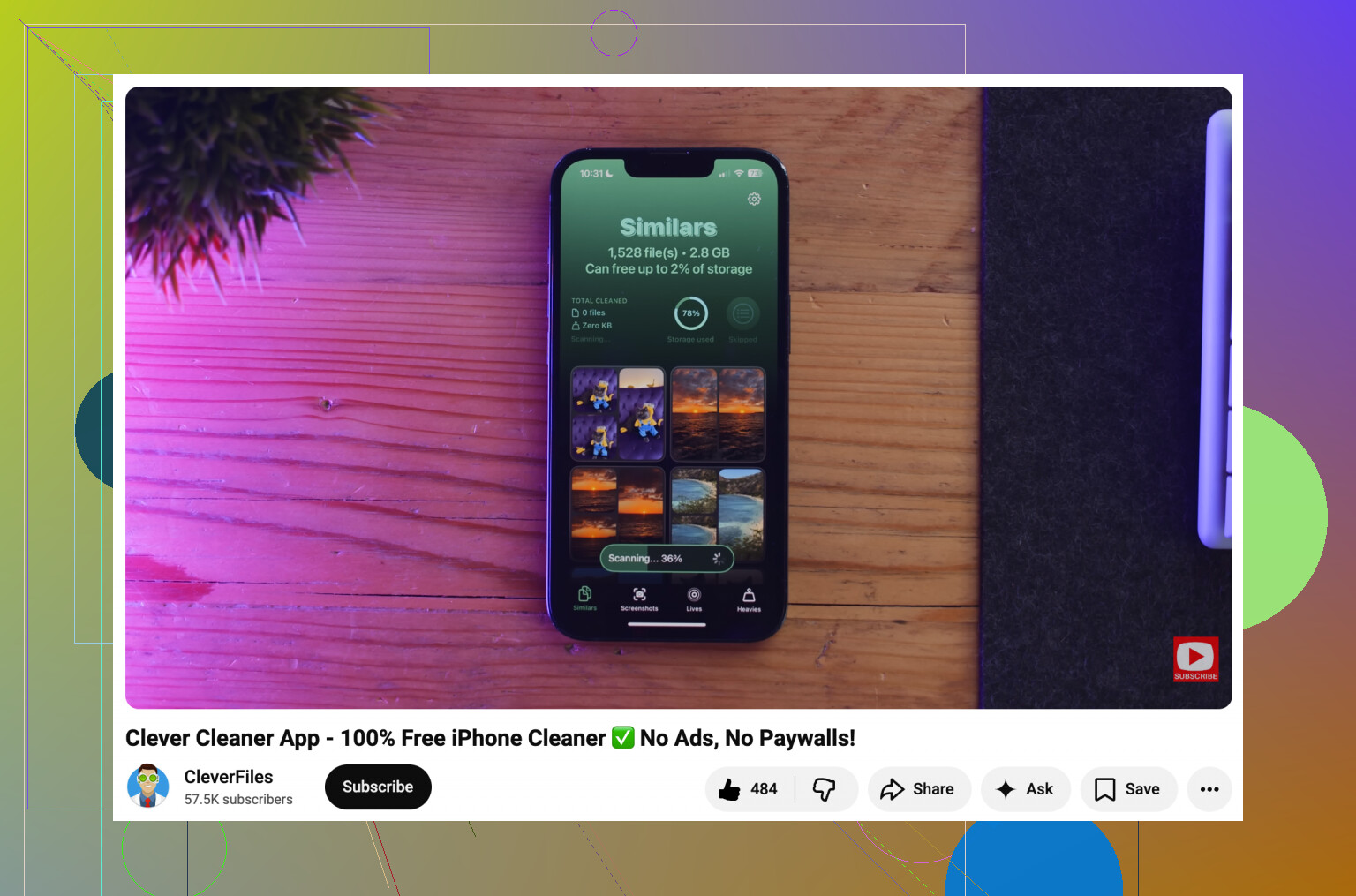
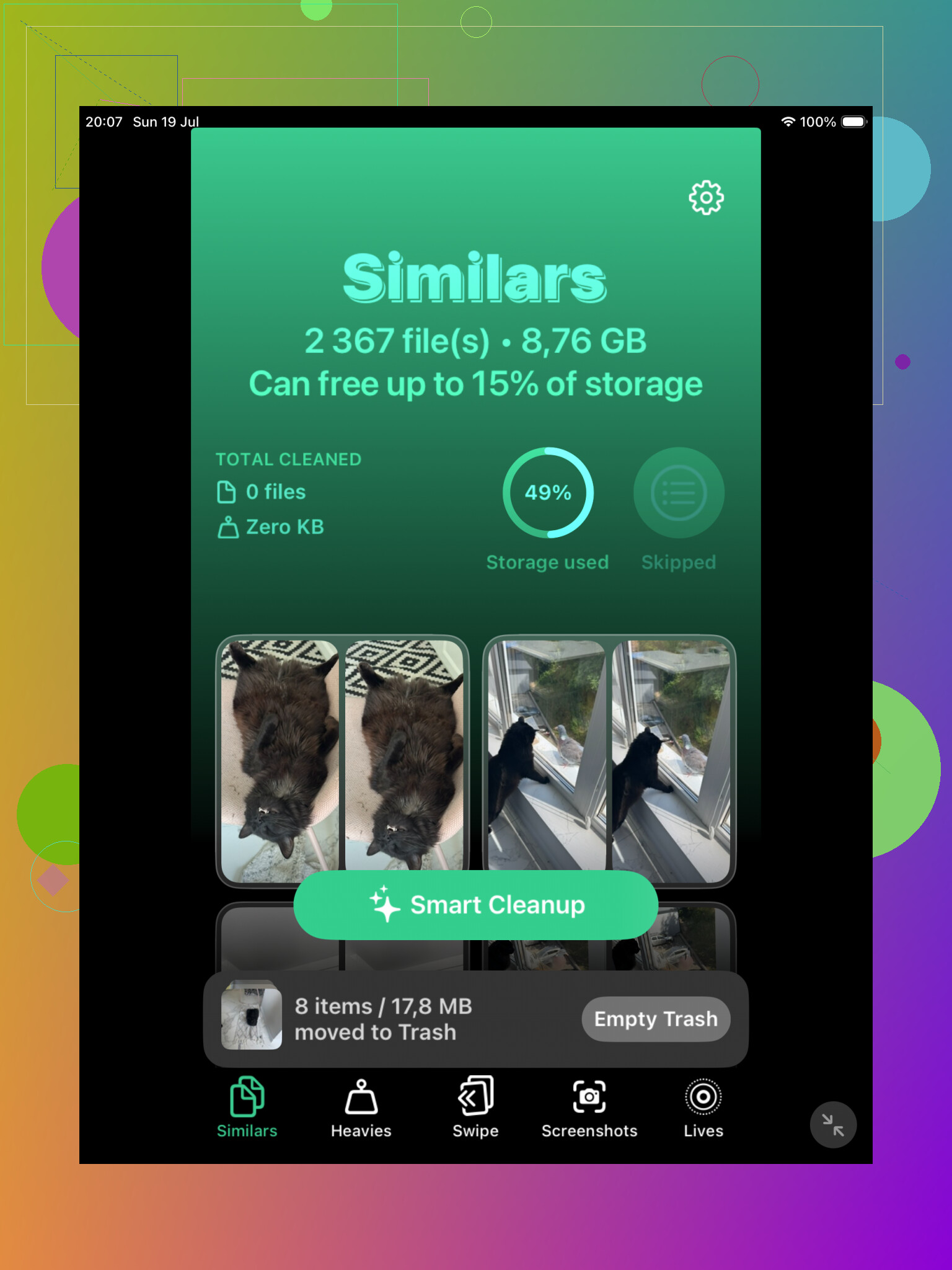
For those “basically the same photo” situations, like five selfies with the same pose or a bunch of near-identical vacation shots, the built-in tool may not catch much. That’s where a cleaner app can save time. Clever Cleaner is one option since it has a Similars section and can group photos that are close matches. It can also suggest the best shot from a set, so you’re not comparing every tiny difference yourself.
If you’d rather avoid third-party apps, use Photos search as a workaround. Search for things like “dog,” “beach,” “receipt,” or whatever you know is cluttering your library. Apple’s photo search is decent enough to pull related shots together, which makes it easier to delete batches manually. The Months and Years views can also help if you know the mess came from a specific trip or event.
One thing people miss: deleting or merging doesn’t free the space right away. The removed photos go to Recently Deleted and stay there for 30 days unless you empty that album yourself. If you need the storage back now, go into Recently Deleted and clear it manually.
And if iCloud Photos is turned on, remember that deleting from the iPad also deletes from your other synced devices, like your iPhone or Mac. That’s useful when you want everything cleaned up everywhere, but it also means you should be sure before you permanently delete anything.
Exact duplicates and near-duplicates are two different headaches: the iPad can help merge the first group, but it won’t make judgment calls on the second.
I’d review anything before merging if the photos matter, especially Live Photos, edited copies, screenshots, or images saved from messages, because the “extra” version may be the one you actually wanted.
It won’t delete them automatically, and I wouldn’t judge success by the Duplicates album alone.
The iPad’s duplicate feature is more like a “confirm these merges” tool than an automatic cleaner. You still have to tap Merge, and if you use Merge All, you are still approving Apple’s choices. That matters because duplicate cleanup is not the same as storage cleanup. If your goal is freeing space, you may merge a bunch of photos and then wonder why the storage number barely moves.
A common reason is iCloud Photos. If iCloud Photos is on and “Optimize iPad Storage” is enabled, your iPad may not be storing every full-size original locally anyway. In that case, deleting duplicates may clean up your library and reduce iCloud clutter, but the local iPad storage gain can be smaller or delayed. The iPad also keeps cached thumbnails, analysis data, and recently viewed items around until the system decides to clear them.
So I’d do it in this order:
Open Photos and use the Duplicates section if it appears.
Merge only the obvious ones first, not the whole library in one shot.
Go to Recently Deleted afterward and permanently delete them if you need the space now.
Then check iPad Storage in Settings, not just the Photos app, to see whether anything actually changed.
If Photos is still taking a lot of room, look at videos next. A few long videos will usually dwarf hundreds of duplicate photos. Same with screen recordings, downloaded movies, large Messages attachments, and files saved in apps. Duplicate photos are annoying, but they are not always the biggest storage problem.
I agree with the earlier point that near-duplicates are a separate issue. Apple’s tool is pretty conservative. It may find two identical saved images, but it may ignore ten almost-the-same shots from a burst, screenshots with tiny differences, or edited exports from another app. For that kind of mess, you either review manually or use a cleaner app that groups similar photos. Clever Cleaner can be useful there, but I’d still treat its suggestions as suggestions, not a trash button.
If you’re mainly trying to reclaim space rather than make the photo library prettier, this is where a broader cleanup pass helps more than obsessing over every duplicate. There’s a decent overview of ways to clean up iPad storage if you want to check the other places storage hides.
Short version: the iPad can help you find and merge some duplicates, but it will not safely clean the whole mess on autopilot. You still need to approve the cleanup, empty Recently Deleted, and check whether Photos is actually the thing eating your storage.
Detection is automatic; removal is not.
Your iPad may find duplicate items in the background, but it still expects you to press Merge or delete things yourself. That’s a good thing, honestly, because “duplicate” can be a bit misleading. Sometimes one copy is edited, cropped, saved from Messages, or has different metadata. The iPad may decide they belong together, but it can’t know which version you personally care about.
I’d be more cautious with mass merging than some people are. If these are throwaway screenshots or memes, fine, use Merge All and clear Recently Deleted after. If they are family photos, travel photos, scans, or anything you cannot easily replace, do a smaller batch first and check the results. Recently Deleted gives you a safety net for a while, but once you empty it, that safety net is gone across iCloud Photos too.
For freeing space fast, duplicates are usually not the magic button. Videos, screen recordings, downloaded media, and big app caches are often the real storage hogs. The Duplicates album is useful for tidying the library, but I would treat it as a review queue, not an automatic cleaner.