I accidentally deleted important files from my USB flash drive and realized too late that I didn’t have a backup. The drive had work documents and personal photos I really need to recover. I’m looking for the best way to restore deleted files from a flash drive without making things worse.
I’ve been there. You delete something on a USB stick, unplug it, plug it back in, and suddenly your brain says no, those files were here a second ago. The part worth knowing is simple: files deleted from a USB drive are often still recoverable, mostly when you noticed fast and haven’t kept using the drive.
First move, stop writing anything to the USB right now. No copying files onto it. No formatting. No saving recovered stuff back onto it either. On most flash drives, deleted files do not land in the normal Windows Recycle Bin. The file system marks the space as available, and the old data sits there until something else takes its place. So if you keep using the stick, you raise the odds of wiping out what you want back.
Quick stuff I’d check before recovery software
- In File Explorer, enable hidden items, then look through the USB again.
- Check for folders named $RECYCLE.BIN, RECYCLER, RECYCLED, or .Trashes if the drive was plugged into a Mac before.
- Look in any cloud sync folder or backup location where you might have copied the files earlier.
- Leave repair tools alone for now unless the drive won’t open at all, and only after you’ve pulled off anything important.
I’ve seen cases where the files were not gone, only hidden. Bad attributes, malware junk, weird Windows behavior, stuff like that. The recycle-folder trick does not hit often on USB sticks, still it takes about a minute so I’d do it anyway.
If the files are gone, use recovery software
If the files were deleted for real, I’d move straight to a recovery app. I had better luck with Disk Drill than with the usual free tools people throw around in threads. It’s one of the easier picks for USB recovery, especially if you don’t want to mess around in Command Prompt. It scans for deleted data, shows previews, and handles common USB file systems like FAT32, exFAT, and NTFS.
The basic recovery flow
- Install Disk Drill on your computer, never on the USB drive.
- Connect the USB and pick it inside the program.
- Run a scan for lost or deleted files.
- Preview what turns up.
- Select the files you want back.
- Recover them to your computer or a different drive, not to the same USB stick.
This part matters more than people think. If you restore files onto the same USB, you risk overwriting other deleted files before they’re recovered. I did this once years ago and yep, bad idea, learned it the annoying way.
What the preview tells you
The preview feature is one of the few things I trust during recovery. If a file opens in preview, your odds are usually decent. If you still see the original filenames and folder structure, even better. If the scan only shows rebuilt files with names like file000123.jpg, recovery still might work, but sorting it all out gets tedious fast.
About Windows File Recovery
Microsoft has its own tool, Windows File Recovery. It works, sort of, though I wouldn’t hand it to somebody who wants a clean and easy process. It runs from the command line, and the output gets messy. If you’re fine with CMD and don’t mind extra trial and error, it’s an option. If not, skip the headache.
One thing I would not run first
I’d hold off on CHKDSK. It helps with file system errors, sure, but when the problem is deleted files, I’d recover first and repair later. I’ve seen Windows “fix” a drive in ways I did not ask for, and once that happens recovery gets harder. So leave cleanup for after you’ve saved what matters.
Short version. Stop using the USB, check hidden and recycle-type folders, then scan it with Disk Drill and save anything recovered to another location. If the drive hasn’t been used much since the deletion, your chances are usually better. If you kept copying stuff onto it, yeah, odds drop a lot.
4 Likes
Yes, if you stopped using the flash drive fast, recovery odds are decent.
I agree with @mikeappsreviewer on the main point, stop using the USB. I differ on one thing, I would make an image of the drive first if the files matter for work. Tools like USB Image Tool or similar let you clone the stick to an image file. Then you scan the image, not the original. Safer. Less room for a second mistake.
A few practical checks:
- Try the drive on another PC. Sometimes it is a file system view issue.
- Check file properties and free space. If used space still looks high, your files might be hidden, not gone.
- If the USB disconnects, freezes, or asks to format, skip DIY poking around and clone it first.
For recovery, Disk Drill is a solid pick for deleted files from USB flash drives, esp if you want previews and less cmd nonsense. Recuva is fine for simple deletes, but it misses stuff on damaged media more often in my experiance.
One more thing, if TRIM-like cleanup hit the flash storage controller, recovery drops hard. On many USB sticks, deleted data stays longer than on SSDs, but not always.
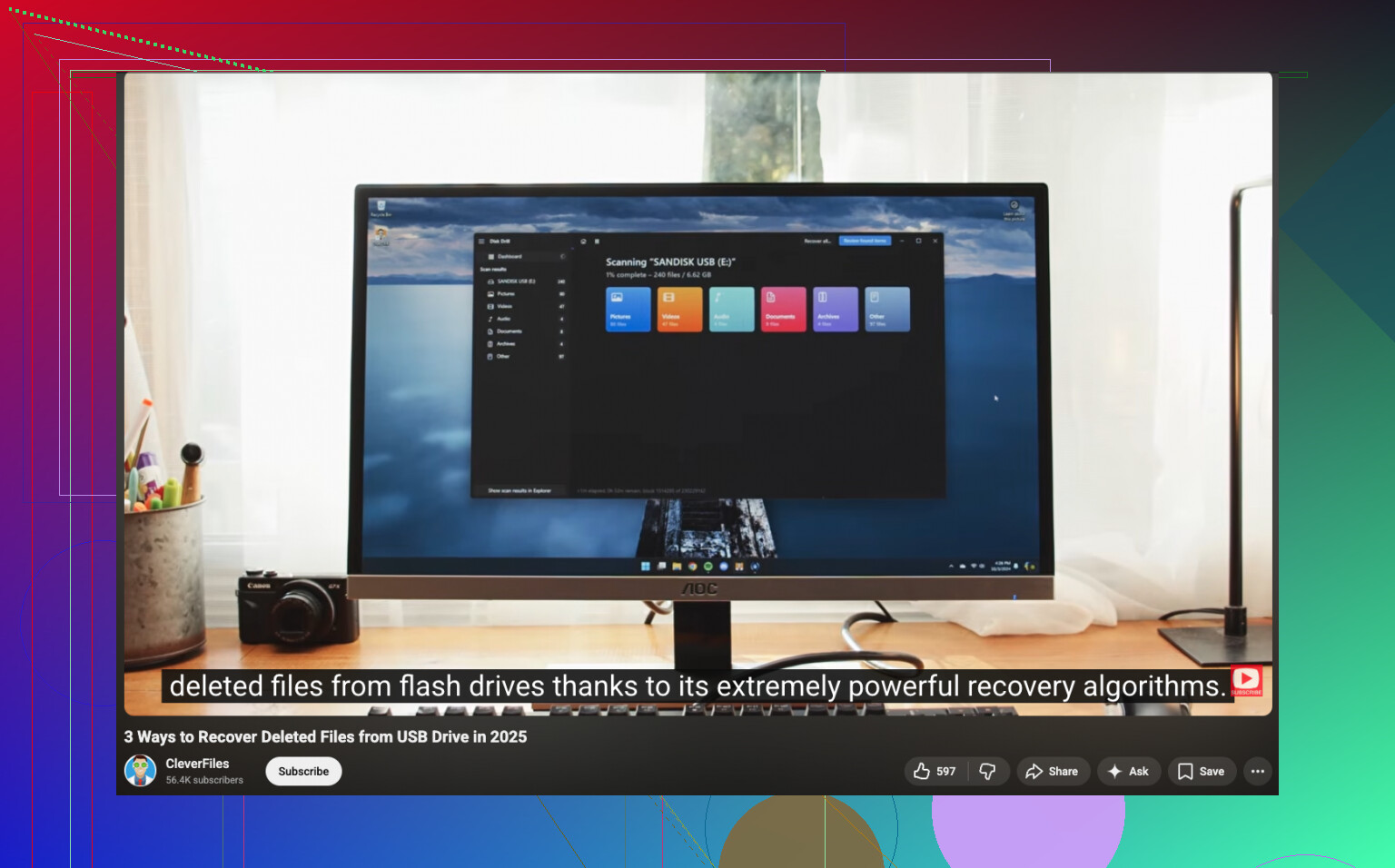
If you want a step-by-step visual, this USB flash drive data recovery video guide is easy to follow.
Recover to your computer, not back to the stick. That part people mess up a lot.
Yes, maybe. But the answer depends on what happened after deletion.
I partly agree with @mikeappsreviewer and @reveurdenuit, but I would not spend too much time digging around hidden folders if you already know you deleted the files yourself. On flash drives, that rabbit hole usually wastes time. Time matters more.
What I’d do instead:
- plug the USB in once
- check whether the drive size and used space look normal
- if it does, recover ASAP
- if it looks weird, disconnects, or wants formatting, stop messing with it
For plain accidental deletion, Disk Drill is probly the easiest USB file recovery software for most people because you can preview docs/photos before restoring. That matters a lot when you’re trying to figure out whether the files are intact or just file fragments.
One thing not mentioned enough: some Office docs and photos may have copies elsewhere from recent use. Word temp files, exported email attachments, phone imports, messenger uploads, old SD card dumps. People forget this stuff all the time. Search your PC by file extension and date before assuming the USB was the only copy.
Also, if the flash drive is cheap/no-name, recovery can be hit or miss even when software finds entries. The controller on bargain USB sticks does weird stuff.
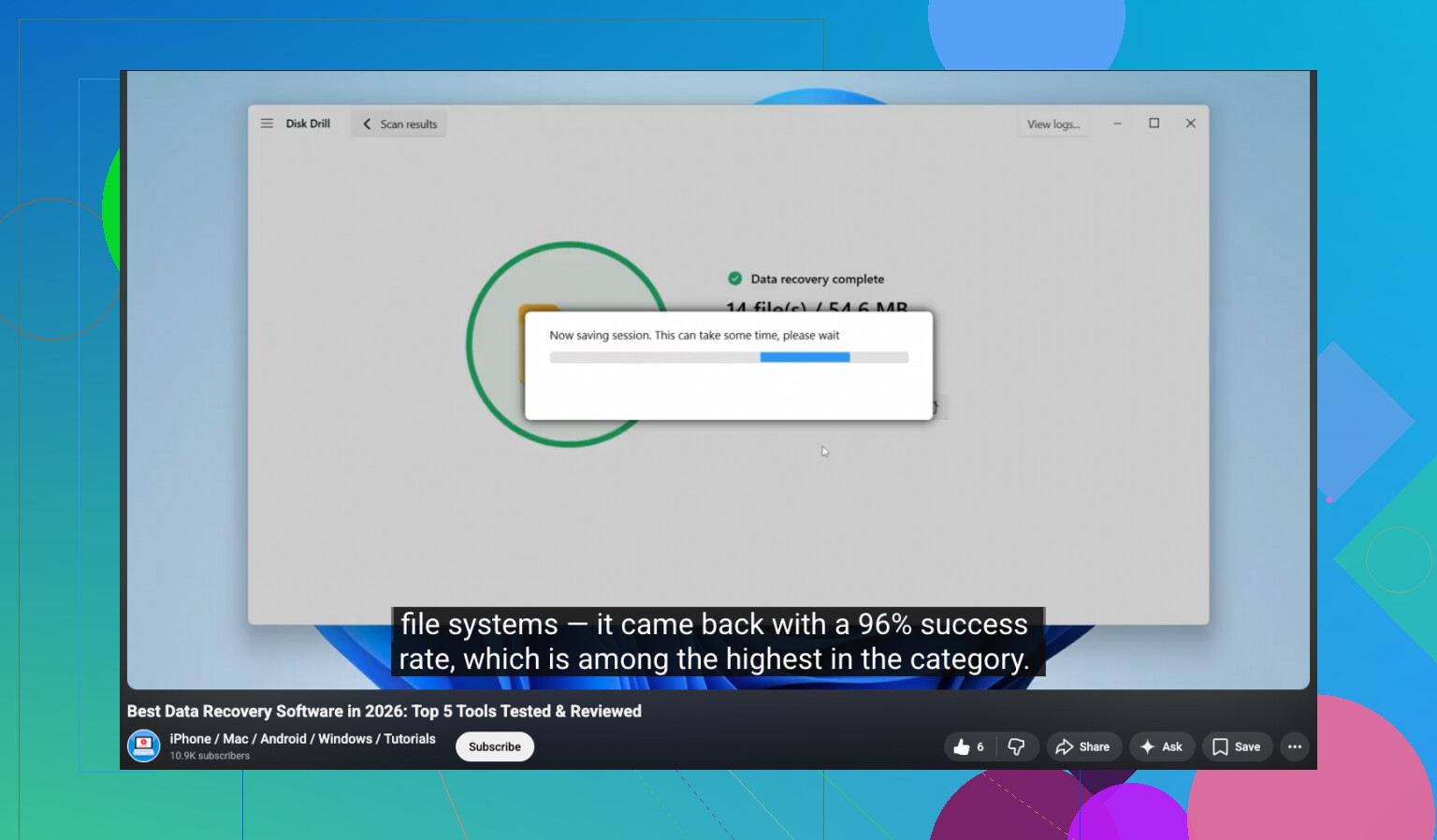
If you want a walkthrough, this step-by-step USB deleted file recovery tutorial is worth a look.
Short version: stop using the drive, scan it with Disk Drill from your computer, recover to another disk, and don’t trust the USB untill you’ve copied everything out.
I’d add one thing the others only touched lightly: check whether the deletion was logical or physical.
If the USB still mounts normally, shows the right capacity, and scans without disconnecting, software recovery is worth trying. If it gets hot, drops offline, or reads as 0 bytes, stop. That starts looking like hardware failure, not just deleted files, and repeated scans can make it worse.
I slightly disagree with the “search every hidden corner first” approach from @reveurdenuit and @mikeappsreviewer. For normal accidental delete, I would spend maybe two minutes verifying the drive is healthy, then go straight into recovery. Waiting and poking around too much can waste the best recovery window. @hoshikuzu is closer to how I’d handle it.
A practical trick people forget: copy the recovered files in priority order. Start with irreplaceable stuff first:
- work documents
- family photos
- anything with no other copy
That matters because some recovered files will be partially damaged, and you want the must-save items out first.
About Disk Drill specifically:
Pros
- easy to use
- previews are useful for photos and docs
- good at sorting deleted vs reconstructed files
- handles common USB formats well
Cons
- free recovery is limited depending on OS/version
- deep scans can return lots of messy duplicates
- not magic if the flash controller already cleaned blocks or the stick is failing
So yes, I’d still try Disk Drill before messing with repair tools. But if the drive behaves weirdly, clone first or move to a lab if the files are business-critical. Recovery software helps with deletion. It does not fix dying hardware.