I accidentally deleted important GoPro videos from my SD card and I’m trying to get them back without formatting it first. The footage matters to me, and I’m not sure what recovery steps are safest to avoid overwriting the files. Looking for help with GoPro video recovery, deleted SD card footage, and the best way to restore videos without losing anything else.
I ran into this too, and yeah, it feels awful.
First thing, stop using the SD card now. Don’t shoot more video on it. Don’t format it. Don’t run repair stuff yet. With GoPro clips, deleted footage often stays on the card until new data lands on top of it. Every new recording makes recovery harder.
Before you try recovery software, I’d check the easy stuff first.
- If you pay for GoPro’s subscription, sign in and look through the Media Library and the Trash folder. Deleted cloud items sometimes sit there longer than people expect.
- Check the card for LRV files. Those are the small preview copies GoPro makes. They look rough, sure, but I’d still take a blurry preview over losing the whole clip.
- If the camera shut off in the middle of recording, put the card back into the GoPro and power it on. Sometimes it prompts for a repair and fixes the video on its own.
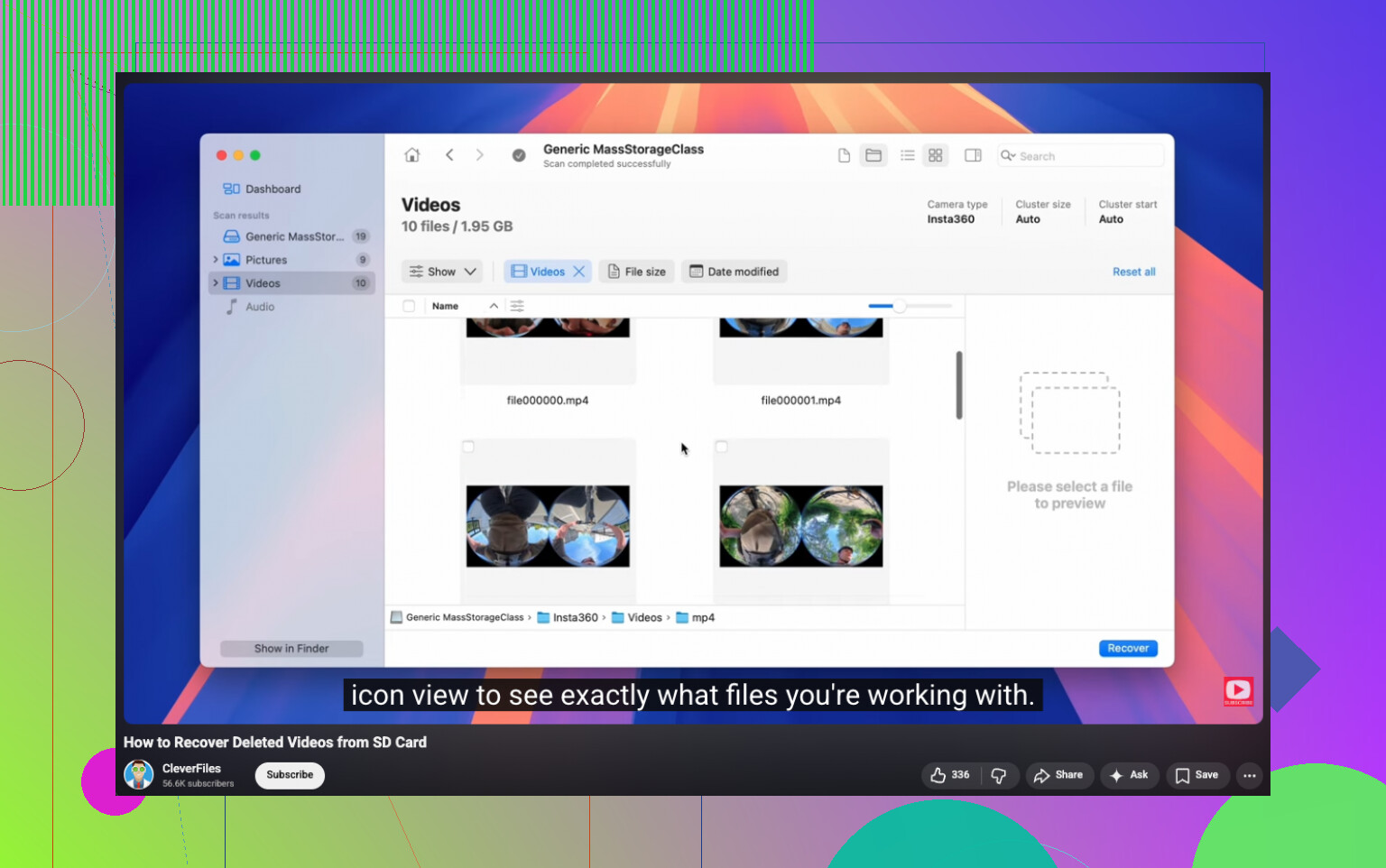
If the main files are missing from the card, I’d start with Disk Drill. I’ve used it on GoPro footage before and had better luck with it than with a lot of the usual recovery apps. GoPro video recovery gets messy because the camera often writes data in scattered chunks across the card. A bunch of tools will find pieces of the clip, then spit out a file which looks fine until you try to open it and nothing plays. Disk Drill did a better job rebuilding those clips in my case, and the preview option saved me time since I could see what was playable before restoring anything.
A few things I’d do while running recovery:
- Save recovered files to another drive. Don’t write them back to the same SD card.
- Use Advanced Camera Recovery mode during the scan.
- If the card throws errors or keeps disconnecting, make a full byte-for-byte image of it first and work from the image instead.
- On Windows, Disk Drill gives you up to 100 MB free. It’s enough for a small test, which helps you see if the footage is recoverable before paying.
If you haven’t recorded much since the clips vanished, your odds are still decent. I wouldn’t wait too long, though.
Yes. If the card was only deleted, not formatted, recovery odds are better.
I agree with @mikeappsreviewer on one big thing, stop using the card. I’d add one step before scanning. Put the SD card in a reader with write protection if you have one, or connect it to your computer and copy the whole card as an image file first. On Linux or macOS, dd works. On Windows, tools like USB Image Tool or similar do the job. Working from an image is safer if the card is flaky.
I slightly disagree on checking the camera too much. Re-inserting the card into the GoPro for repairs can help after an interrupted recording, but if the clips were deleted by mistake, I’d avoid putting it back in the camera unless you know the file was never finalized. Cameras write stuff in the background and I woudn’t risk it.
What I’d do:
- Mount the card read-only if possble.
- Make a full image of it.
- Scan the image, not the card.
- Recover to your computer or another drive.
For GoPro MP4 files, Disk Drill is a solid pick because it handles fragmented camera footage better than many cheap recovery tools. If Disk Drill finds files with no proper names, sort by size and preview the biggest MP4s first. GoPro clips often split into chapters, so don’t assume one missing file means all footage is gone.
Also, check DCIM/100GOPRO and 100GOPRO-like folders for .THM and .LRV side files. If those exist with matching numbers, it’s a clue the main video existed and recovery still has a shot.
If you want a visual walkthrough, this GoPro and SD card video recovery walkthrough is easy to follow.
Yes, you can recover deleted GoPro video without formatting the card, and honestly formatting first would be the worst move right now.
I mostly agree with @mikeappsreviewer and @espritlibre, but I’d push one extra point harder: skip running CHKDSK, First Aid, or any “fix this drive” prompt your computer throws at you. Those tools are for filesystem repair, not video recovery, and they can make a mess of deleted-file traces. People click that stuff way too fast and then wonder why recovery got worse. Ask me how I know lol.
What I’d do differently is check whether the card is actually showing the same used space as before. If the SD card still shows a lot of storage occupied even though the videos seem deleted, that can mean the data is still there and the file index is what got nuked. That’s usuallly a better sign than an almost-empty card. Also, if your GoPro saved in HEVC/H.265, make sure whatever you recover is tested in VLC, because Windows sometimes says a recovered file is broken when it’s just being dumb about codecs.
Another thing people miss: GoPro often splits long recordings into multiple chapters. So if one “main” clip is gone, search for neighboring file numbers and unusual file sizes. Sometimes only part of the sequence got deleted.
If you want software, Disk Drill is a legit option for GoPro SD card recovery because it tends to identify camera video better than a lot of generic undelete tools. I’d still compare the scan results with one second-opinion tool if the footage is super important, because no single app catches everything.
And if this is once-in-a-lifetime footage, stop DIY at the imaging stage and consider a pro lab before too much poking around.
Also, this thread may help: Reddit discussion on GoPro SD card video recovery software
Yes, without formatting.
One small disagreement with @espritlibre and @ombrasilente: I would not spend too much time hunting through folders manually if the clip was truly deleted. Browsing is fine, but every extra mount/remount on a flaky card is just more stress on it. If the footage matters, go straight to a card image, then work only on that copy.
Also, if the card shows up with the wrong capacity, read errors, or super slow access, that points less to simple deletion and more to card trouble. In that case, recovery software is secondary. Clone first, recover second.
About Disk Drill:
- Pros: good preview, decent camera-file detection, friendly interface, handles many GoPro MP4 cases well.
- Cons: free recovery on Windows is limited, deep scans can lose original names/folders, and no tool is perfect with badly fragmented footage.
So I’m with @mikeappsreviewer on using Disk Drill, but I’d still verify results with one alternate scanner if the clips are irreplaceable. The best sign is if recovered files have sensible sizes and timestamps close to the recording session. If they come back as tiny MP4s, that usually means partial recovery only.
Big rule stays the same: recover to another drive, not back to the SD card.