My hard drive suddenly shows as a RAW partition after I unplugged it, and now I can’t access any of my files. Disk Management sees the drive, but Windows says it needs to be formatted before I can use it. I’m trying to repair the RAW partition without formatting because I have important data on it. What steps can I take to fix the drive and recover access safely?
I ran into this once with an external drive, and yeah, RAW looks bad at first. Windows stops recognizing the file system, so it treats the partition like gibberish. Annoying, but it does not automatically mean your files are gone.
What I saw most often with RAW partitions was damage after a forced shutdown, a power cut, bad sectors, malware, a broken partition table, or somebody yanking out a USB drive without ejecting it first. Whatever started it, I would not format the partition before pulling your files off. Formatting first is how people turn a rough recovery into a worse one.
The order I would stick to is this:
- Stop writing anything to the drive.
- Recover the files you care about.
- Fix the partition, or rebuild it.
- Put the recovered files back after the disk is usable again.
Get the files off first
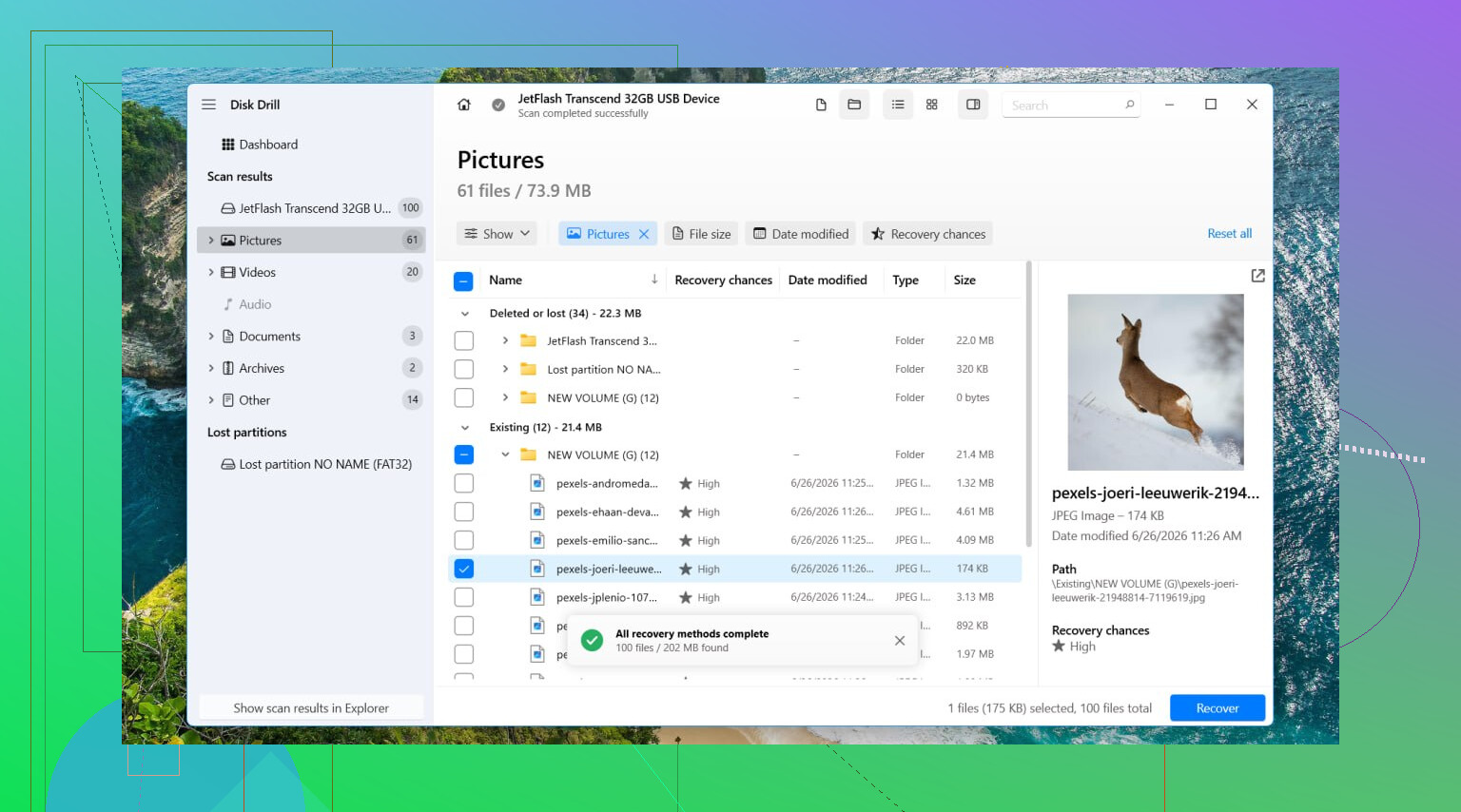
I’d start with Disk Drill. I used it on a RAW volume before, and it worked because it scanned the drive itself instead of trusting the broken file system. Windows kept asking to format the partition. I ignored it and scanned instead.
- Install Disk Drill on a different drive. Not the damaged one.
- Open it, then pick the affected disk or the RAW partition.
- Click Search for Lost Data. If it is an external drive, Disk Drill might ask for a scan type. I would pick Universal Scan in most cases. If you are trying to recover footage from a camera or drone, Advanced Camera Recovery tends to do better from what I’ve seen.
- Let the scan finish. On large drives, this takes a while.
- Click Review found items.
- Preview a few files. I always do this before recovering anything, because filenames alone lie sometimes.
- Select what you want, then hit Recover.
- Save the recovered files somewhere else. Do not write them back to the RAW partition.
If the drive seems flaky, slow, or keeps dropping offline, I’d make a full byte-for-byte image first and scan the image instead of hammering the original disk over and over. I learned this one late.
Then deal with the partition
After the files are safe, I’d try TestDisk if the goal is to restore the partition itself.
- Download TestDisk and extract it.
- Run testdisk_win.
- Choose Create.
- Select the problem disk.
- Accept the partition table type it detects.
- Pick Analyse, then run Quick Search.
- If it comes up empty, run Deeper Search.
- If the missing partition shows up, select it and choose Write.
- Restart the PC.
If TestDisk does not bring it back, or if you do not care about restoring the old layout, I’d stop fighting it and rebuild the partition.
- Open Disk Management.
- Delete the RAW partition if needed.
- Create a New Simple Volume.
- Format it as NTFS, or whatever file system your setup needs.
- Copy the recovered files back.
I would skip CHKDSK on a RAW partition. Windows often refuses it anyway. Even when repair tools do run, they change the file system in place, and I never liked doing surgery before getting the data out first.
One more thing. If the drive clicks, vanishes at random, shows up only sometimes, or does not appear in Disk Management at all, I’d stop there. That starts to smell like hardware failure, not a simple file system mess. Keeping it powered and retrying scans over and over can make things worse. If the files matter, that is where I’d hand it off to a pro recovery shop instead of poking it more with software.
Yes, you can fix a RAW partition without formatting first, but I would split “fix” into two different jobs.
First job, get your files back.
Second job, repair the partition so Windows mounts it again.
I agree with @mikeappsreviewer on one point, do not format before recovery. Where I differ a bit is this, if the drive is healthy and the RAW issue came from unplugging it mid-write, you have a shot at repairing the file system metadata without wiping the partition table. Still, I would only try repair after saving the important stuff.
A few checks before you touch anything:
- Try another USB port, cable, or enclosure.
- Check SMART health with CrystalDiskInfo.
- See if the drive size shows correctly in Disk Management.
- Look in Event Viewer for disk errors like bad block or I/O error.
If SMART shows Caution or Bad, stop testing random fixes. Recover first. Disk Drill is solid here because it reads the drive directly and does not need Windows to recognize the file system. Save recovered files to another disk.
If the hardware looks fine, test the partition structure with TestDisk or inspect it from Linux. A Linux live USB sometimes mounts NTFS volumes Windows marks RAW. I’ve seen this happen after dirty unplugging. If Linux mounts it read-only, copy your files off there and skip risky repair attempts.
For repair, skip CHKDSK while the partition still shows RAW. It usually fails, and when it does work on damaged metadata, it can make a mess of filenames and folders. I know some people swear by it, but I woudn’t start there.
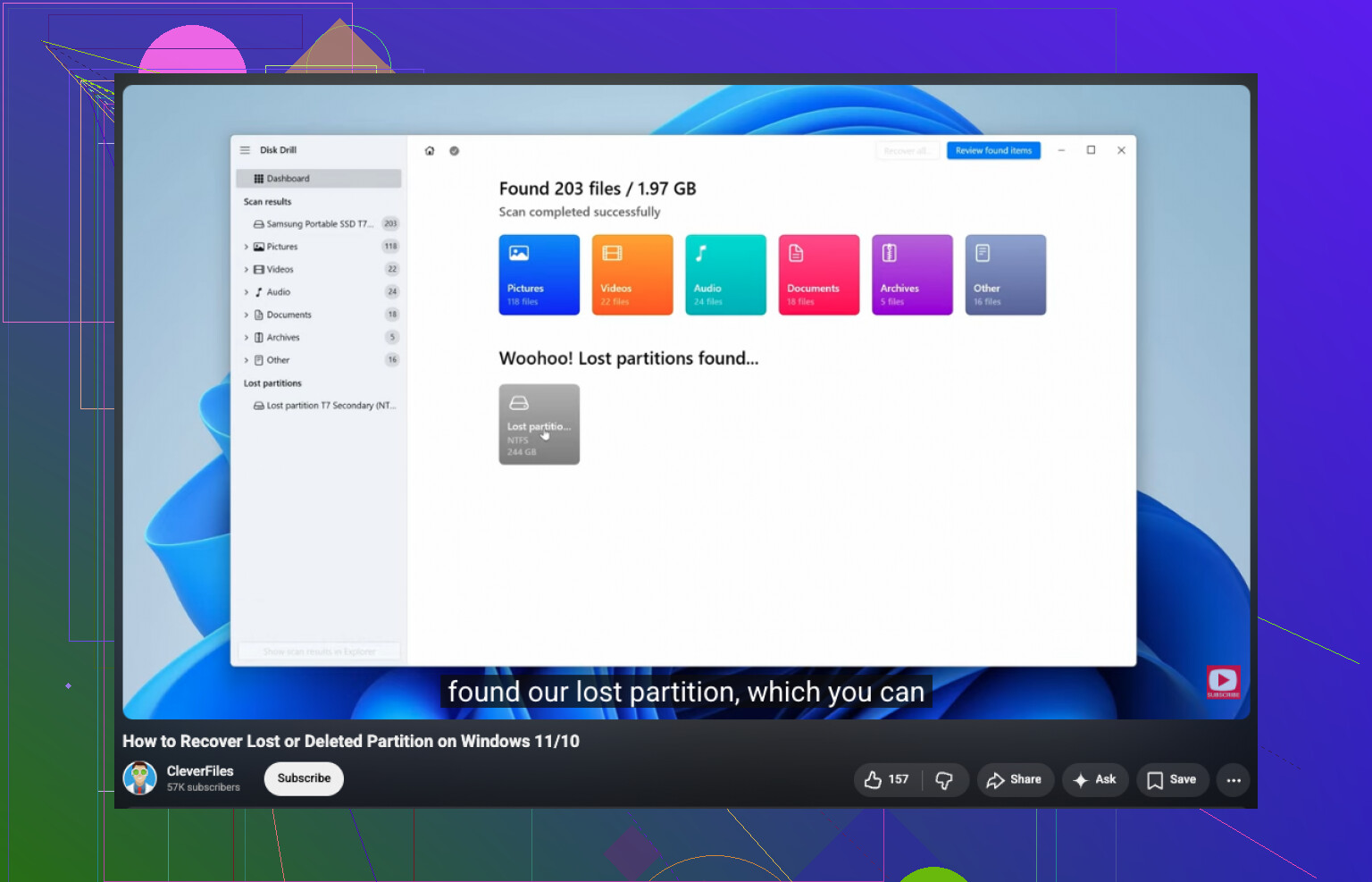
If you want a guide for repairing a missing or damaged partition table, this helps: watch how to repair a lost or RAW partition
If recovery works, then reformat and rebuild the volume. If recovery does not work and the data matters, stop DIY stuff before the drive gets worse. That part gets expensive fast, but so does making it unrecoverble.
Yep, sometimes. But I’m gonna disagree slightly with @mikeappsreviewer and @techchizkid on one thing: not every RAW drive needs an immediate “repair attempt.” A lot of the time, RAW is just Windows throwing its hands up because the file system boot sector or partition metadata got scrambled. That does not always mean the whole partition is toast.
What I’d do first is the boring stuff people skip:
- check the drive in Device Manager
- run
wmic diskdrive get statusor use a SMART tool - try reading it on another PC
- if it’s an external, remove it from the enclosure if possible and connect by SATA
Reason: bad USB bridge boards can fake a RAW problem. Seen it more than once.
Also, before heavy scanning, make an image if the disk is acting weird. Recovery tools are great, but repeated reads on a dying disk can be a bad idea. If the drive is stable, then yeah, Disk Drill is a solid choice for RAW partition recovery because it can scan the disk directly and pull files without needing Windows to mount it.
One thing I would try that wasn’t mentioned much: use TestDisk only to inspect first, not instantly write changes. If it finds the old NTFS/exFAT structure and filenames look sane, then decide. Writing the wrong partition info is how people turn “recoverable” into “welp.”
If you want more real-world cases, this thread is pretty on point: external hard drive turned RAW and how people handled data recovery
Short version: yes, you can fix a RAW partition without formatting, but recover the files first unless you enjoy making things worse by accident. Windows’ “you need to format the disk” popup is basicaly bait. Ignore it.