I’m trying to compare two photos side by side on my iPhone in the Photos app, but I can’t find a built-in option to do it. I need to check small differences between similar shots and pick the best one, so I’m looking for the easiest way to compare photos on iPhone or a good workaround.
I ran into the same mess. Ten sunset shots, three group pics, one where somebody blinked, one where the focus missed by a hair. Then you open Photos and try to compare them by flipping back and forth like a tired raccoon. After a minute, I usually gave up and kept all of them. Then iPhone storage started yelling at me again.
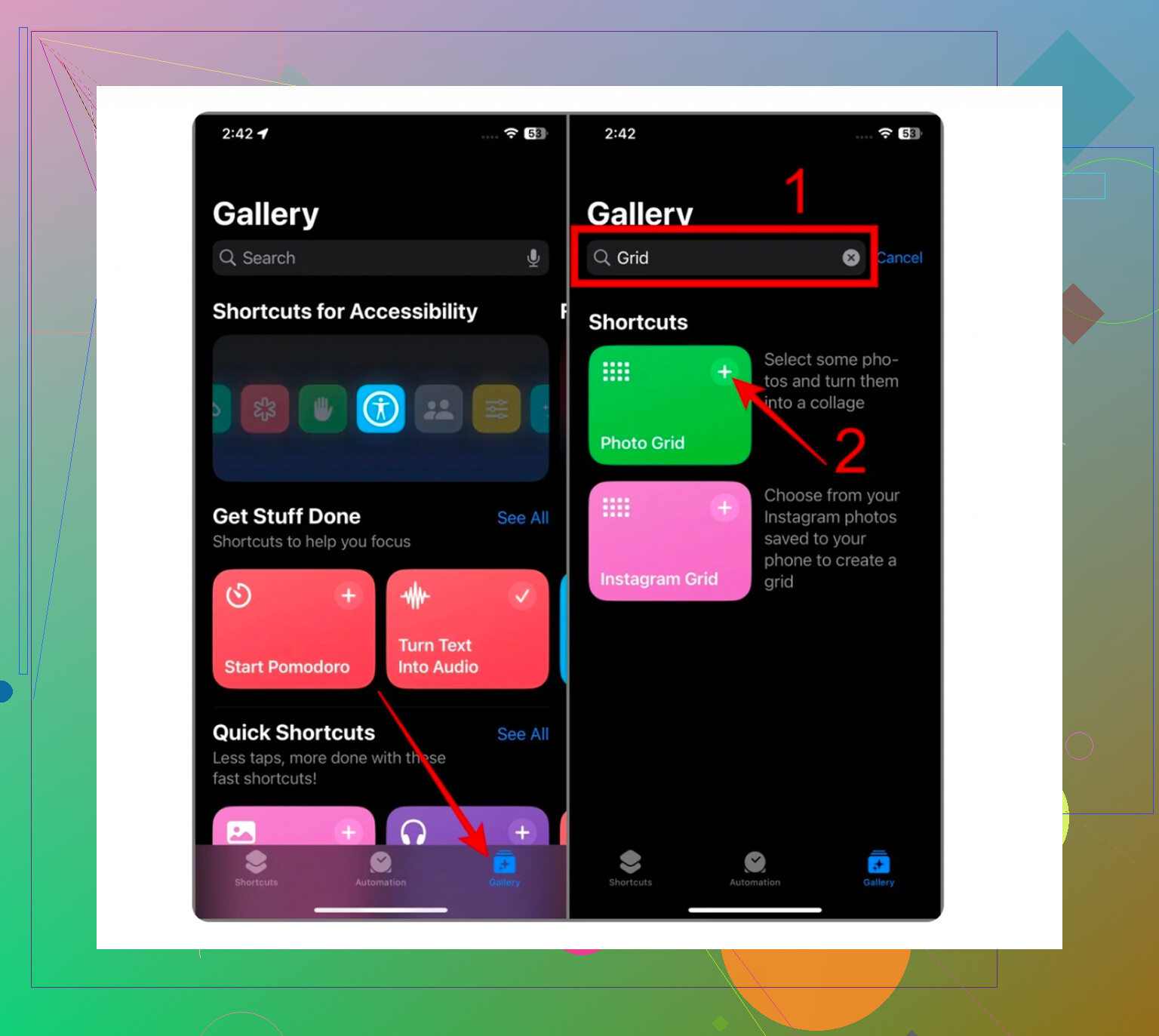
If you want to stay with Apple’s own tools, there is a workaround. It lives in the Shortcuts app, not Photos, which still feels weird.
Open Shortcuts. Tap the plus button. Add ‘Select Photos’ and turn on ‘Select Multiple.’ After that, add ‘Combine Images.’ Pick horizontal or vertical. Then add ‘Save to Photos.’
When you run it, you choose two images and it saves one combined image back into your library. For a quick before-and-after, or sticking two pics together once, it does the job. For sorting a crowded library, nah. I tried it. It gets old fast.
The bigger issue is volume. If you have hundreds or thousands of photos, Shortcuts feels like using kitchen scissors to cut a lawn. I avoided cleanup apps for a long time because most of them were junk. You install one, it scans for free, then the paywall lands the second you try to delete anything. Or you get spammed with ads after every tap. Same trick, different icon.
A few months back I found Clever Cleaner. I kept it because it solved the part I cared about, comparing similar shots without making the whole thing a chore. It’s free, no ads, no locked cleanup button, no ‘upgrade now’ nonsense. I noticed it was from the Disk Drill people, which made me trust it a bit more.
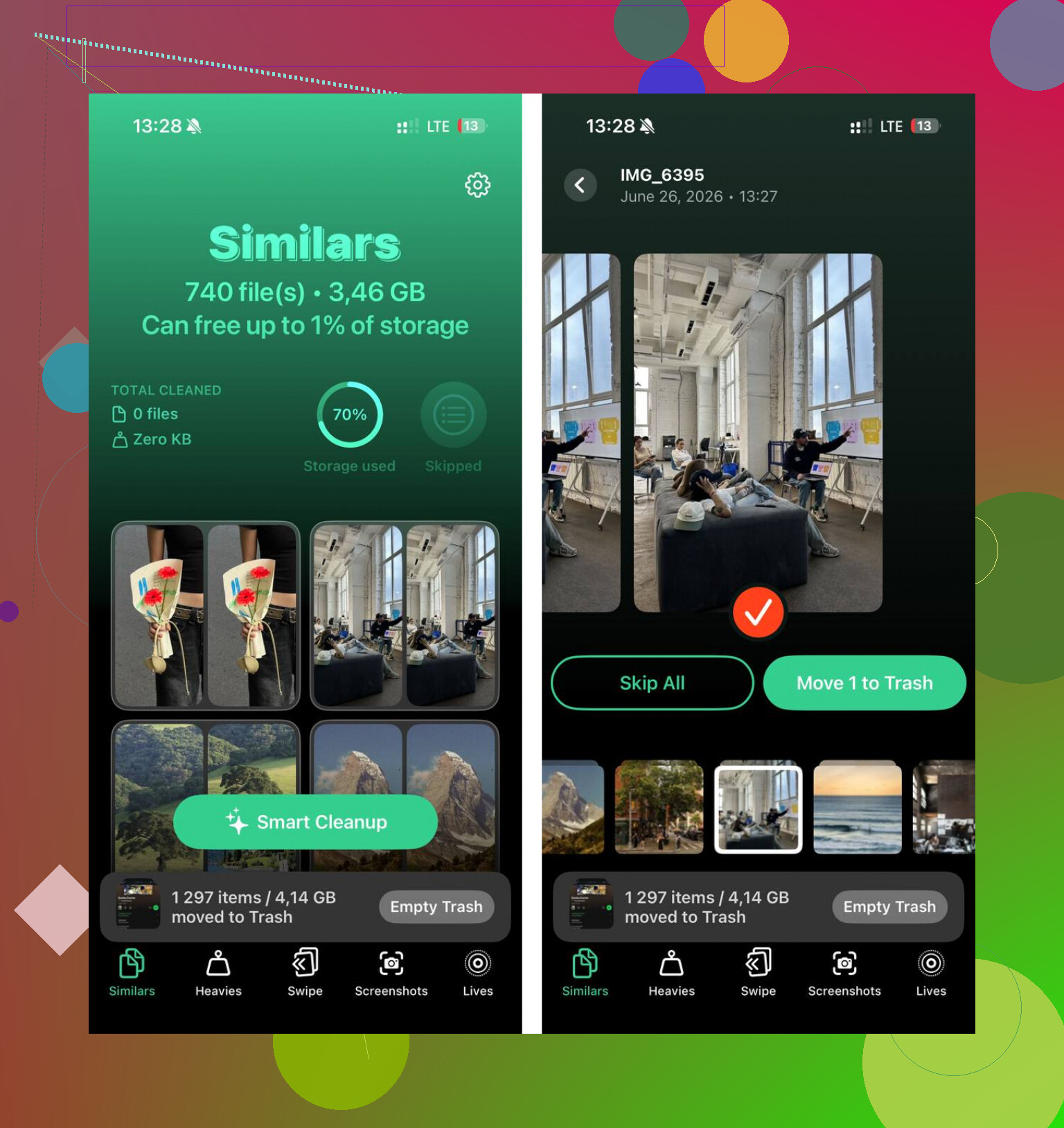
The part I used most is the Similars section. It scans for near-duplicates, not only exact copies. So if you took five cat photos in two seconds, it groups them. Same with burst shots, repeated selfies, or three nearly identical food pics you forgot to delete. It also marks a best shot on its own, based on stuff like sharpness and lighting. I overruled it a few times, but most of the time it picked the same one I would have picked. For me it felt right around 95 percent of the time, give or take.
A few things I liked after using it for a while:
-
Heavies
It sorts your biggest files first. This helped more than I expected. I found old 4K clips sitting there at 1GB, 2GB, sometimes more. Apple does not make this easy in the default app. -
Swipe mode
This one is dumb in a good way. You go through your library month by month, swipe one way to keep, the other way to delete. I used it while waiting in line and cleaned out a ton of screenshots. -
Real file sizes
It shows the exact size for screenshots, videos, and other media. I like seeing the number before deleting something. If a clip is eating 1.8GB, I want to know. -
Privacy
This mattered to me more than the cleanup features. The AI work stays on the phone. My photos were not being pushed to some random server.
There’s also a useful thing for Live Photos. I forget to turn Live off all the time, and those motion clips add up. The app strips the motion part and keeps the still image. If your library is full of Live Photos, this frees a lot more space than you’d think. I saved a few gigabytes doing only that.
So, short version. If you need to place two photos side by side once, use Shortcuts. It’s built in, it works, and it costs nothing. If you’re trying to compare sets of similar photos, keep the best ones, and stop the weekly storage warnings, I had a much better time with Clever Cleaner.
I tried the hard way first. This was easier.
No. The Photos app on iPhone still does not offer a true side by side compare view. You have to switch between images, zoom in, and trust your eyes. It’s annoying, espiecally for burst shots or tiny focus changes.
I’d skip the Shortcuts route @mikeappsreviewer mentioned unless you only need a one-off collage. It saves a new image, which clutters your library more.
Better options:
- Use split screen on iPad, not iPhone. Photos works better there for manual compare.
- Use contact sheets. Export a few shots into Files or a third-party app and view them together.
- Use an app built for cleanup and similar-photo review.
For the last one, Clever Cleaner is one of the few iPhone photo cleaner apps that helps with this in a practical way. Its Similar Photos grouping is the useful part. You review near-matching shots faster, keep the sharp one, delete the rest. Less taping around in Photos.
If you want a clean guide for placing two pictures next to each other on iPhone, this helps:
how to put two pictures side by side on iPhone
Short answer, Photos alone does not do it. You need a workaround or a third-party app.
Nope. On iPhone, the Photos app still does not have a real side by side compare view. Apple somehow gives you a million edit tools but not the one thing people need for picking between 4 almost-identical pics. Kinda wild.
I slightly disagree with @mikeappsreviewer on one thing: making a combined image is more of a collage workaround than an actual compare tool. Fine once, annoying fast. And @mike34 is right that Photos alone just isn’t built for this.
A couple options that are a bit diff than what they covered:
- Use burst selection if the pics came from Burst mode. Open the burst stack, tap Select, and Apple will sometimes make choosing easier because everything is grouped already.
- Use Favorites as a temporary shortlist. Heart the maybe-good ones, then view only Favorites and flip between fewer shots. Not true side by side, but less maddening.
- If you have a Mac, AirDrop both photos and hit Space for Quick Look or open them in Preview. That’s honestly the cleanest Apple-native compare method.
If your real goal is picking the best shot from lots of similar images, not literally viewing two photos next to each other, then Clever Cleaner makes more sense. It groups visually matching shots so you can review near-duplicates faster instead of manually bouncing around in Photos. This review explains it pretty well: see how Clever Cleaner groups matching and near-duplicate photos on iPhone.
So yeah, short version: Photos app on iPhone = no true side by side. Best bet is a Mac, a workaround, or an app meant for photo comparison/cleanup. Kinda dumb, but thats where we are.
No, not in the way most people mean it. iPhone Photos still has no true compare pane with two images locked side by side at the same zoom level.
Small disagreement with @mikeappsreviewer though: the Shortcuts collage trick is fine for sharing or before/after stuff, but for actual photo judging it changes the workflow too much. And @mike34 plus @cacadordeestrelas are right that Apple’s own app is weirdly behind here.
One option nobody mentioned: use the filmstrip in Edit mode. Open photo A, screenshot it, then open photo B and swipe up lightly to keep context from the previous one in mind. Not elegant, but for checking exposure or expression it can be faster than constant full back-and-forth.
If your real problem is batches of near-identical shots, Clever Cleaner is more useful than trying to force Photos into being a compare tool.
Pros:
- groups similar photos automatically
- faster for burst-like review
- helps clear space while choosing winners
- simple interface
Cons:
- not a literal manual side-by-side viewer
- auto grouping is only as good as its detection
- some people may prefer total manual control
So: for strict side-by-side, no. For practical “pick the best shot” workflow, Clever Cleaner is probably the closer fit.