I accidentally deleted important photos from my Nikon camera SD card while reviewing images, and now I need help figuring out the safest way to recover them. The pictures include personal memories I haven’t backed up, so I’m looking for advice on Nikon SD card photo recovery, what steps to avoid, and which recovery methods actually work.
I did this once with a Nikon card, and the good news is deletion on a camera usually does not wipe the photo data right away. It often marks the space as free. If you kept shooting after the mistake, recovery gets harder fast. If you stopped early, your odds are still decent.
First thing, stop using the camera now. Do not take a test shot. Do not browse around and keep snapping. Every new file writes to the card, and some of your old photos might get replaced for good.
Take the SD card out and plug it into your computer with a card reader. I would skip connecting the Nikon body by USB if you have another option. A lot of cameras show up in MTP or PTP mode, and recovery tools tend to work better when they can read the card more directly.
If you do not already have a copy somewhere else, recovery software is the usual next move. I used Disk Drill before, mostly because it was simple and it read Nikon NEF files along with JPGs without me fiddling around too much.
Here’s the short version.
- Install Disk Drill on your computer, not on the SD card.
- Insert the Nikon SD card with a card reader.
- Pick the card inside the program.
- Run Universal Scan first.
- Wait for the scan to finish, then preview what it finds.
- Restore the files to your computer or another drive, never back onto the same SD card.
A small thing, but it matters. If a photo preview opens correctly inside the scan results, I’d take that as a good sign. In my case, the files with working previews were the ones most likely to come back clean.
On Windows, there’s a free recovery limit of 100 MB. That won’t save a giant shoot, no. Still useful for testing. You get enough room to see whether your files are recoverable before spending money.
If you lost video too, there’s an Advanced Camera Recovery mode. I would not start there. Universal Scan is quicker and usually finds the obvious stuff first. If some larger clips are still missing after that, then try the camera-specific scan.
One weird part freaks people out for no reason. Recovered files often come back with ugly names like file000123.nef, and the old folders might be gone. I saw this myself. It does not always mean the photos are damaged. Recovery tools often rebuild files from raw data patterns, so names and folders are the first things to disappear.
Same goes for Nikon RAW files which refuse to open in Windows. I’ve had NEFs look dead when the issue was just missing codec support. Open them in software with Nikon RAW support before you write them off.
Before you spend an hour scanning, check the boring places too.
- Your computer, if you usually import after every shoot.
- SnapBridge, if it was set to copy images over.
- Cloud storage or an old external drive you forgot about.
Quick format is not always fatal either. I’ve seen cards come back after a format, as long as they were not filled up again. The main thing is what happened after the loss. If you shot 300 new photos on the same card, the older data may be partly or fully overwritten. That’s where results get messy.
If the card is cracked, keeps disconnecting, gets hot, or your computer does not detect it at all, I would stop there. DIY recovery on a failing card can make a bad situation worse. That’s the point where a pro recovery service makes more sense.
So, plain recovery plan:
- Stop using the card.
- Remove it from the camera.
- Check for backups, synced copies, and old imports.
- Scan the card with recovery software, start with Universal Scan.
- Save recovered files somewhere else.
Delete on a Nikon is bad, but not always final. If the card sat untouched after the mistake, you still have a solid shot at getting most of it back.

If the card still mounts, I’d do one extra step before any scan. Make a full byte-for-byte image of the SD card first, then work from the image. That gives you one clean snapshot of the card and lowers the risk of a flaky reader or card causing more damage during repeated scans. On Windows, USB Image Tool or HDD Raw Copy work. On Mac or Linux, dd works if you know your device path. It takes longer, but it’s the safer route.
I agree with @mikeappsreviewer on stopping use of the card. I disagree a bit on one point though. I would not spend much time checking the camera itself for anything hidden. Nikon delete in playback is usually a real delete flag event, not some trash bin thing. Time matters more than menu hunting.
If you want the simple path, Disk Drill is fine for Nikon SD card photo recovery, especially for JPG and NEF. Scan the card image if you made one. Sort results by file type and file size. Tiny NEF files are often junk. Full-size files with preview support are your best bets.
Two more things people miss:
- Flip the SD card’s write-lock tab before inserting it.
- If the card shows errors, run zero repair tools first. Repair tools write changes. Bad idea.
Also worth reading if you want a broader take on Nikon camera SD card photo recovery methods:
best ways to recover deleted photos from an SD card
If the card disconnects, clicks, or reads at random sizes, skip DIY and go to a lab. That part gets expensive fast, but so does making it worse.
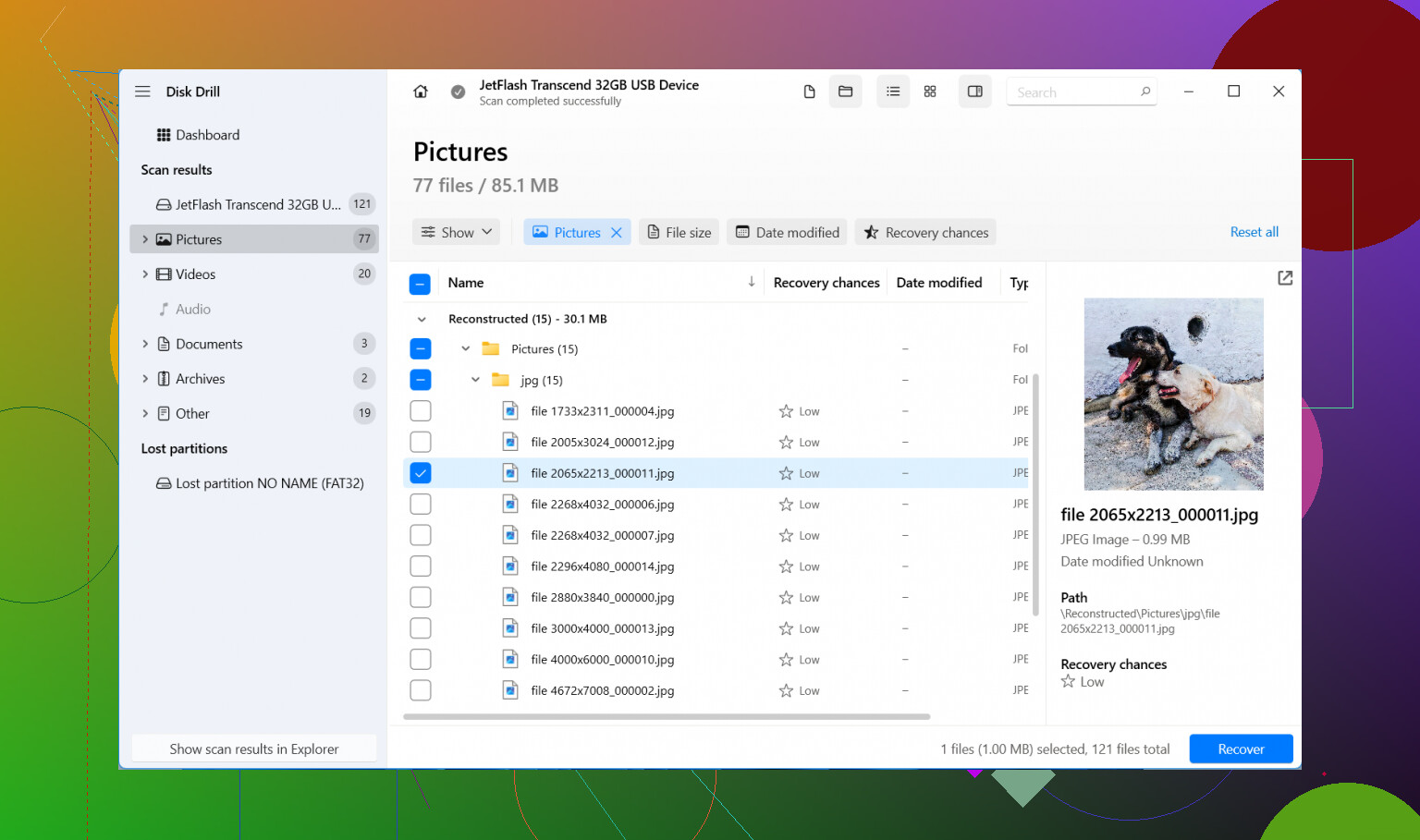
One thing I’d add to what @mikeappsreviewer and @sternenwanderer said: check whether the Nikon was set to write to two cards if your model has dual slots. Sounds obvious, but people miss that all the time and panic for no reason. I’ve seen “deleted” shots still sitting untouched on the second card because playback delete only hit the currently selected slot workflow. Not common, but worth 30 seconds.
Also, I slightly disagree with the idea of jumping straight into a bunch of deep scans unless the card is tiny. If these are just deleted photos and the card is otherwise healthy, I’d start with a read-only preview pass first in Disk Drill and see if the folder structure is still visible. Faster, less chaos, and easier to sort the real files from carved junk. Deep scans are great, but they can bury you in duplicate JPGs and half-broken NEFs.
Another thing people forget: Nikon sometimes creates sidecar or support files depending on workflow, and recovery apps can pull back tons of useless little fragments. Don’t judge the whole recovery by file count. Judge it by whether your actual full-size JPG or NEF files preview and open in Nikon software, Lightroom, Capture One, etc.
If the card is important enough, I would avoid ‘fixing’ it with Windows prompts like Scan and Repair. That pop-up has baited way too many people into making a bad situation worse lol.
Best practical route in my opinon:
- Stop using the SD card
- Use a card reader, not the camera cable
- If possible, image the card first
- Scan with Disk Drill
- Recover to your computer or external drive
- Test recovered NEF/JPG files in proper photo software
If you want a simple guide on recovering deleted files from a digital camera SD card, that may help too.
If the card mounts normally and you stopped shooting right away, your chances are usualy pretty decent. If you kept taking photos after the delete, that’s where things get ugly fast.

One small disagreement with @sternenwanderer and @techchizkid: if the card is healthy and the delete was recent, I would also check Nikon’s in-camera Protect status only to confirm what happened. Not to recover anything, just to avoid chasing the wrong problem. Protected shots can’t usually be deleted normally, so that clue matters.
What I’d add that hasn’t been stressed enough is this: look at the card’s free space before recovery. If used space still roughly matches what was on the card before deletion, that’s a very good sign the data blocks are still there and only the file entries were removed. If free space jumped a lot after deleting, still recoverable often, but expect more raw reconstruction and messy filenames.
Also, if your Nikon shoots RAW+JPEG, recovery can be uneven. It’s common to get the JPEG back clean while the NEF is partly damaged, or the reverse. So don’t assume the whole shoot is lost because one format looks broken.
For software, Disk Drill is a reasonable pick because it handles camera cards and Nikon file types without much setup.
Pros of Disk Drill
- Easy previews
- Good with JPG/NEF detection
- Simple interface
- Decent for normal accidental deletion cases
Cons of Disk Drill
- Free recovery on Windows is limited
- Deep results can be cluttered
- File names/folders may not come back
- Not magic if data was overwritten
One more practical tip: after recovery, verify files in Nikon NX Studio or another RAW-aware app before deciding they’re corrupt. Windows thumbnail behavior is not a reliable judge.
So my version is:
- stop using the card
- check dual-slot/backup possibilities like @mikeappsreviewer mentioned
- inspect remaining used space
- recover with Disk Drill or similar
- validate in proper photo software
- if the card acts unstable at all, stop DIY immediately