My iPhone storage is nearly full, and Photos appears to be using more space than expected even after I deleted pictures and emptied Recently Deleted. What’s the safest way to clear the iPhone photo cache in 2026 without losing photos or iCloud data?
That number under Settings > General > iPhone Storage > Photos is mostly your actual photo library, not a giant cache you can clear. It includes photos, videos, Live Photos, screenshots, edits, thumbnails, indexes, and other files iOS uses to manage everything.
There isn't a separate Clear Photo Cache button. iOS handles temporary Photos files on its own, so freeing up meaningful space usually means reducing the size of the library itself.
If you use iCloud Photos, first check Settings > Photos and turn on Optimize iPhone Storage. Full-resolution originals will stay in iCloud while the phone keeps smaller versions locally. That can save a lot of space without deleting your pictures.
For cleaning up the library, I usually use Clever Cleaner since manually sorting through thousands of items takes forever. It can identify duplicate or similar photos, duplicate videos, screenshots, and Live Photos. The Compress tool is useful when you want to shrink large photos instead of removing them. You can also use Smart Cleanup for several categories at once, or Swipe if you'd rather review photos individually.
The process is pretty straightforward:
- Open Clever Cleaner and give it access to your photo library.
- Wait for it to scan the gallery.
- Review what it finds, then delete or compress anything you don't need.
- Go back to the Photos app and empty Recently Deleted. Until you do that, the deleted files may continue using storage.
Downloaded media from apps is a separate issue. WhatsApp, Telegram, Messenger, Instagram, Discord, and similar apps may keep attachments and other media on the phone. That data generally needs to be removed through the app's own storage or cache settings. If the app doesn't provide those controls, reinstalling it may be the only way to clear the locally stored files.
So check which category is actually using the space. If it's Photos, clean up or optimize your library because there isn't a standalone photo cache to erase. If a messaging or social media app is taking up the storage, look for its media and cache controls instead.
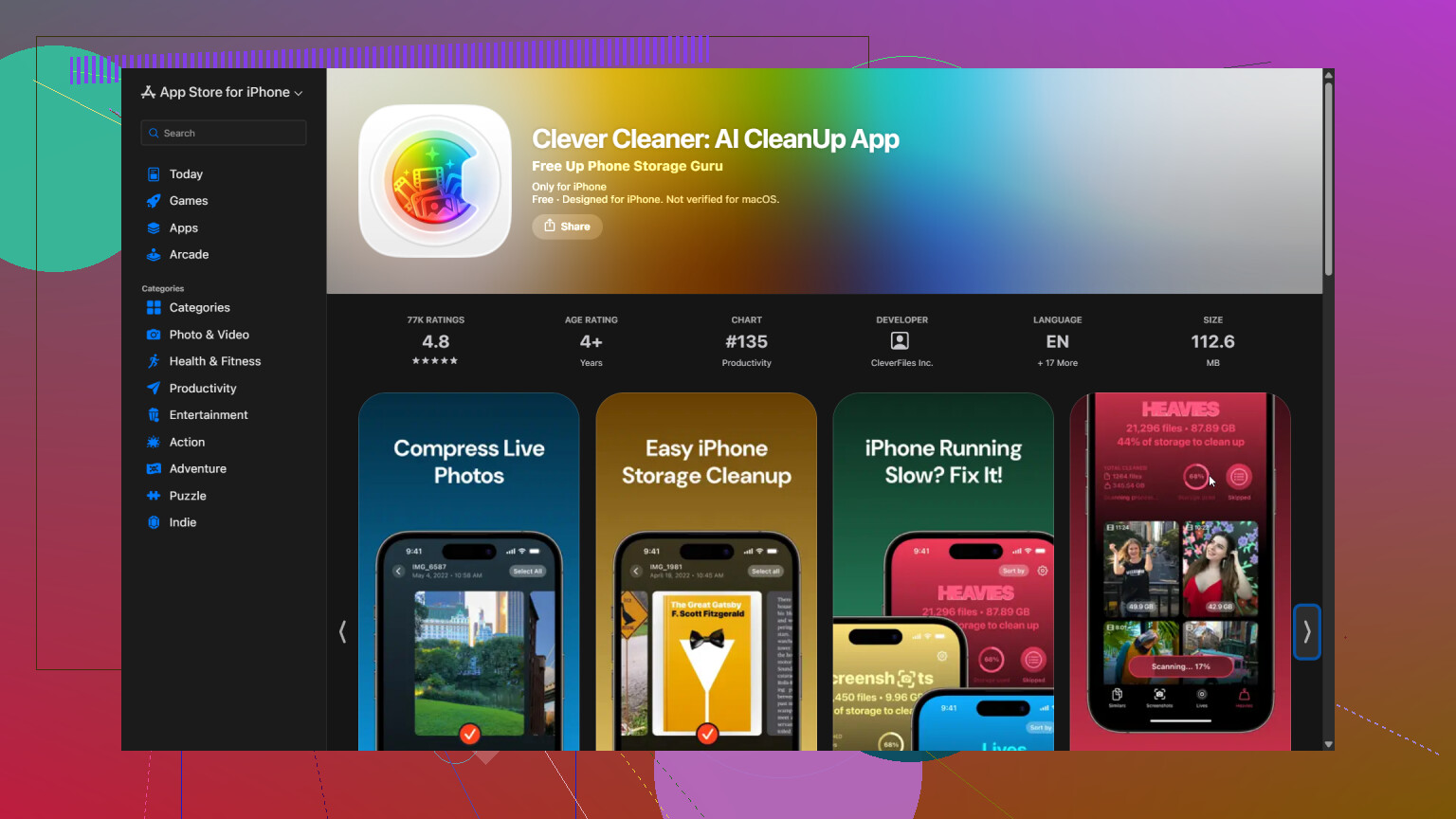
Deleting photos from the iPhone is not a local-only cleanup if iCloud Photos is enabled. Those deletions sync to your other Apple devices too, so confirm anything important is backed up elsewhere first. After emptying Recently Deleted, restart the phone and leave it charging on Wi-Fi for a while because the Photos storage figure can lag while iOS rebuilds indexes and recalculates space. If it stays high, use Optimize iPhone Storage rather than a “cache cleaner”; third-party tools such as Clever Cleaner can help find duplicates, but they cannot safely erase some hidden Photos cache that Apple itself does not expose.

Do not tap “Turn Off and Delete from iCloud” while trying to force a cleanup. That is an account-level removal process, not a cache reset, and Apple gives you only a limited recovery window.
If the phone is almost completely full, clear some breathing room outside Photos first. Offload a large game, remove downloaded Netflix or podcast episodes, or delete files from Downloads. iOS can behave poorly when it has less than about 1 GB available, and Photos may need working space to finish syncing, indexing, and updating its storage calculation.
Then open Photos, go to Collections, tap the profile button, and check whether iCloud syncing is paused or reporting a problem. I would not permanently delete more pictures until the remaining originals have finished uploading. After that, enable Optimize iPhone Storage under Settings > your name > iCloud > Photos. Be aware that Optimize is not an instant “purge originals now” command. iOS reduces local copies as space is needed, so the storage graph may take a while to change.
Before installing another app, check Photos > Collections > Utilities > Duplicates. The built-in merge feature keeps the best-quality version and relevant information, then moves the extras into Recently Deleted. That is the safest free cleanup for genuine duplicates.
I’m a little less enthusiastic about starting with Clever Cleaner when a phone is already packed. It can be useful for reviewing similar shots, screenshots, and videos, but it still needs library access and it cannot remove an Apple-controlled hidden cache. Treat it as a photo-sorting tool, not a repair utility, and manually review its suggestions rather than approving a huge batch.
If Photos still shows an obviously wrong figure after syncing finishes and the phone has been restarted, update iOS and give it some time while connected to Wi-Fi and power. If the number remains stuck for days, the least risky escalation is an encrypted computer backup followed by contacting Apple Support. Erasing and restoring the phone can rebuild the library database, but that is far too much risk and effort for a first-line “cache clearing” attempt.
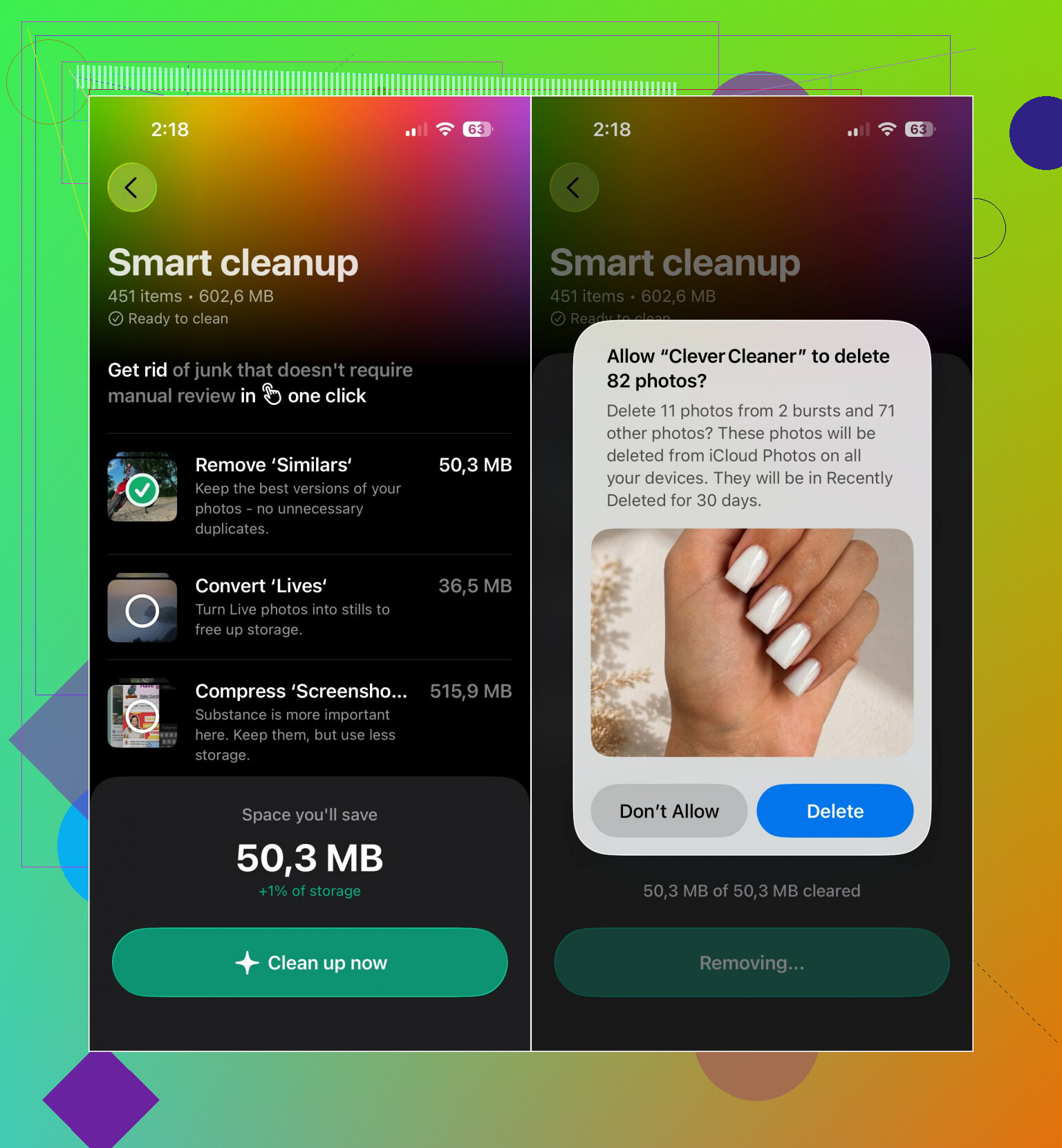
Cropping photos or trimming videos may save less space than expected because Photos keeps enough data to revert edits. Choosing “Save Video as New Clip” is worse for storage since it leaves the original and creates another file.
For quick results, check Photos by media type and target videos, screen recordings, RAW images, bursts, and downloaded clips. A few long 4K videos can matter more than thousands of ordinary photos. Clever Cleaner may make that review faster, but I would skip its compression feature unless you have another copy of the originals.
After deleting, restart the phone and leave it locked, charging, and connected to Wi-Fi overnight. If the number drops under iPhone Storage, it was delayed accounting. If it does not, there still is no safe hidden-cache switch to force. At that point, freeing space elsewhere and letting Optimize iPhone Storage do its job is safer than repeatedly deleting photos or reinstalling anything.
Optimize iPhone Storage quietly does nothing if your iCloud is also full. Everyone keeps recommending it, but if your originals never finished uploading because you ran out of iCloud space, the phone has no smaller versions to swap in, so the local footprint stays exactly the same. Worth checking your iCloud storage before you count on that setting.
@zeropilot nailed the more realistic bit that Optimize isn’t an instant purge, and honestly that’s the part most people trip over. Clever Cleaner is fine for spotting the fat 4K videos and duplicate bursts faster than scrolling by hand, but it’s a sorting helper, not a fix for a stuck storage number. If your bar is jammed and iCloud is maxed, the cheapest real move is either clearing junk elsewhere first or paying for the next iCloud tier for a month so uploads can finish. Then the numbers actually start behaving.