When an external hard drive doesn’t show up on your Mac, it’s understandably frustrating, especially when you’re under a time crunch. Here are a few steps you can try to troubleshoot the issue:
-
Check Disk Utility: First, open Disk Utility (Applications > Utilities > Disk Utility). Sometimes the drive shows up there but just isn’t mounted. If you see your drive listed, try selecting it and clicking the “Mount” button. If that works, you’re back in business.
-
First Aid via Disk Utility: If mounting the drive manually doesn’t work, click on “First Aid” in Disk Utility. This feature checks the hard drive for issues and attempts to repair them. It’s like a healthcare checkup but for your hard drive.
-
Verify the Format: External drives formatted in NTFS might be read-only on Mac, or not appearing at all. Macs prefer drives formatted in HFS+, APFS, or exFAT for full functionality. Check the format in Disk Utility and reformat if necessary, though if you need files from it first, obviously this isn’t the ideal step.
-
NVRAM/PRAM Reset: Sometimes, resetting the NVRAM (or PRAM) might help. Shut down your Mac, then turn it back on and immediately press and hold Option + Command + P + R for about 20 seconds. This action resets certain settings and might solve the problem.
-
Check Finder Preferences: Go into Finder, then open Finder Preferences (Finder > Preferences or Command + ,). Make sure under the “General” tab that “External disks” is checked. Also, check the “Sidebar” tab to see that “External disks” is listed under “Locations.”
-
Try a Different Computer: If you have access to another Mac or PC, plug the external hard drive into it. This can help you determine whether the issue is with the drive or your Mac.
-
Force Mount via Terminal: If you’re comfortable using Terminal, you can try to force mount the drive. Open Terminal (Applications > Utilities > Terminal) and type
diskutil listto see a list of connected drives. Find your external hard drive in the list, take note of its identifier (like disk2s1), and then typesudo diskutil mount /dev/disk2s1replacing disk2s1 with your actual identifier. -
Update macOS: Ensure that your macOS is up-to-date. Sometimes an update can resolve underlying system issues that could be interfering with external drives.
If none of these steps work, it’s possible that your drive has some more serious issues. In that case, you might need specialized software to retrieve your data. Disk Drill
is a data recovery software for Mac that can help you recover lost files from your external hard drive. You can download it from Disk Drill. Use it to scan your external drive for recoverable files. It’s a great tool, especially if your drive has taken a dive.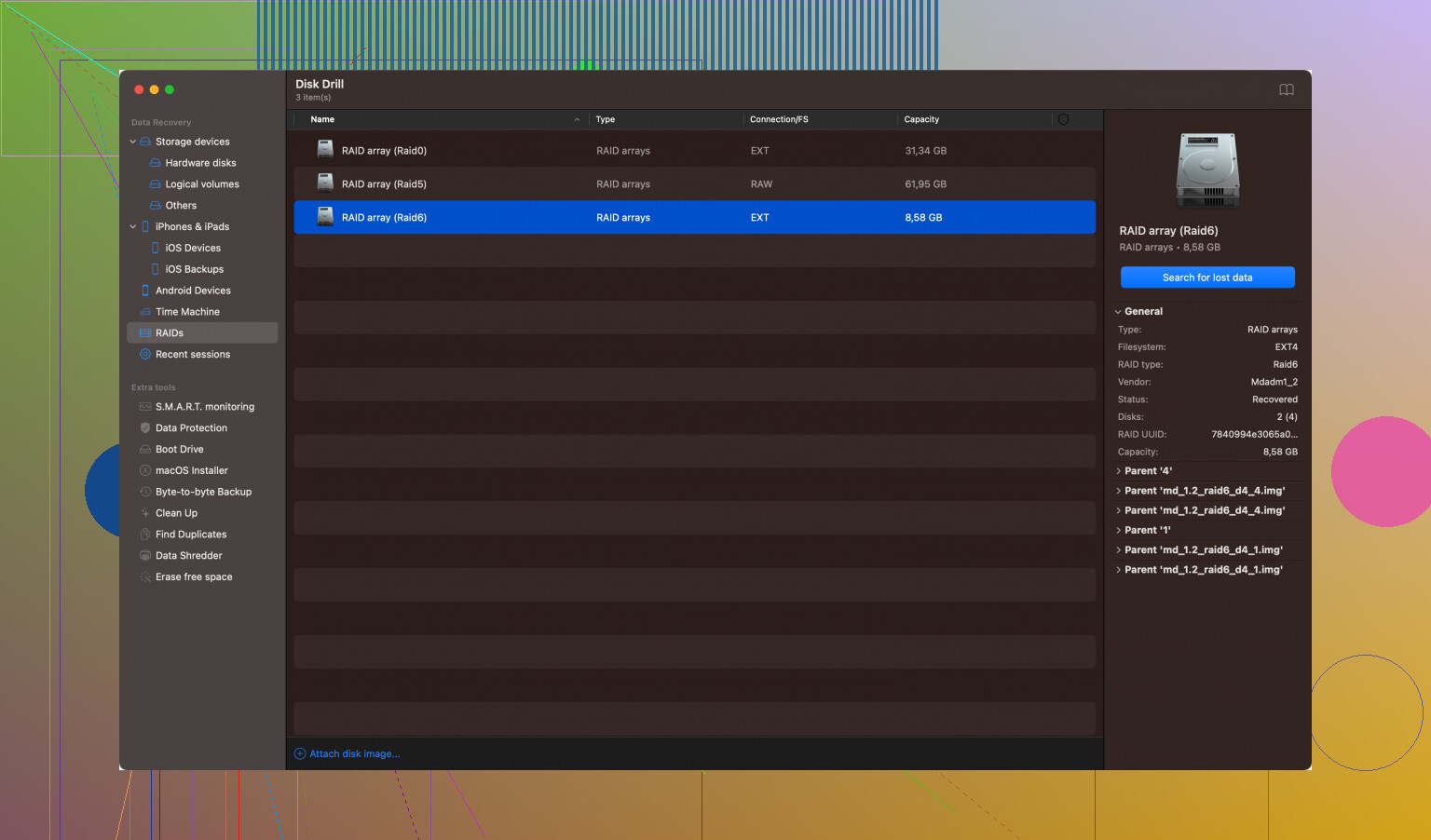
By following these steps, you should hopefully get your drive to mount and access your important files. Good luck!