Getting GoPro Videos Onto Your Mac: Tried-and-True Methods (and a Rant or Two)
So, pulling GoPro footage onto a Mac sounded like a five-minute job… until you’re up at midnight trying to remember where Finder hides your SD card folder. If you’re like me and bouncing between trips, cables, and adapters, here’s the real deal, no sugarcoating.
Old-School Way: The SD Card Shuffle
Ever get that feeling when the tech “just works” because you skipped all the apps? That’s the SD card hustle, baby:
- Pop that tiny Micro SD out of the GoPro (bonus rage if you have big hands).
- Slide it into an SD Card Adapter. Lost it? Rip apart your junk drawer. Probably next to last year’s holiday card.
- Plug adapter into your Mac.
- Open a Finder window. There’s your SD card (unless it’s hiding—it happens).
- Crack open
DCIM, then100GOPRO. Boom: all your raw, unfiltered footage stares right back. - Drag, drop, and let those magical MacBook fans roar.
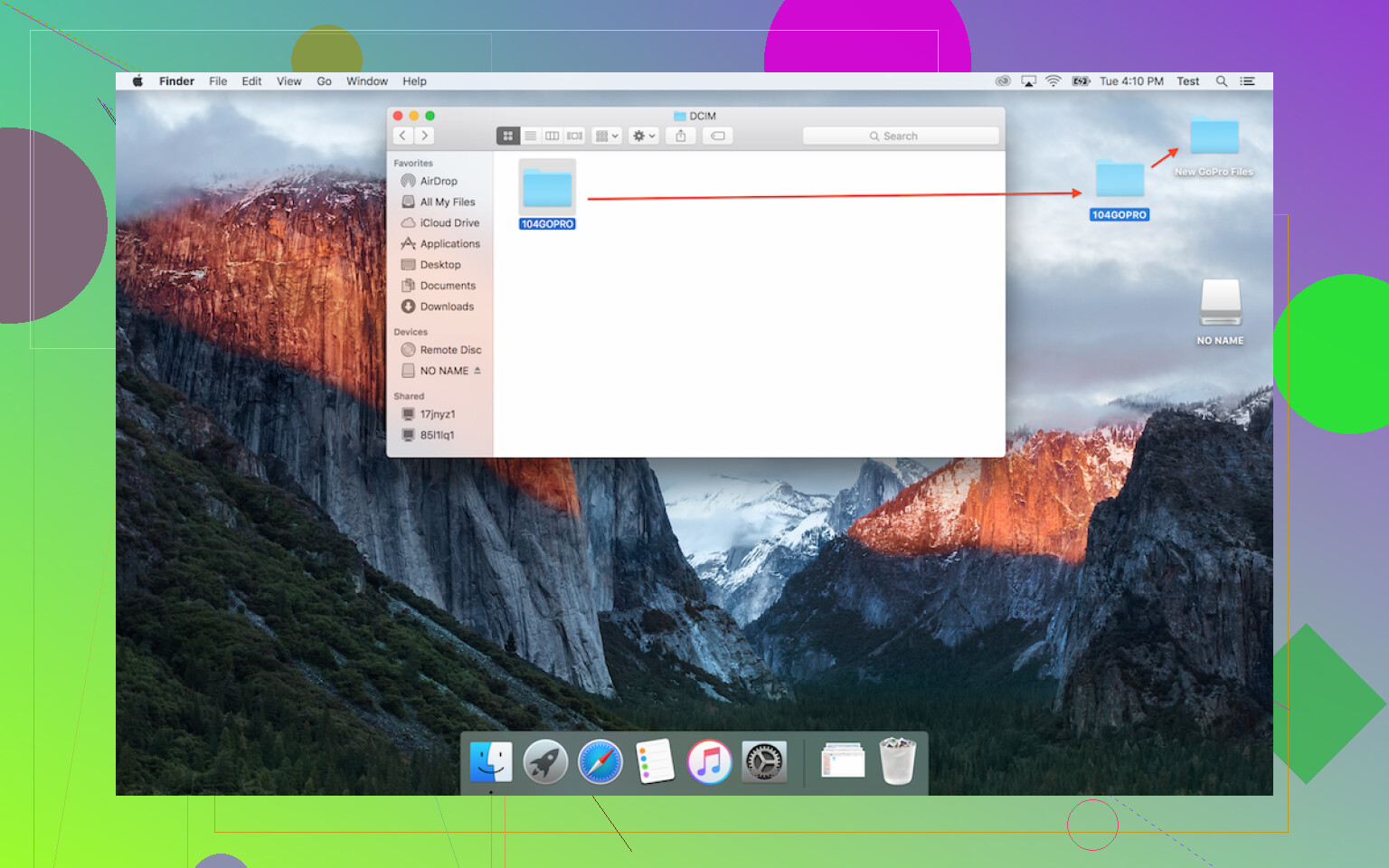
You’re done. Seriously, that’s it.
Don’t Want to Yank the Card? App Up Instead
Lost your adapter or just hate dealing with micro SD cards? Welcome to the “use your cable” club. Here’s something I wished I knew two trips ago: there’s MacDroid app. I know—yet another app, but hold up:
- It’ll connect your GoPro over USB-C (or USB-A, if you’re old school).
- MacDroid basically turns your GoPro into an external drive. It actually shows up in Finder like a legit hard drive.
- This is glorious for moving huge 4K videos so you’re not bottlenecked by wireless transfer speeds or random GoPro quirks.
- Moving, copying—whatever, it’s straight drag ’n drop from there.
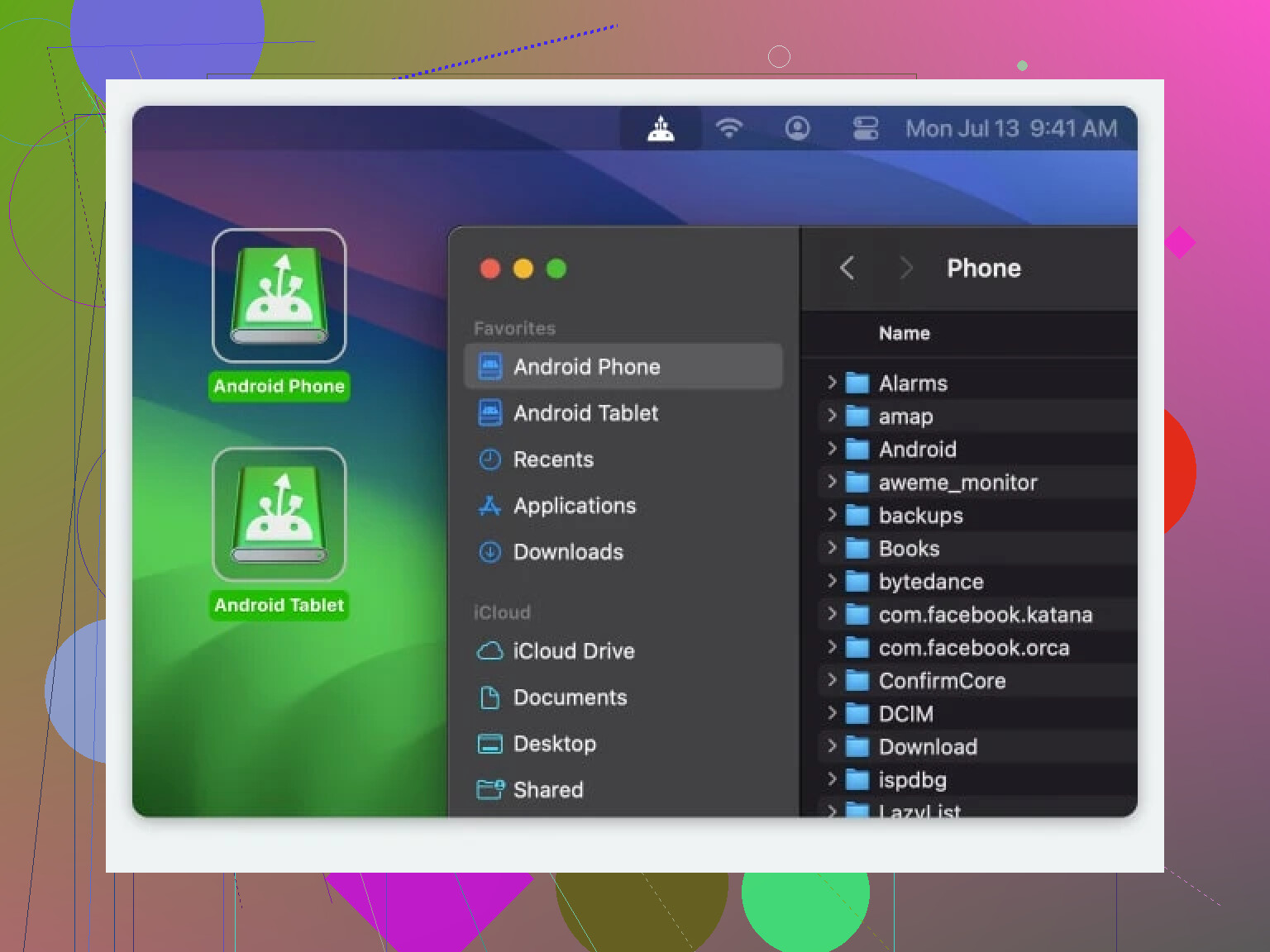
Walkthrough: MacDroid Edition
Here’s how to avoid headaches (and windows full of spinning beach balls):
- Download MacDroid to your Mac. If you’re paranoid, check out the reviews first.
- Plug your GoPro into your Mac with the cable that came in the box (assuming you didn’t lose it).
- Fire up MacDroid and pick MTP mode for transferring those files.
- Your GoPro pops up inside the MacDroid app—just browse to your sweet videos and drag ’em wherever you want.
- Hit eject before yanking the cable, or the Mac will send you that angry message nobody reads.
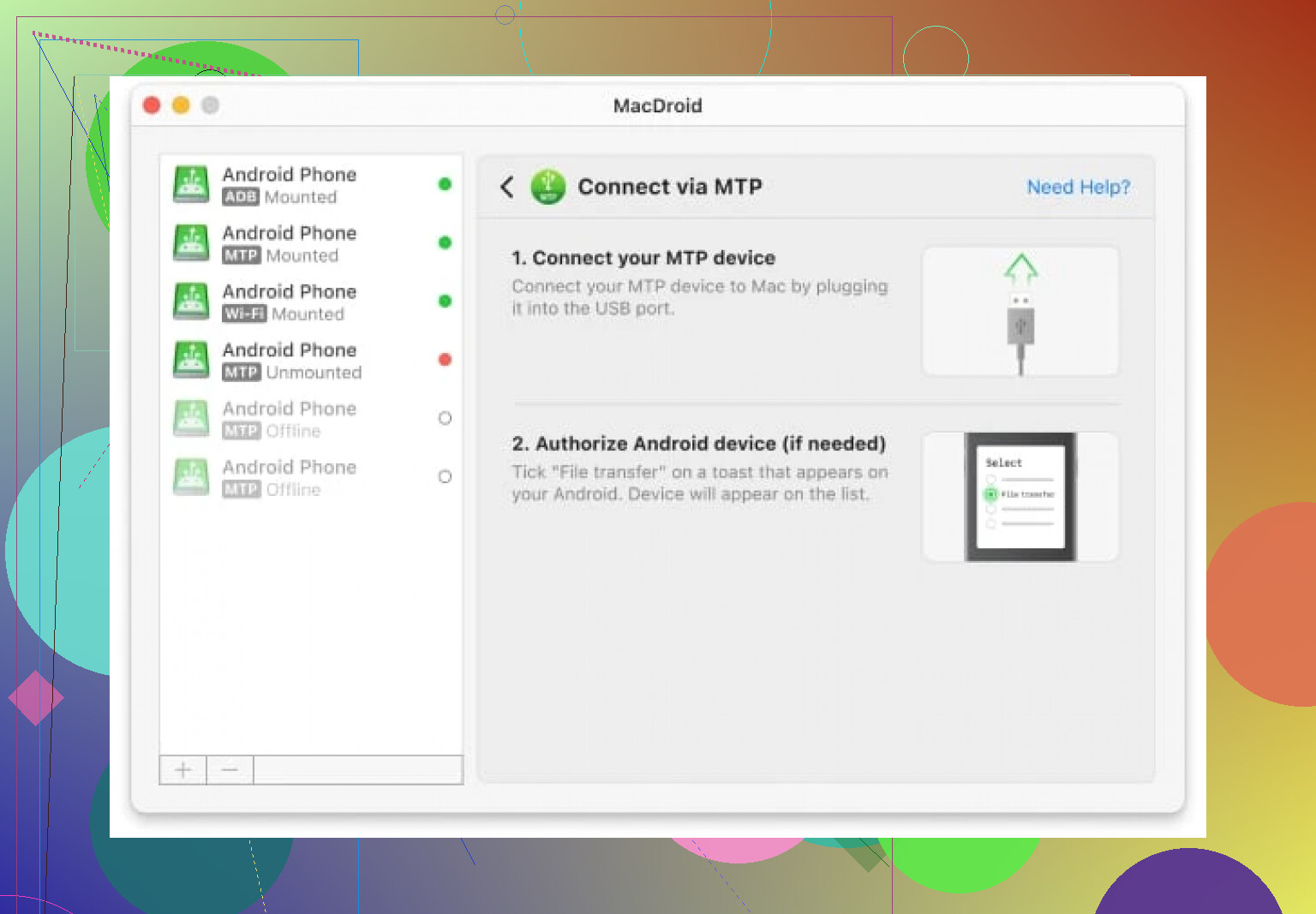
One Last Thing: Charging While You Copy?
Yup, transferring with MacDroid (using MTP mode) juices up your GoPro while you’re offloading gigabytes of ski fails. Multi-tasking for the win.
Whether you’re a “just give me the files” person or you prefer slick, app-powered solutions, at least you won’t be stuck watching the Finder wheel spin while your camera’s battery dies. Pick your poison—either way, you’ll actually get your footage off the GoPro and onto your Mac (and maybe, just maybe, edit it by next year).