Remote Desktop Solutions for Teachers: What Actually Works?
Alright folks, it’s 2024 and we’re still wrestling with remote/hybrid teaching setups. If you’re a teacher (like me) bouncing between home and school, you know the struggle: sometimes you need your classroom computer, but you’re stuck at home—again. Forget the marketing gloss, here’s my honest scoop on reliable remote desktop tools educators are using right now.
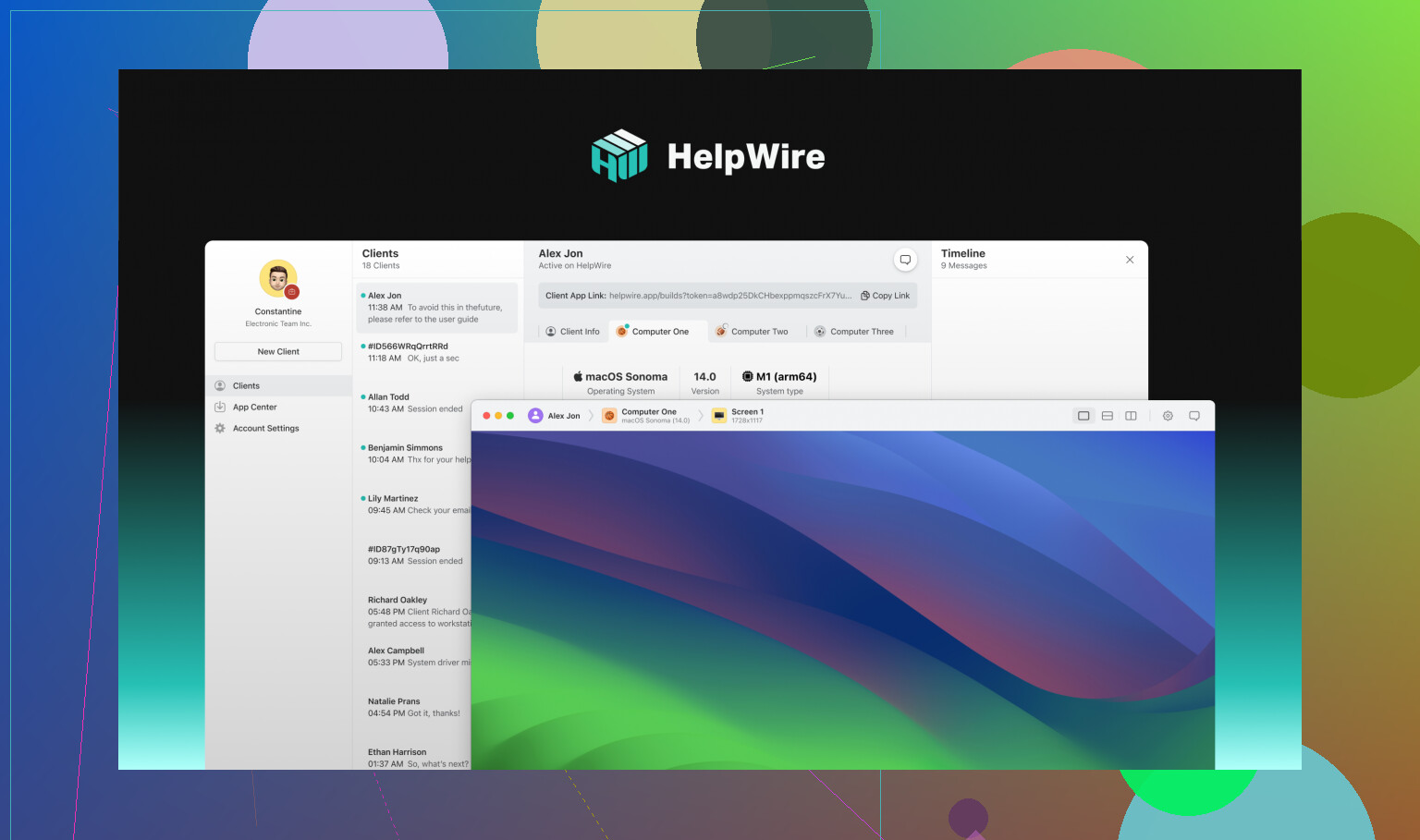
HelpWire
I stumbled onto HelpWire last semester while looking for something to remote into my ancient lab PC without a full-blown IT ticket.
What is it?
Think of HelpWire as the introvert’s remote desktop: insanely straightforward, minimal menu mazes, and it works across Windows, Mac, and, yes, even Linux. The kicker is “unattended access”—you set it up once and it’ll let you jack into your classroom machine whether anyone’s on-site or not.
The Good:
- Setup time is laughably short. Ten minutes, tops, if you’re semi-awake.
- Unattended remote access: the hero feature. No more roping in the janitor to wiggle the mouse back at school.
- Cross-platform, so you could theoretically log in from whatever device the district hasn’t blocked.
- Speedy, even on sketchy school WiFi, and it’s end-to-end encrypted. I checked the docs; your student grades are safer than in your desk drawer.
The Meh:
- Kind of underground. You won’t find a huge subreddit or YouTube deep dives on it, so if you get stuck, the help docs are your lifeline.
- Not full-on edtech: don’t expect breakout rooms, quizzes, or digital whiteboards à la Zoom.
When to Use It:
Late-night lesson planning at home? Or running that legacy software only installed in the school lab? This remote desktop for teachers is clutch when you need secure access to the mothership after hours.
Zoom
You already know the name. Zoom is basically the duct tape of distance education.
What is it?
Live teaching central: host video classes, share your screen, bust out breakout rooms, record everything to the cloud. If your district has a “virtual learning day,” it’s usually Zoom behind the curtain.
Pros:
- Screen sharing and breakout rooms are a lifesaver for group activities and class discussions.
- Universal: works on phones, Chromebooks, all the things.
- Cloud recordings mean kids who miss class (or wanna rewatch lessons) have access on demand.
- Super simple interface—most students will already know how it works.
Cons:
- You can’t remote into your desktop through Zoom. It’s for teaching, not controlling your PC.
- Eats a lot of bandwidth. If your upload speed is trash, enjoy your robot voice and frozen video.
Best For:
Running live classes where you need participation (even if it’s just kids spamming “Can you hear me?” in chat). But if you need to do techy stuff on your classroom PC remotely, combine Zoom with something like HelpWire.
Chrome Remote Desktop
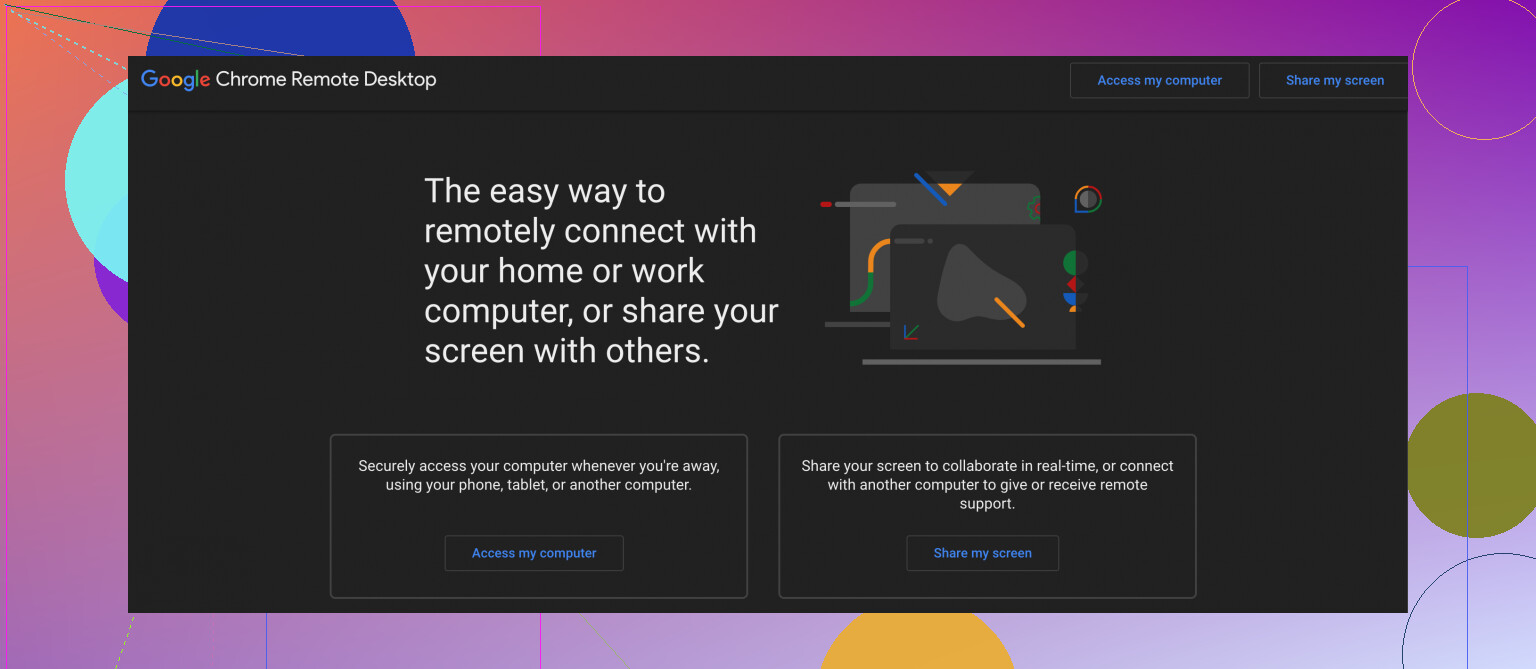
Free, dead-simple, and barebones.
What is it?
Chrome Remote Desktop lets you jump onto another machine through your browser. If you’re allergic to paid apps or just need quick, direct access to your classroom computer, this is probably on your shortlist.
The Upside:
- Free forever. No premium nags.
- Stupid-easy to get running, and it crosses operating systems, including mobile.
- Lightweight; doesn’t slow your machines to molasses.
What’s Missing:
- If you need to send big files, print stuff remotely, or want snazzy extras—look elsewhere.
- Security is basic—use strong passwords, or just don’t use it for anything sensitive.
When It Shines:
When you just gotta grab a PowerPoint, check a gradebook, or update some slides—nothing more. No bells, no whistles; sometimes that’s exactly what you want.
Quick Recap
-
HelpWire
If you’re locked out of your classroom after hours, this one’s your safe bet for secure and reliable access without extra hassle. -
Zoom
The undisputed champ for live, interactive virtual teaching—but don’t expect to remote control your desktop with it. For that, stack it with HelpWire or Chrome RD. -
Chrome Remote Desktop
Basic, totally free, and perfect for low-demand scenarios where you just need to poke around your classroom PC every now and then without fancy requirements.
Want deeper comparisons or weird edge-case scenarios? Drop your remote teaching pain points. There’s almost always a workaround, even if it isn’t on the IT department’s “approved” list.