Alright, let’s do this step-by-step thingy for streaming your iPad to your Roku because, yeah, tech can be annoying sometimes.
-
Both devices need to be on the same Wi-Fi network: This is crucial. Make sure your iPad and Roku are connected to the exact same Wi-Fi.
-
Update your Roku: Go to Settings > System > System Update on your Roku. Make sure you’re running the latest version.
-
Enable screen mirroring on Roku:
- Go to Settings.
- Select System.
- Click on Screen Mirroring.
- Choose either ‘Prompt’ or ‘Always Allow.’
-
On your iPad:
- Swipe down from the top-right corner to open the Control Center.
- Tap on ‘Screen Mirroring.’
- Select your Roku device from the list.
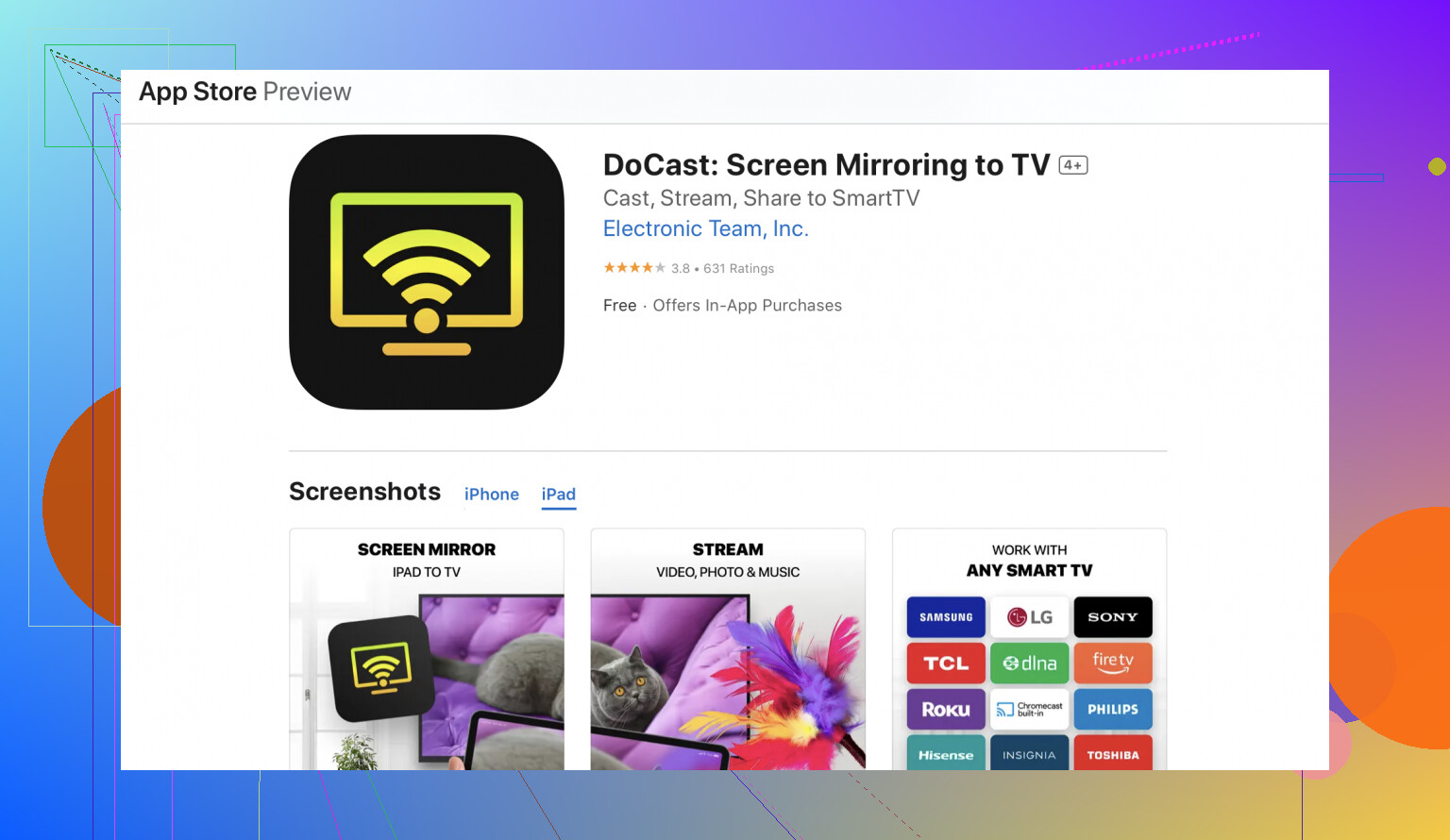
Now, if you’ve done all this and it’s still chucking a hissy fit, here’s a game-changer: the DoCast app. It’s super user-friendly for streaming iPad to Roku. Hit up the App Store, download the app, and follow the on-screen instructions. Problem solved.
Remember, sometimes it just takes a bit of fiddling around with settings and permissions. Don’t throw your iPad out the window just yet. Give these steps a whirl!